Working with Commands
You can execute commands by typing them into the command line and pressing Return or Enter.
You can also use a notebook for entering commands. See Notebooks as Worksheets.
You can type commands from scratch but often you will let Igor dialogs formulate and execute commands. You can view a historical record of what you have done in the history area of the command window and you can easily re-enter, edit, and re-execute commands stored there. See Command Window for details.
Multiple Commands
You can place multiple commands on one line if you separate them with semicolons. For example:
wave1= x; wave1= wave2/(wave1+1); Display wave1
You don't need a semicolon after the last command but it doesn't hurt.
Comments
Comments start with //, which end the executable part of a command line. The comment continues to the end of the line.
Maximum Length of a Command
The total length of the command line cannot exceed 2500 bytes.
There is no line continuation character in the command line. However, it is nearly always possible to break a single command up into multiple lines using intermediate variables. For example:
Variable a = sin(x-x0)/b + cos(y-y0)/c
can be rewritten as:
Variable t1 = sin(x-x0)/b
Variable t2 = cos(y-y0)/c
Variable a = t1 + t2
Parameters
Every place in a command where Igor expects a numeric parameter you can use a numeric expression. Similarly any place where Igor expects a string parameter you can use a string expression. In an operation flag (e.g., /N=<number>), you need to parenthesize expressions. See Expressions as Parameters for details.
Liberal Object Names and Programming
In general, object names in Igor are limited to a restricted set of characters. Only letters, digits and the underscore character are allowed. Such names are called "standard names". This restriction is necessary so that Igor can tell where the name ends when you use it in a command.
For waves and data folders only, you can also use "liberal" names. Liberal names can include almost any character, including spaces and dots (see Liberal Object Names for details). However, so that Igor can tell where a liberal name ends, you must quote them using single quotes.
In the following example, the wave names are liberal because they include spaces and therefore they must be quoted:
'wave 1' = 'wave 2'     // Right
wave 1 = wave 2         // Wrong - liberal names must be quoted
(This syntax applies to the command line and macros only, not to user-defined functions in which you must use Wave References to read and write waves.)
Providing for liberal names requires extra effort and testing by Igor programmers (see Programming with Liberal Names) so you may occasionally experience problems using liberal names with user-defined procedures.
Commands and Data Folders
Data folders provide a way to keep separate sets of data from interfering with each other. You can examine and create data folders using the Data Browser (Data menu). There is always a root data folder and this is the only data folder that many users will ever need. Advanced users may want to create additional data folders to organize their data.
You can refer to waves and variables either in the current data folder, in a specific data folder or in a data folder whose location is relative to the current data folder:
// wave1 is in the current data folder
wave1 = <expression>

// wave1 is in a specific data folder
root:'Background Curves':wave1 = <expression>

// wave1 is in a data folder inside the current data folder
:'Background Curves':wave1 = <expression>
(This syntax applies to the command line and macros only, not to user-defined functions in which you must use Wave References to read and write waves.)
In the first example, we use an object name by itself (wave1) and Igor looks for the object in the current data folder.
In the second example, we use a full data folder path (root:'Background Curves':) plus an object name. Igor looks for the object in the specified data folder.
In the third example, we use a relative data folder path (:'Background Curves':) plus an object name. Igor looks in the current data folder for a subdata folder named Background Curves and looks for the object within that data folder.
The right-hand side of an assignment statement (described under Assignment Statements) is evaluated in the context of the data folder containing the destination object. For example:
root:'Background Curves':wave1 = wave2 + var1
For this to work, wave2 and var1 must be in the Background Curves data folder.
Examples in the rest of this help file use object names alone and thus reference data in the current data folder. For more on data folders, see Data Folders.
Command Tooltips
In procedure windows and in the command window, if you hover the mouse cursor over a command, such as an operation or function, Igor displays a tooltip that contains information about the command. If you hover over the name of a built-in structure, such as WMButtonAction, Igor displays the structure definition. You can turn off this feature by choosing Misc→Miscellaneous Settings, selecting the Text Editing section, selecting the Editor Behavior tab, and unchecking the Show Context-sensitive Tooltips checkbox.
Command Completion
Procedure windows and the command line support automatic command completion.
When you type the first few letters of a command, a popup appears and allows you to quickly select a command. Use the arrow keys to move up and down the list of completion options. Press the Enter key or Tab key to insert the highlighted text in the document.
If you hover the mouse cursor over a completion option or use the arrow keys to change the highlighted option, a tooltip is displayed that shows the template of the selected option.
You can adjust Command completion settings in Completion tab of the Text Editing category of the Miscellaneous Settings dialog. You can separately enable or disable completion in procedure windows and the command line. You can control the delay between the last keypress and the display of the completion options popup and whether an opening parenthesis should be appended when you insert an item that requires parentheses.
Completion is currently not supported for objects such as waves and variables. Support for these types may be added in a future version of Igor.
Types of Commands
There are three fundamentally different types of commands that you can execute from the command line:
- assignment statements
- operation commands
- user-defined procedure commands
Here are examples of each:
wave1 = sin(2*pi*freq*x)        // assignment statement
Display wave1,wave2 vs xwave    // operation command
MyFunction(1.2,"hello")         // user-defined procedure command
As Igor executes commands you have entered, it must determine which of the three basic types of commands you have typed. If a command starts with a wave or variable name then Igor assumes it is an assignment statement. If a command starts with the name of a built-in or external operation then the command is treated as an operation. If a command begins with the name of a user-defined macro, user-defined function or external function then the command is treated accordingly.
Note that built-in functions can only appear in the right-hand side of an assignment statement, or as a parameter to an operation or function. Thus, the command:
sin(x)
is not allowed and Igor will tell you, "Expected wave name, variable name, or operation." On the other hand, these commands are allowed:
Print sin(1.567)			// sin is parameter of print operation
wave1 = 5*sin(x)			// sin in right side of assigment
If, perhaps due to a misspelling, Igor cannot determine what you want to do, it will display an error dialog and the error will be highlighted in the command line.
Assignment Statements
Assignment statement commands start with a wave or variable name. The command assigns a value to all or part of the named object. An assignment statement consists of three parts: a destination, an assignment operator, and an expression. For example:
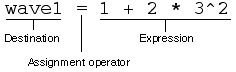
This assigns 19 to every point in wave1.
The spaces in the above example are not required. You could write:
wave1=1+2*3^2
See Waveform Arithmetic and Assignment for details on wave assignment statements.
In the following examples, str1 is a string variable, created by the String operation, var1 is a numeric variable, created by the Variable operation, and wave1 is a wave, created by the Make operation.
str1 = "Today is " + date()             // string assignment
str1 += ", and the time is " + time()   // string concatenation
var1 = strlen(str1)                     // variable assignment
var1 = pnt2x(wave1,numpnts(wave1)/2)    // variable assignment
wave1 = 1.2*exp(-0.2*(x-var1)^2)        // wave assignment
wave1[3] = 5                            // wave assignment
wave1[0,;3] = wave2[P/3] *exp(-0.2*x)   // wave assignment
These all operate on objects in the current data folder. To operate on an object in another data folder, you need to use a data folder path:
root:'run 1':wave1[3] = 5 // wave assignment
(This syntax applies to the command line and macros only, not to user-defined functions in which you must use Wave References to read and write waves.)
See Data Folders for further details.
If you use liberal wave names (see Object Names), you must use quotes:
'wave 1' = 'wave 2'     // Right
wave 1 = wave 2         // Wrong
(This syntax applies to the command line and macros only, not to user-defined functions in which you must use Wave References to read and write waves.)
Assignment Operators
The assignment operator determines the way in which the expression is combined with the destination. Igor supports the following assignment operators:
| Operator | Assignment Action |
|---|---|
| ** = ** | Destination contents are set to value of expression |
| **+ = ** | Expression is added to destination |
| **- = ** | Expression is subtracted from destination |
| *** = ** | Destination is multiplied by expression |
| **/ = ** | Destination is divided by expression |
| **: = ** | Destination is dynamically updated to value of expression whenever the value of any part of the expression changes. := is said to establish a "dependency" of the destination on the expression. |
For example:
wave1 = 10
sets each Y value of the wave1 equal to 10, whereas:
wave1 += 10
adds 10 to each Y value of wave1. This is equivalent to:
wave1 = wave1 + 10
The assignment operators =, := and += work with string assignment statements but -=, *= and /= do not. For example:
String str1; str1 = "Today is "; str1 += date(); Print str1
prints something like "Today is Fri, Mar 31, 2000".
For more information on the := operator, see Dependencies.
Operators
Here is a complete list of the operators that Igor supports in the expression part of an assignment statement in order of precedence:
| Operator | Effect |
|---|---|
| ++, -- | Prefix and postfix increment and decrement. Require Igor Pro 7 or later. Available only for local variables in user-defined functions. |
| ^, <<, >> | Exponentiation, bitwise left shift, bitwise right shift. Shifts require Igor Pro 7 or later. |
| -, !, ~ | Negation, logical complement, bitwise complement. |
| *, / | Multiplication, division. |
| +, - | Addition or string concatenation, subtraction. |
| ** = =**, !=, >, < , >=, <=, &, **\ | **, %^ |
| &&, **\ | \ |
| $ | Substitute following string expression as name. |
Comparison operators do not work with NaN parameters because, by definition, NaN compared to anything, even another NaN, is false. Use numtype to test if a value is NaN.
NaN, Inf, and -Inf operands are treated as 0 by the bitwise AND (&), OR (|), and XOR (%^) operators.
Comparison operators, bitwise AND, bitwise OR, bitwise XOR associate right to left. Therefore a==b>=c means (a==(b>=c)). For example, 2==1>= 0 evaluates to 0, not 1.
All other binary operators associate left to right.
Aside from the precedence of common operators that everyone intuitively knows, it is useful to include parentheses to avoid confusion. You may know the precedence and associativity but someone reading your code may not.
Unary negation changes the sign of its operand. Logical complementation changes nonzero operands to zero and zero operands to 1. Bitwise complementation returns the binary complement of the operand.
Prior to Igor 10.01, bitwise complementation converted its operand to an unsigned integer by truncation and then changed it to its binary complement. Since Igor 10.01, operands are converted to signed integers without truncation.
Exponentiation raises its left-hand operand to a power specified by its right-hand operand. That is, 32 is written as 3^2. In an expression a^b, if the result is assigned to a real variable or wave, then a must not be negative if b is not an integer. If the result is used in a complex expression, any combination of negative a, fractional b or complex a or b is allowed.
If the exponent is an integer, Igor evaluates the expression using only multiplication. There is no need to write a^2 as a*a to get efficient evaluation -- Igor does the equivalent automatically. If, on the other hand, the exponent is not an integer then the evaluation is performed using logarithms, hence the restriction on negative a in a real expression.
Logical OR (||) and logical AND (&&) determine the truth or falseness of pairs of expressions. The AND operation returns true only when both expressions are true; OR will return true if either is true. As in C, true is any nonzero value, and false is zero. The operations are undefined for NaNs. These operators are not available in complex expressions.
The logical operators are evaluated from left to right, and an operand will not be evaluated if it is not necessary. For the example:
if(MyFunc1() && MyFunc2())
when MyFunc1() returns false (zero), then MyFunc2() will not be evaluated because the entire expression is already false. This can produce unexpected consequences when the right-hand expression has side effects, such as creating waves or setting global values.
Prior to Igor 10.01, bitwise AND (&), OR (|), and XOR (%^) converted their operands to an unsigned integer by truncation and then returned their binary AND, OR or exclusive OR. Since Igor 10.01, operands are converted to signed integers without truncation.
Bitwise shifts, << and >>, return the lefthand operand shifted by the specified number of bits. They require Igor Pro 7 or later. The lefthand operand is truncated to an integer before shifting.
The conditional operator (? : ) is a shorthand form of an if-else-endif expression. In the statement:
<expression> ? <TRUE> : <FALSE>
the first operand, <expression>, is the test condition; if it is nonzero then Igor evaluates the <TRUE> operand; otherwise <FALSE> is evaluated. Only one operand is evaluated according to the test condition. This is the same as if you had written:
if( <expression> )
	<TRUE>
else
	<FALSE>
endif
The ":" character in the conditional operator must always be separated from the two adjacent operands with a space. If you omit either space, you will get an error ("No such data folder") because the expression can also be interpreted as part of a data folder path. To be safe, always separate the operands from the operator symbols with a space.
The operands must be numeric; for strings, use the SelectString function. When using complex expressions with the conditional operator, only the real portion is used when the operator evaluates the expression.
The conditional operator can easily cause confusion, so you should exercise caution when using it. For example, it is unclear from simple inspection what Igor may return for
1 ? 2 : 3 ? 4 : 5
(4 in this case), whereas
1 ? 2 : (3 ? 4 : 5)
will return 2. Always use parentheses to remove any ambiguity.
The comparison operators return 1 if the result of the comparison is true or 0 if it is false. For example, the == operator returns 1 if its operands are equal or 0 if they are not equal. The != operator returns the opposite. Because comparison operators return the values 1 or 0 they can be used in interesting ways. The assignment:
wave1 = sin(x)*(x<=50) + cos(x)*(x>50)
sets wave1 so that it is a sine wave below x=50 and a cosine wave above x=50. See also Example: Comparison Operators and Wave Synthesis.
Note that the double equal sign, ==, is used to mean equality while the single equal sign, =, is used to indicate assignment.
Because of roundoff error, using == to test two numbers for equality may give incorrect results. It is safer to use <= and >= to see if a number falls in a narrow range. For example, imagine that you want to compare a variable to see if it is equal to one-third. The expression:
(v1 == 1/3)
is subject to failure because of roundoff. It is safer to use something like
((v1 > .33332) && (v1 < .33334))
If the numbers are integers then the use of == is safe because integers smaller than 253 (approximately 1016) are represented precisely in double-precision floating point numbers.
The previous discussion on operators has assumed numeric operands. The + operator is the only one that works with both numeric and string operands. For example, if str1 is a string variable then the assignment statement
str1 = "Today is " + "a nice day"
assigns the value "Today is a nice day" to str1. The other string operator, $ is discussed in String Substitution Using $.
Unless specified otherwise by parentheses, unary negation or complementation are carried out first followed by exponentiation then by multiplication or division followed by addition or subtraction then by comparison operators. The wave assignment:
wave1 = ((1 + 2) * 3) ^ 2
assigns the value 81 to every point in wave1, but
wave1 = 1 + 2 * 3 ^ 2
assigns the value 19.
-a^b is an exception to this rule and is evaluated as -(a^b).
The precedence of string substitution, substrings, and wave indexing is somewhat complex. When in doubt, use parentheses to enforce the precedence you want.
Obsolete Operators
As of Igor Pro 4.0, the old bitwise complement (%~), bitwise AND (%&), and bitwise OR (%|) operators have been replaced by new versions that omit the % character from the operator. These old bitwise operators can still be used interchangeably with the new versions but are not recommended for new code.
Operands
In addition to literal numbers like 3.141 or 27, operators can operate on variables and function values. In the assignment statement:
var1 = log(3.7) + var2
the operator + operates on the function value returned by log and on the variable var2. Functions and function values are discussed later.
Numeric Type
In Igor, each numeric destination object (wave or variable) has its own numeric type. The numeric type consists of the numeric precision (e.g., double precision floating point) and the number type (real or complex). Waves can be single or double precision floating point or various sizes of integer but variables are always double precision floating point.
The numeric precision of the destination does not affect the calculations. With the exception of a few operations that are done in place such as the FFT, all calculations are done in double precision.
Although waves can have integer numeric types, wave expressions are always evaluated in double precision floating point. The floating point values are converted to integers by rounding as the final step before storing the value in the wave. If the value to be stored exceeds the range of values that the given integer type can represent, the results are undefined.
Starting with Igor Pro 7, Igor supports integer local variables and 64-bit integer waves. When one of these is the destination of an assignment statement, Igor performs calculations using integer arithmetic. See Expression Evaluation for details.
The number type of the destination determines the initial number type (real or complex) of the assignment expression. This is important because Igor cannot deal with "surprise" or "runtime" changes in number type. An example would be taking the square root of a negative number requiring that all following arithmetic be done using complex numbers.
Here are some examples:
Variable a, b, c, var1
Variable/C cvar1
Make wave1

var1= a*b
cvar1= c*cmplx(a+1,b-1)
wave1= var1 + real(cvar1)
The first expression is evaluated using the real number type. The second expression contains a mixture of two types. The multiplication of c with the result of the cmplx function is evaluated as complex while the arguments to the cmplx function are evaluated as real. The third example is evaluated as real except for the argument to the real function which is evaluated as complex.
Constant Type
You can define named numeric and string constants in Igor procedure files and use them in the body of user-defined functions.
Constants are defined in procedure files using following syntax:
Constant <name1> = <literal number> [, <name2> = <literal number>]
StrConstant <name1> = <literal string> [, <name2> = <literal string>]
You can use the static prefix to limit the scope to the given source file. For debugging, you can use the Override keyword as with functions.
These declarations can be used in the following ways:
Constant kFoo=1,kBar=2
StrConstant ksFoo="hello",ksBar="there"

static Constant kFoo=1,kBar=2
static StrConstant ksFoo="hello",ksBar="there"

Override Constant kFoo=1,kBar=2
Override StrConstant ksFoo="hello",ksBar="there"
Programmers may find that using the "k" and "ks" prefixes will make their code easier to read.
Names for numeric and string constants can conflict with all other names. Duplicate constants of a given type are not allowed except for static constants in different files and when used with Override. The only true conflict is with variable names and with certain built-in functions that do not take parameters such as pi. Variable names override constants, but constants override functions such as pi.
Dependency Assignment Statements
You can set up global variables and waves so that they automatically recalculate their contents when other global objects change. See the Dependencies for details.
Operation Commands
An operation is a built-in or external routine that performs an action but, unlike a function, does not directly return a value. Here are some examples:
Make/N=512 wave1
Display wave1
Smooth 5, wave1
Operation commands perform the majority of the work in Igor and are automatically generated and executed as you work with Igor using dialogs.
You can use these dialogs to experiment with operations of interest to you. As you click in a dialog, Igor composes a command. This provides a handy way for you to check the syntax of the operation or to generate a command for use in a user-defined procedure. See Igor Pro Reference for a complete list of all built-in operations. Another way to learn their syntax is to use the Igor Help Browser's Command Help tab.
The syntax of operation commands is highly variable but in general consists of the operation name, followed by a list of flags (e.g., /N=512), followed by a parameter list. The operation name specifies the main action of the operation and determines the syntax of the rest of the command. The list of flags specifies variations on the default behavior of the operation. If the default behavior of the operation is satisfactory then no flags are required. The parameter list identifies the objects on which the operation is to operate. Some commands take no parameters. For example, in the command:
Make/D/N=512 wave1, wave2, wave3
the operation name is "Make". The list of flags is "/D/N=512". The parameter list is "wave1, wave2, wave3".
You can use numeric expressions in the parameter list of an operation where Igor expects a numeric parameter, but in an operation flag you need to parenthesize the expression. For example:
Variable val=1.0
Make/N=(val) wave0, wave1
Make/N=(numpnts(wave0)) wave2
The most common types of parameters are literal numbers or numeric expressions, literal strings or string expressions, names, and waves. In the example above, wave1 is a name parameter when passed to the Make operation. It is a wave parameter when passed to the Display and Smooth operations. A name parameter can refer to a wave that may or may not already exist whereas a wave parameter must refer to an existing wave.
See Parameter Lists for general information that applies to all commands.
User-defined Procedure Commands
User-defined procedure commands start with a procedure name and take a list of parameters in parentheses. For example:
MyFunction1(5.6, wave0, "igneous")
Macro and Function Parameters
You can invoke macros, but not functions, with one or more of the input parameters missing. When you do this, Igor displays a dialog to allow you to enter the missing parameters.
You can add similar capabilities to user-defined functions using the Prompt and DoPrompt keywords.
Macros provided very limited programming features so, with rare exceptions, you should program using functions.
Function Commands
A function is a routine that directly returns a numeric or string value. There are three classes of functions available to Igor users:
-
Built-in
-
External (XFUNCs)
-
User-defined
Built-in numeric functions enjoy one advantage over external or user-defined functions: A few come in real and complex numeric types and Igor automatically picks the appropriate version depending on the current numeric type in an expression. External and user-defined functions must have different names when different types are needed. Generally, real user and external functions need be provided.
For example, in the wave assignment:
wave1 = enoise(1)
if wave1 is real then the function enoise returns a real value. If wave1 is complex then enoise returns a complex value.
You can use a function as a parameter to another function, to an operation, to a macro or in an arithmetic or string expression so long as the data type returned by the function makes sense in the context in which you use it.
User-defined and external functions can also be used as commands by themselves. Use this to write a user function that has some purpose other than calculating a numeric value, such as displaying a graph or making new waves. Built-in functions cannot be used this way. For instance:
MyDisplayFunction(wave0)
External and user-defined functions can be used just like built-in functions. In addition, numeric functions can be used in curve fitting. See User-Defined Functions and Fitting to a User-Defined Function.
Most functions consist of a function name followed by a left parenthesis followed by a parameter list and followed by a right parenthesis. In the wave assignment shown at the beginning of this section, the function name is enoise. The parameter is 1. The parameter is enclosed by parentheses. In this example, the result from the function is assigned to a wave. It can also be assigned to a variable or printed:
K0 = enoise(1)
Print enoise(1)
User and external functions, but not built-in functions, can be executed on the command line or in other functions or macros without having to assign or print the result. This is useful when the point of the function is not its explicit result but rather its side effects.
Nearly all functions require parentheses even if the parameter list is empty. For example the function date() has no parameters but requires parentheses anyway. There are a few exceptions. For example the function Pi returns π and is used with no parentheses or parameters.
Igor's built-in functions are described in detail in Igor Pro Reference.
Parameter Lists
Parameter lists are used for operations, functions and macros and consist of one or more numbers, strings, keywords or names of Igor objects. The parameters in a parameter list must be separated with commas.
Expressions as Parameters
In an operation, function, or macro parameter list which has a numeric parameter you can always use a numeric expression instead of a literal number. A numeric expression is a legal combination of literal numbers, numeric variables, numeric functions, and numeric operators. For example, consider the command
SetScale x, 0, 6.283185, "v", wave1
which sets the X scaling for wave1. You could also write this as
SetScale x, 0, 2*PI, "v", wave1
Literal numbers include hexadecimal literals introduced by "0x". For example:
Printf "The largest unsigned 16-bit number is %d\r", 0xFFFF
Parentheses Required for /N=(<expression>)
Many operations accept flags of the form "/A=n" where A is some letter and n is some number. You can use a numeric expression for n but you must parenthesize the expression.
For example, both:
Make/N=512 wave1
Make/N=(2^9) wave1
are legal but
Make/N=2^9 wave1
is not.
A variable name is a form of numeric expression. Thus, assuming v1 is the name of a variable:
Make/N=(v1)
is legal, but
Make/N=v1
is not. This parenthesization is required only when you use a numeric expression in an operation flag.
String Expressions
A string expression can be used where Igor expects a string parameter. A string expression is a legal combination of literal strings, string variables, string functions, UTF-16 literals and the string operator + that concatenates strings.
A UTF-16 literal represents a Unicode code value and consists of "U+" followed by four hexadecimal digits. For example:
Print "This is a bullet character: " + U+2022
Setting Bit Parameters
A number of commands require that you specify a bit value to set certain parameters. In these instances you set a certain bit number by using a specific bit value in the command. The bit value is 2^n, where n is the bit number. So, to set Bit 0 use a bit value of 1, to set bit 1 use a bit value of 2, etc.
For the example of the TraceNameList function the last parameter is a bit setting. To select normal traces you must set bit 0:
TraceNameList("",";",1)
and to select contour traces set bit 1:
TraceNameList("",";",2)
Most importantly, you can set multiple bits at one time by adding the bit values together. Thus, for TraceNameList you can select both normal (bit 0) and contour (bit 1) traces by using:
TraceNameList("",";",3)
See also Using Bitwise Operators.
RGBA Values
This section explains RGBA values used to specify colors in commands other than Gizmo commands. For Gizmo commands, see Gizmo Color Specification.
In commands, colors are specified as RGBA values in the form (r,g,b[,a]).
r, g, and b specify the amount of red, green and blue in the color as integers from 0 to 65535.
The optional parameter a specifies "alpha" which represents the opacity of the color as an integer from 0 (fully transparent) to 65535 (fully opaque). a defaults to 65535 (fully opaque).
(0,0,0) represents opaque black and (65535,65535,65535) represents opaque white.
For example:
ModifyGraph rgb(wave0)=(0,0,0)				// Opaque black
ModifyGraph rgb(wave0)=(65535,65535,65535)	// Opaque white
ModifyGraph rgb(wave0)=(65535,0,0,30000)	// Translucent red
Working With Strings
Igor has a rich repertoire of string handling capabilities. You can also define your own string functions. Many of the techniques described below will be of interest only to programmers.
Many Igor operations require string parameters. For example, to label a graph axis, you can use the Label operation:
Label left, "Volts"
Other Igor operations require names as parameters. For example, to make a wave you can use the Make operation:
Make wave1
Using the string substitution technique (see String Substitution Using $) you can generate a name parameter by making a string containing the name and using the $ operator:
String stringContainingName = "wave1"
Make $stringContainingName
String Expressions
Wherever Igor requires a string parameter, you can use a string expression. A string expression can be:
-
A literal string ("Today is")
-
The output of a string function (date())
-
An element of a text wave (textWave0[3])
-
A UTF-16 literal (U+2022)
-
Some combination of string expressions ("Today is" + date()).
In addition, you can derive a string expression by indexing into another string expression. For example,
Print ("Today is" + date())[0,4]
prints "Today".
A string variable can store the result of a string expression. For example:
String str1 = "Today is" + date()
A string variable can also be part of a string expression, as in
Print "Hello. " + str1
Strings in Text Waves
A text wave contains an array of text strings. Each element of the wave can be treated using all of the available string manipulation techniques. In addition, text waves are commonly used to create category axes in bar charts. See Text Waves for further information.
String Properties
Strings in Igor can contain up to roughly two billion bytes.
Igor strings are usually used to store text data but you can also use them to store binary data.
When you treat a string as text data, for example if you print it to the history area of the command window or display its contents in an annotation or control, internal Igor routines treat a null byte as meaning "end-of-string". Consequently, if you treat a binary string as if it were text, you may get unexpected results.
When you treat a string as text, Igor assumes that the text is encoded using the UTF-8 text encoding. For further discussion, see String Variable Text Encodings.
Unicode Literal Characters
A Unicode literal represents a character using it's UTF-16 code value. It consists of "U+" followed by four hexadecimal digits. For example:http://www.unicode.org/charts/
Print "This is a bullet character: " + U+2022
The list of Unicode character codes is maintained at http://www.unicode.org/charts.
Escape Sequences in Strings
Igor treats the backslash character in a special way when reading literal (quoted) strings in a command line. The backslash is used to introduce an "escape sequence". This just means that the backslash plus the next character or next few characters are treated like a different character -- one you could not otherwise include in a quoted string. The escape sequences are:
| \t | Represents a tab character | |
| \r | Represents a return character (CR) | |
| \n | Represents a linefeed character (LF) | |
| \' | Represents a ' character (single-quote) | |
| \" | Represents a " character (double-quote) | |
| \\ | Represents a \ character (backslash) | |
| \ddd | Represents an arbitrary byte code | |
| ddd is a 3 digit octal number | ||
| \xdd | Represents an arbitrary byte code | |
| dd is a 2 digit hex number | ||
| Requires Igor Pro 7.00 or later | ||
| \udddd | Represents a UTF-16 code point | |
| dddd is a 4 digit hex number | ||
| Requires Igor Pro 7.00 or later | ||
| \Udddddddd | Represents a UTF-32 code point | |
| dddddddd is an 8 digit hex number | ||
| Requires Igor Pro 7.00 or later | ||
For example, if you have a string variable called "fileName", you could print it in the history area using:
fileName = "Test"
Printf "The file name is \"%s\"\r", fileName
which prints
The file name is "Test"
In the Printf command line, " tells Igor that you want to embed a double-quote character in the format string. If you omitted the backslash, Igor would take the " as the end of the format string. The \r tells Igor that you want a carriage return in the format string.
Unicode Escape Sequences in Strings
Igor represents text internally in UTF-8 format. UTF-8 is a byte-oriented encoding format for Unicode. In this section we see how to use the \u, \U and \x escape sequences to represent Unicode characters in literal strings.
The use of UTF-8 and these escape sequences requires Igor Pro 7.00 or later. If you use them, your will get incorrect data or errors in Igor Pro 6.x.
In the first set of examples, we use the hexadecimal code 0041. This is hexadecimal for the Unicode code point representing CAPITAL LETTER A.
String str
str = "\x41"      // Specify code point using UTF-8 escape sequence
Print str
str = "\u0041"    // Specify code point using UTF-16 escape sequence
Print str
str = "\U0000041" // Specify code point using UTF-32 escape sequence
Print str
When you use \xdd, Igor replaces the escape sequence with the byte specified by dd. Therefore you must specify byte values representing a valid UTF-8 character. 41 is hexadecimal for the UTF-8 encoding for CAPITAL LETTER A.
When you use \udddd or \Udddddddd, Igor replaces the escape sequence with the UTF-8 bytes for the corresponding Unicode code point as represented in UTF-16 or UTF-32 format. If the code point that you specify is not a valid UTF-16 or UTF-32 code point, Igor replaces the escape sequence with the Unicode replacement character.
Now we specify the characters for "Toyota" in Japanese Kanji:
str = "\xE8\xB1\x8A\xE7\x94\xB0"    // UTF-8
Print str
str = "\u8C4A\u7530"                // UTF-16
Print str
str = "\U00008C4A\U00007530"        // UTF-32
Print str
In order to see the correct characters you must use a font that includes Japanese characters.
\U is mainly of use to enter rare Unicode characters that are not in the Basic Multilingual Plane. Such characters cannot be specified with single 16-bit UTF-16. Here is an example:
str = "\U00010300"         // UTF-32 for OLD ITALIC LETTER A
Print str
str = "\xF0\x90\x8C\x80"   // UTF-8 for OLD ITALIC LETTER A
Print str
OLD ITALIC LETTER A is located in the Unicode Supplementary Multilingual Plane (plane 1).
See Also:
http://en.wikipedia.org/wiki/Unicode
http://en.wikipedia.org/wiki/UTF-16
http://en.wikipedia.org/wiki/UTF-8
Embedded Nulls in Literal Strings
A null in a byte-oriented string is a byte with the value 0.
It is possible to embed an null byte in a string:
String test = "A\x00B"     // OK in Igor Pro 7 or later
Print strlen(text)         // Prints 3
Print char2num(test[0]), char2num(test[1]), char2num(test[2])  // Prints 65 0 66
Here Igor converts the escape sequence \x00 to a null byte.
You typically have no need to embed a null in an Igor string because strings are usually used to store readable text and null does not represent a readable character. The need might arise, however, if you are using the string to store binary rather than text data. For example, if you need to send a small amount of binary data to an instrument, you can do so using \x escape sequences to represent the data in a literal string.
Although Igor allows you to embed nulls in literal strings, other parts of Igor are not prepared to handle them. For example:
Print test // Prints "A", not "A<null>B"
In C null is taken to mean "end-of-string". Because of the use of C strings and C library routines in Igor, many parts of Igor treat an embedded null as end-of-string. That is why the Print statement above prints just "A".
The bottom line is: You can store binary data, including nulls, in an Igor string but many parts of Igor that expect readable text will treat a null as end-of-string. See Working With Binary String Data for further discussion.
String Indexing
Indexing extracts a part of a string. This is done using a string expression followed by one or two numbers in brackets. The numbers are byte positions. Zero is the byte position of the first byte. n-1 is the byte position of the last byte of an n byte string value. For example, assume we create a string variable called s1 and assign a value to it as follows:
String s1="hello there"
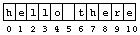
Then,
Print s1[0,4]              // prints      hello
Print s1[0,0]              // prints      h
Print s1[0]                // prints      h
Print s1[1]+s1[2]+s1[3]    // prints      ell
Print (s1+" jack")[6,15]   // prints      there jack
A string indexed with one index, such as s1[p], is a string with one byte in it if p is in range (i.e., 0 ≤ p ≤ n-1). s1[p] is a string with no bytes in it if p is not in range. For example:
Print s1[0]       // prints      h
Print s1[-1]      // prints      (nothing)
Print s1[10]      // prints      e
Print s1[11]      // prints      (nothing)
A string indexed with two indices, such as s1[p1,p2], contains all of the bytes from s1[p1] to s1[p2]. For example:
Print s1[0,10]    // prints      hello there
Print s1[-1,11]   // prints      hello there
Print s1[-2,-1]   // prints      (nothing)
Print s1[11,12]   // prints      (nothing)
Print s1[10,0]    // prints      (nothing)
You can use INF to mean "end of string":
Print s1[0,INF] // prints hello there
The indices in these examples are byte positions, not character positions. See Characters Versus Bytes for a discussion of this distinction. See Character-by-Character Operations for an example of stepping through characters using user-defined functions.
Because the syntax for string indexing is identical to the syntax for wave indexing, you have to be careful when using text waves. For example:
Make/T textWave0 = {"Red", "Green", "Blue"}

Print textWave0[1]               // prints      Green
Print textWave0[1][1]            // prints      Green
Print textWave0[1][1][1]         // prints      Green
Print textWave0[1][1][1][1]      // prints      Green
Print textWave0[1][1][1][1][1]   // prints      r
The first four examples print row 1 of column 0. Since waves may have up to four dimensions, the first four [1]s act as dimension indices. The column, layer and chunk indices were out of range and were clipped to a value of 0. Finally in the last example, we ran out of dimensions and got string indexing. Do not count on this behavior because future versions of Igor may support more than four dimensions.
The way to avoid the ambiguity between wave and string indexing is to use parentheses like so:
Print (textWave0[1])[1] // prints r
In a procedure, for readability and ease of debugging, it is best to use a local variable, like this:
String tmp = textWave0[1]
Print tmp[1]               // prints      r
String Assignment
You can assign values to string variables using string assignment. We have already seen the simplest case of this, assigning a literal string value to a string variable. You can also assign values to a subrange of a string variable, using string indexing. Assume we create a string variable called s1 and assign a value to it as follows:
String s1="hello there"
Then,
s1[0,4]="hi"; Print s1              // prints      hi there
s1[0,4]="greetings"; Print s1       // prints      greetings there
s1[0,0]="j"; Print s1               // prints      jello there
s1[0]="well "; Print s1             // prints      well hello there
s1[100000]=" jack"; Print s1        // prints      hello there jack
s1[-100]="well "; Print s1          // prints      well hello there
When the s1[p1,p2]=<string expression> syntax is used, the right hand side of the string assignment replaces the subrange of the string variable identified by the left hand side, after p1 and p2 are clipped to 0 to n, where n is the number of bytes in the destination.
When the s1[p]=<string expression> syntax is used, the right hand side of the string assignment is inserted before the byte identified by p after p is clipped to 0 to n.
The subrange assignment just described for string variables is not supported when a text wave is the destination. To assign a value to a range of a text wave element, you will need to create a temporary string variable. For example:
Make/O/T tw = {"Red", "Green", "Blue"}
String stmp= tw[1]
stmp[1,2]="XX"
tw[1]= stmp;
Print tw[0],tw[1],tw[2]    // prints      Red GXXen Blue
The indices in these examples are byte positions, not character positions. See Characters Versus Bytes for a discussion of this distinction.
String Substitution Using $
Wherever Igor expects the literal name of an operand, such as the name of a wave, you can instead provide a string expression preceded by the $ character. The $ operator evaluates the string expression and returns the value as a name.
For example, the Make operation expects the name of the wave to be created. Assume we want to create a wave named wave0:
Make wave0              // OK: wave0 is a literal name.

Make $"wave0"           // OK: $"wave0" evaluates to wave0.

String str = "wave0"
Make str                // WRONG: This makes a wave named str.
Make $str               // OK: $str evaluates to wave0.
$ is often used when you write a function which receives the name of a wave to be created as a parameter. Here is a trivial example:
Function MakeWave(wName)
	String wName         // name of the wave

	Make $wName
End
We would invoke this function as follows:
MakeWave("wave0")
We use $ because we need a wave name but we have a string containing a wave name. If we omitted the $ and wrote:
Make wName
Igor would make a wave whose name is wName, not on a wave whose name is wave0.
String substitution is capable of converting a string expression to a single name. It cannot handle multiple names. For example, the following will not work:
String list = "wave0;wave1;wave2"
Display $list
See Processing Lists of Waves for ways to accomplish this.
See Converting a String into a Reference Using $ for details on using $ in a user-defined function.
$ Precedence Issues In Commands
There is one case in which string substitution does not work as you might expect. Consider this example:
String str1 = "wave1"
wave2 = $str1 + 3
(The uses of $ in this section apply to the command line and macros only, not to user-defined functions in which you must use Wave References to read and write waves.)
You might expect that this would cause Igor to set wave2 equal to the sum of wave1 and 3. Instead, it generates an "expected string expression" error. The reason is that Igor tries to concatenate str1 and 3 before doing the substitution implied by $. The + operator is also used to concatenate two string expressions, and it has higher precedence than the $ operator. Since str1 is a string but 3 is not, Igor cannot do the concatenation.
You can fix this by changing this wave assignment to one of the following:
wave2 = 3 + $str1
wave2 = ($str1) + 3
Both of these accomplish the desired effect of setting wave2 equal to the sum of wave1 and 3. Similarly,
wave2 = $str1 + $str2 // Igor sees "$(str1 + $str2)"
generates the same "expected string expression" error. The reason is that Igor is trying to concatenate str1 and $str2. $str2 is a name, not a string. The solution is:
wave2 = ($str1) + ($str2) // sets wave2 to sum of two named waves
Another situation arises when using the $ operator and [. The [ symbol can be used for either point indexing into a wave, or byte indexing into a string. The commands
String wvName = "wave0"
$wvName[1,2] = wave1[p]    // sets two values in wave named "wave0"
are interpreted by Igor to mean that points 1 and 2 of wave0 are set values from wave1.
If you intended "$wvName[1,2] = wave1" to mean that a wave whose name comes from bytes 1 and 2 of the wvName string ("av") has all of its values set from wave1, you must use parenthesis:
$(wvName[1,2]) = wave1 // sets all values of wave named "av"
String Utility Functions
WaveMetrics provides a number of utility functions for dealing with strings. To see a list of the built-in string functions:
-
Open the Igor Help Browser Command Help tab.
-
Open the Advanced Filtering control.
-
Uncheck all checkboxes except for Functions.
-
Choose String from the Functions pop-up menu.
See Character-by-Character Operations for an example of stepping through characters using user-defined functions.
Special Cases
This section documents some techniques that were devised to handle certain specialized situations that arise with respect to Igor's command language.
Instance Notation
There is a problem that occurs when you have multiple instances of the same wave in a graph or multiple instances of the same object in a layout. For example, assume you want to graph yWave versus xWave0, xWave1, and xWave2. To do this, you need to execute:
Display yWave vs xWave0
AppendToGraph yWave vs xWave1
AppendToGraph yWave vs xWave2
The result is a graph in which yWave occurs three times. Now, if you try to remove or modify yWave using:
RemoveFromGraph yWave
or
ModifyGraph lsize(yWave)=2
Igor will always remove or modify the first instance of yWave.
Instance notation provides a way for you to specify a particular instance of a particular wave. In our example, the command
RemoveFromGraph yWave#2
will remove instance number 2 of yWave and
ModifyGraph lsize(yWave#2)=2
will modify instance number 2 of yWave. Instance numbers start from zero so "yWave" is equivalent to "yWave#0". Instance number 2 is the instance of yWave plotted versus xWave2 in our example.
Where necessary to avoid ambiguity, Igor operation dialogs (e.g., Modify Trace Appearance) automatically use instance notation. Operations that accept trace names (e.g., ModifyGraph) or layout object names (e.g., ModifyObject) accept instance notation.
A graph can also display multiple waves with the same name if the waves reside in different datafolders. Instance notation applies to the this case also.
Instance Notation and $
The $ operator can be used with instance notation. The # symbol may be either inside the string operand or may be outside. For example $"wave0#1" or $"wave0"#1. However, because the # symbol may be inside the string, the string must be parsed by Igor. Consequently, unlike other uses of $, the wave name portion must be surrounded by single quotes if liberal names are used. For example, suppose you have a wave with the liberal name of 'ww#1' plotted twice. The first instance would be $"'ww#1'" and the second $"'ww#1'#1" whereas $"ww#1" would reference the second instance of the wave ww.
Object Indexing
The ModifyGraph, ModifyTable and ModifyLayout operations, used to modify graphs, tables and page layouts, each support another method of identifying the object to modify. This method, object indexing, is used by Igor to generate style macros (see Graph Style Macros). You may also find it handy in other situations.
Normally, you need to know the name of the object that you want to modify. For example, assume that we have a graph with three traces in it and we want to set the traces' markers from a procedure. We can write:
ModifyGraph marker(wave0)=1, marker(wave1)=2, marker(wave2)=3
Because it uses the names of particular traces, this command is specific to a particular graph. What do we do if we want to write a command that will set the markers of three traces in any graph, regardless of the names of the traces? This is where object indexing comes in.
Using object indexing, we can write:
ModifyGraph marker[0]=1, marker[1]=2, marker[2]=3
This command sets the markers for the first three traces in a graph, no matter what their names are.
Indexes start from zero. For graphs, the object index refers to traces starting from the first trace placed in the graph. For tables the index refers to columns from left to right. For page layouts, the index refers to objects starting from the first object placed in the layout.
/Z Flag
The ModifyGraph marker command above works fine if you know that there are three waves in the graph. It will, however, generate an error if you use it on a graph with fewer than 3 waves. The ModifyGraph operation supports a flag that can be used to handle this:
ModifyGraph/Z marker[0]=1, marker[1]=2, marker[2]=3
The /Z flag tells Igor not to worry if the command tries to modify an object that doesn't exist. The /Z flag works with the SetAxis and Label operations as well as with the ModifyGraph, ModifyTable and ModifyLayout operations. Like object indexing, the /Z flag is primarily of use in creating style macros, which Igor does automatically, but it may come in handy for other uses.