Importing Data
Most Igor users create waves by loading data from a file created by another program. The process of loading a file creates new waves and then stores data from the file in them. Optionally, you can overwrite existing waves instead of creating new ones. The waves can be numeric or text and of dimension 1 through 4.
Igor provides a number of different routines for loading data files. There is no single file format for numeric or text data that all programs can read and write.
There are two broad classes of files used for data interchange: text files and binary files. Text files are usually used to exchange data between programs. Although they are called text files, they may contain numeric data, text data or both. In any case, the data is encoded as plain text that you can read in a text editor. Binary files usually contain data that is efficiently encoded in a way that is unique to a single program and cannot be viewed in a text editor.
The closest thing to a universally accepted format for data interchange is the "delimited text" format. This consists of rows and columns of numeric or text data with the rows separated by carriage return characters (CR - Macintosh), linefeed return characters (LF - Unix), or carriage return/linefeed (CRLF -Windows) and the columns separated by tabs or commas. The tab or comma is called the "delimiter character". The CR, LF, or CRLF characters are called the "terminator". Igor can read delimited text files written by most programs.
FORTRAN programs usually create fixed field text files in which a fixed number of bytes is used for each column of data with spaces as padding between columns. Igor's Load Fixed Field Text routine is designed to read these files.
Text files are convenient because you can create, inspect or edit them with any text editor. In Igor, you can use a notebook window for this purpose. If you have data in a text file that has an unusual format, you may need to manually edit it before Igor can load it.
Text files generated by scientific instruments or custom programs often have "header" information, usually at the start of the file. The header is not part of the block of data but contains information associated with it. Igor's text loading routines are designed to load the block of data, not the header. The Load General Text routine can usually automatically skip the header. The Load Delimited Text and Load Fixed Field Text routines needs to be told where the block of data starts if it is not at the start of the file.
An advanced user could write an Igor procedure to read and parse information in the header using the Open, FReadLine, StrSearch, sscanf, and Close operations as well as Igor's string manipulation capabilities. Igor includes an example experiment named Load File Demo which illustrates this.
If you will be working on a PC and loading data from files on a Macintosh, you should look at File System Issues.
The following table lists the data loading routines available in Igor and their salient features.
| File Type | Description |
|---|---|
| Delimited text | Created by spreadsheets, database programs, data acquisition programs, text editors, custom programs. This is the most commonly used format for exchanging data between programs. |
| Row Format: <data><delimiter><data><terminator> | |
| Contains one block of data with any number of rows and columns. A row of column labels is optional. | |
| Can load numeric, text, date, time, and date/time columns. | |
| Can load columns into 1D waves or blocks into 2D waves. | |
| Columns may be equal or unequal in length. | |
| See Loading Delimited Text Files. | |
| Fixed field text | Created by FORTRAN programs. |
| Row Format: <data><padding><data><padding><terminator> | |
| Contains one block of data with any number of rows and columns. | |
| Each column consists of a fixed number of bytes including any space characters which are used for padding. | |
| Can load numeric, text, date, time and date/time columns. | |
| Can load columns into 1D waves or blocks into 2D waves. | |
| Columns are usually equal in length but do not have to be. | |
| See Loading Fixed Field Text Files. | |
| General text | Created by spreadsheets, database programs, data acquisition programs, text editors, custom programs. |
| Row Format: <number><white space><number><terminator> | |
| Contains one or more blocks of numbers with any number of rows and columns. A row of column labels is optional. | |
| Cannot handle columns containing nonnumeric text, dates and times. | |
| Can load columns into 1D waves or blocks into 2D waves. | |
| Columns must be equal in length. | |
| Igor's Load General Text routine has the ability to automatically skip non-numeric header text. | |
| See Loading General Text Files. | |
| Igor Text | Created by Igor, custom programs. Used mostly as a means to feed data and commands from custom programs into Igor. |
| Format: See Igor Text File Format. | |
| Can load numeric and text data. | |
| Can load data into waves of dimension 1 through 4. | |
| Contains one or more wave blocks with any number of waves and rows. | |
| Consists of special Igor keywords, numbers and Igor commands. | |
| See Loading Igor Text Files. | |
| Igor Binary | Created by Igor, custom programs. Used by Igor to store wave data. |
| Each file contains data for one Igor wave of dimension 1 through 4. | |
| Format: See Igor Technical Note #003, "Igor Binary Format". | |
| See Loading Igor Binary Data. | |
| Image | Created by a wide variety of programs. |
| Format: Always binary. Varies according to file type. | |
| Can load JPEG, PNG, TIFF, BMP, Sun Raster graphics files. | |
| Can load data into matrix waves, including TIFF image stacks. | |
| See Loading Image Files. | |
| General binary | General binary files are binary files created by other programs. If you understand the binary file format, it is possible to load the data into Igor. |
| See Loading General Binary Files. | |
| Excel | Supports the .xls and .xlsx file formats. |
| See Loading Excel Files. | |
| HDF4 | Requires activating an Igor extension. |
| See HDF Loader XOP. | |
| HDF5 | See HDF5 in Igor Pro. |
| Matlab | See Loading Matlab MAT Files. |
| JCAMP-DX | The JCAMP-DX format is used primarily in infrared spectroscopy. |
| See Loading JCAMP Files. | |
| Sound | Supports a variety of sound file formats. |
| See Loading Sound Files. | |
| TDMS | Loads data from National Instruments TDMS files. |
| Requires activating an Igor extension. | |
| See TDM XOP for details. | |
| Nicolet WFT | Loads data written by old Nicolet oscilloscopes. |
| Requires activating an Igor extension. | |
| See NILoadWave XOP for details. | |
| SQL Database | Loads data from SQL databases. |
| Requires activating an Igor extension and expertise in database programming. | |
| See Accessing SQL Databases. |
Load Waves Submenu
You access all of these routines via the Load Waves submenu of the Data menu.
The Load Waves item in this submenu leads to the Load Waves dialog. This dialog provides access to the built-in routines for loading Igor binary wave files, Igor text files, delimited text files, general text files, and fixed field text files, and provides access to all available options.
The Load Igor Binary, Load Igor Text, Load General Text, and Load Delimited Text items in the Load Waves submenu are shortcuts that access the respective file loading routines with default options. We recommend that you start with the Load Waves item so that you can see what options are available.
The precision of numeric waves created by Data→Load General Text and Data→Load Delimited Text is controlled by the Default Data Precision setting in the Data Loading section of the Miscellanous Settings dialog.
There are no shortcut items for loading fixed field text or image data because these formats require that you specify certain parameters.
The Load Image item leads to the Load Image dialog which provides the means to load various kinds of image files.
Line Terminators
The character or sequence of characters that marks the end of a line of text is known as the "line terminator" or "terminator" for short. Different computer systems use different terminators.
Mac OS 9 used the carriage-return character (CR).
Unix uses linefeed (LF).
Windows uses a carriage-return and linefeed (CRLF) sequence.
When loading waves, Igor treats a single CR, a single LF, or a CRLF as the end of a line. This allows Igor to load text data from file servers on a variety of computers without translation.
LoadWave Text Encodings
This section applies to loading a text file using Load General Text, Load Delimited Text, Load Fixed Field Text, or Load Igor Text.
If your file uses a byte-oriented text encoding (i.e., a text encoding other than UTF-16 or UTF-32), and if the file contains just numbers or just ASCII text, then you don't need to be concerned with text encodings.
If your file uses UTF-16, UTF-32, or contains non-ASCII text, you may need to tell the LoadWave operation which text encoding the file uses. For details, see the section LoadWave Text Encoding Issues.
Loading Delimited Text Files
A delimited text file consists of rows of values separated by tabs or commas with a carriage return, linefeed or carriage return/linefeed sequence at the end of the row. There may optionally be a row of column labels. Igor can load each column in the file into a separate 1D wave or it can load all of the columns into a single 2D wave. There is no limit to the number of rows or columns except that all of the data must fit in available memory.
In addition to numbers and text, the delimited text file may contain dates, times or date/times. The Load Delimited Text routine attempts to automatically determine which of these formats is appropriate for each column in the file. You can override this automatic determination if necessary.
A numeric column can contain, in addition to numbers, NaN and [±]INF. NaN means "Not a Number" and is the way Igor represents a blank or missing value in a numeric column. INF means "infinity". If Igor finds text in a numeric or date/time column that it can't interpret according to the format for that column, it treats it as a NaN.
If Igor encounters, in any column, a delimiter with no data characters preceding it (i.e., two tabs in a row) it takes this as a missing value and stores a blank in the wave. In a numeric wave, a blank is represented by a NaN. In a text wave, it is represented by an element with zero characters in it.
Determining Column Formats
The Load Delimited Text routine must determine the format of each column of data to be loaded. The format for a given column can be numeric, date, time, date/time, or text. Text columns are loaded into text waves while the other types are loaded into numeric waves with dates being represented as the number of seconds since 1904-01-01.
There are four methods for determining column formats:
-
Auto-identify column type
-
Treat all columns as numeric
-
Treat all columns as text
-
Use the LoadWave /B flag to explicitly specify the format of each column
You can choose from the first three of these methods using the Column Types pop-up menu in the Tweaks subdialog of the Load Waves dialog. To use the /B flag, you must manually add the flag to a LoadWave command. This is usually done in a procedure.
In the "auto-identify column type" method, Igor attempts to determine the format of each column by examining the file. This is the default method when you choose Data→Load Waves→Load Delimited Text. Igor looks for the first non-blank value in each column and makes a determination of its format based on the column's content. In most cases, the auto-identify method works and there is no need for the other methods.
In the "treat all columns as numeric" method, Igor loads all columns into numeric waves. If some of the data is not numeric, you get NaNs in the output wave. For backward compatibility, this is the default method when you use the LoadWave/J operation from the command line or from an Igor procedure. To use the "auto-identify column type" method, you need to use LoadWave/J/K=0.
In the "treat all columns as text" method, Igor loads all columns into text waves. This method may have use in rare cases in which you want to do text-processing on a file by loading it into a text wave and then using Igor's string manipulation capabilities to massage it.
For details on the /B method, see the section Specifying Characteristics of Individual Columns in the documentation for the LoadWave operation.
Date/Time Formats
The Load Delimited Text routine can handle dates in many formats. A few "standard" formats are supported and in addition, you can specify a "custom" format (see Custom Date Formats).
The standard date formats are:
mm/dd/yy (month/day/year)
mm/yy (month/year)
dd/mm/yy (day/month/year)
To use the dd/mm/yy format instead of mm/dd/yy, you must set a tweak. See Delimited Text Tweaks.
You can also use a dash or a dot as a separator instead of a slash.
Igor can also handle times in the following forms:
[+][-]hh:mm:ss [AM PM] (hours, minutes, seconds)
[+][-]hh:mm:ss.ff [AM PM] (hours, minutes, seconds, fractions of seconds)
[+][-]hh:mm [AM PM] (hours, minutes)
[+][-]hhhh:mm:ss.ff (hours, minutes, seconds, fractions of seconds)
As of Igor Pro 6.23, Igor also accepts a colon instead of a dot before the fractional seconds.
The first three forms are time-of-day forms. The last one is the elapsed time. In an elapsed time, the hour is in the range 0 to 9999.
The year can be specified using two digits (99) or four digits (1999). If a two digit year is in the range 00 ... 39, Igor treats this as 2000 ... 2039. If a two digit year is in the range 40 ... 99, Igor treats this as 1940 ... 1999.
The Load Delimited Text routine can also handle date/times which consist of one of these date formats, a single space or the letter T, and then one of the time formats. To load <date><space><time> as a date/time value, space must not be specified as a delimiter character.
Custom Date Formats
If your data file contains dates in a format other than the "standard" format, you can tell the Load Delimited Text routine exactly what date format to use. You do this using the Delimited Text Tweaks dialog which you access through the Tweaks button in the Load Waves dialog. Choose Other from the Date Format pop-up menu. This leads to the Date Format dialog.
By clicking the Use Common Format radio button, you can choose from a pop-up menu of common formats. After choosing a common format, you can still control minor properties of the format, such as whether to use 2 or 4 digits years and whether to use leading zeros or not.
In the rare case that your file's date format does not match one of the common formats, you can use a full custom format by clicking the Use Custom Format radio button. It is best to first choose the common format that is closest to your format and then click the Use Custom Format button. Then you can make minor changes to arrive at your final format.
When you use either a common format or a full custom format, the format that you specify must match the date in your file exactly.
When loading data as delimited text, if you use a date format containing a comma, such as "October 11, 1999", you must make sure that LoadWave operation does not treat the comma as a delimiter. You can do this using the Delimited Text Tweaks dialog.
When loading a date format that consists entirely of digits, such as 991011, you should use the LoadWave/B flag to tell LoadWave that the data is a date. Otherwise, LoadWave will treat it as a regular number. The /B flag cannot be generated from the dialog—you need to use the LoadWave operation from the command line. Another approach is to use the dialog to generate a LoadWave command without the /B flag and then specify that the column is a date column in the Loading Delimited Text dialog that appears when the LoadWave operation executes.
Column Labels
Each column may optionally have a column label. When loading 1D waves, if you instruct Igor to read wave names and if the file has column labels, Igor will use the column labels for wave names. Otherwise, Igor will automatically generate wave names of the form wave0, wave1 and so on.
Igor considers text in the label line to be a column label if that text cannot be interpreted as a data value (number, date, time, or datetime) or if the text is quoted using single or double quotes.
When loading a 2D wave, Igor optionally uses the column labels to set the wave's column dimension labels. The wave name does not come from column labels but is automatically assigned by Igor. You can rename the wave after loading if you wish.
Igor expects column labels to appear in a row of the form:
<label><delimiter><label><delimiter>...<label><terminator>
where <column label> may be in one of the following forms:
<label>     (label with no quotes)
"<label>"   (label with double quotes)
'<label>'   (label with single quotes)
The default delimiter characters are tab and comma. There is a tweak (see Delimited Text Tweaks) for using other delimiters.
Igor expects that the row of column labels, if any, will appear at the beginning of the file. There is a tweak (see Delimited Text Tweaks) that you can use to tell Igor if this is not the case.
Igor cleans up column labels found in the file, if necessary, so that they are legal wave names using standard name rules. The cleanup consists of converting illegal characters into underscores and truncating long names to the maximum of 255 bytes.
Examples of Delimited Text
Here are some examples of text that you might find in a delimited text file. These examples are tab-delimited.
Simple delimited text
| ch0 | ch1 | ch2 | ch3 | (optional row of labels) | ||||
| 2.97055 | 1.95692 | 1.00871 | 8.10685 | |||||
| 3.09921 | 4.08008 | 1.00016 | 7.53136 | |||||
| 3.18934 | 5.91134 | 1.04205 | 6.90194 | |||||
Loading this text would create four waves with three points each or, if you specify loading it as a matrix, a single 3 row by 4 column wave.
Delimited text with missing values
| ch0 | ch1 | ch2 | ch3 | (optional row of labels) | ||||
| 2.97055 | 1.95692 | 8.10685 | ||||||
| 3.09921 | 4.08008 | 1.00016 | 7.53136 | |||||
| 5.91134 | 1.04205 | |||||||
Loading this text as 1D waves would create four waves. Normally each wave would contain three points but there is an option to ignore blanks at the end of a column. With this option, ch0 and ch3 would have two points. Loading as a matrix would give you a single 3 row by 4 column wave with blanks in columns 0, 2 and 3.
Delimited text with a date column
| Date | ch0 | ch1 | ch2 | (optional row of labels) | ||||
| 2/22/93 | 2.97055 | 1.95692 | 1.00871 | |||||
| 2/24/93 | 3.09921 | 4.08008 | 1.00016 | |||||
| 2/25/93 | 3.18934 | 5.91134 | 1.04205 | |||||
Loading this text as 1D waves would create four waves with three points each. Igor would convert the dates in the first column into the appropriate number using the Igor system for storing dates (number of seconds since 1/1/1904). This data is not suitable for loading as a matrix.
Delimited text with a nonnumeric column
| Sample | ch0 | ch1 | ch2 | (optional row of labels) | ||||
| Ge | 2.97055 | 1.95692 | 1.00871 | |||||
| Si | 3.09921 | 4.08008 | 1.00016 | |||||
| GaAs | 3.18934 | 5.91134 | 1.04205 | |||||
Loading this text as 1D waves would normally create four waves with three points each. The first wave would be a text wave and the remaining would be numeric. You could also load this as a single 3x3 matrix, treating the first row as column labels and the first column as row labels for the matrix. If you loaded it as a matrix but did not tell Igor to treat the first column as labels, it would create a 3 row by 4 column text wave, not a numeric wave.
Delimited text with quoted strings
| Sample | ch0 | ch1 | ch2 | Comment | ||||
| Ge | 2.97055 | 1.95692 | 1.00871 | "Run 17, station 1" | ||||
| Si | 3.09921 | 4.08008 | 1.00016 | "Run 17, station 2" | ||||
| GaAs | 3.18934 | 5.91134 | 1.04205 | "Run 17, station 3" | ||||
Starting with Igor Pro 8.00, Load Delimited Text (LoadWave/J) recognizes ASCII double-quote characters as enclosing a string that may contain delimiter characters. In this case, the Comment column contains text which contains commas. Comma is normally a delimiter character but, because the column text is quoted, LoadWave does not treat it as a delimiter. See Quoted Strings in Delimited Text Files for details.
The Load Waves Dialog for Delimited Text - 1D
The basic process of loading 1D data from a delimited text file is as follows:
-
Choose Data→Load Waves→Load Waves to display the Load Waves dialog.
-
Choose Delimited Text from the File Type pop-up menu.
-
Click the File button to select the file containing the data.
-
Click Do It.
When you click Do It, Igor's LoadWave operation runs. It executes the Load Delimited Text routine which goes through the following steps:
-
Optionally, determine if there is a row of column labels.
-
Determine the number of columns.
-
Determine the format of each column (number, text, date, time or date/time).
-
Optionally, present another dialog allowing you to confirm or change wave names.
-
Create waves.
-
Load the data into the waves.
Igor looks for a row of labels only if you enable the "Read wave names" option. If you enable this option and if Igor finds a row of labels then this determines the number of columns that Igor expects in the file. Otherwise, Igor counts the number of data items in the first row in the file and expects that the rest of the rows have the same number of columns.
In step 3 above, Igor determines the format of each column by examining the first data item in the column. Igor tries to interpret all of the remaining items in a given column using the format that it determines from the first item in the column.
If you choose Data→Load Waves→Load Delimited Text instead of choosing Data→Load Waves→Load Waves, Igor displays the Open File dialog in which you can select the delimited text file to load directly. This is a shortcut that skips the Load Waves dialog and uses default options for the load. This always loads 1D waves, not a matrix. The precision of numeric waves is controlled by the Default Data Precision setting in the Data Loading section of the Miscellanous Settings dialog. Before you use this shortcut, take a look at the Load Waves dialog so you can see what options are available.
Editing Wave Names
The "Auto name & go" option is used mostly when you are loading 1D data under control of an Igor procedure and you want everything to be automatic. When loading 1D data manually, you normally leave the "Auto name & go" option deselected. Then Igor presents an additional Loading Delimited Text dialog in which you can confirm or change wave names.
The context area of the Loading Delimited Text dialog gives you feedback on what Igor is about to load. You can't edit the file here. If you want to edit the file, abort the load and open the file as an Igor notebook or open it in a text editor.
Set Scaling After Loading Delimited Text Data
If your 1D numeric data is uniformly spaced in the X dimension then you will be able to use the many operations and functions in Igor designed for waveform data. You will need to set the X scaling for your waves after you load them, using the Change Wave Scaling dialog.
If your 1D data is uniformly spaced it is very important that you set the X scaling of your waves. Many Igor operations depend on the X scaling information to give you correct results.
If your 1D data is not uniformly spaced then you will use XY pairs and you do not need to change X scaling. You may want to use Change Wave Scaling to set the data units.
The Load Waves Dialog for Delimited Text - 2D
To load a delimited text file as a 2D wave, choose the Load Waves menu item. Then, select the "Load columns into matrix" checkbox.
When you load a matrix (2D wave) from a text file, Igor creates a single wave. Therefore, there is no need for a second dialog to enter wave names. Instead, Igor automatically names the wave based on the base name that you specify. After loading, you can then rename the wave if you want.
To understand the row/column label/position controls, you need to understand Igor's view of a 2D delimited text file:
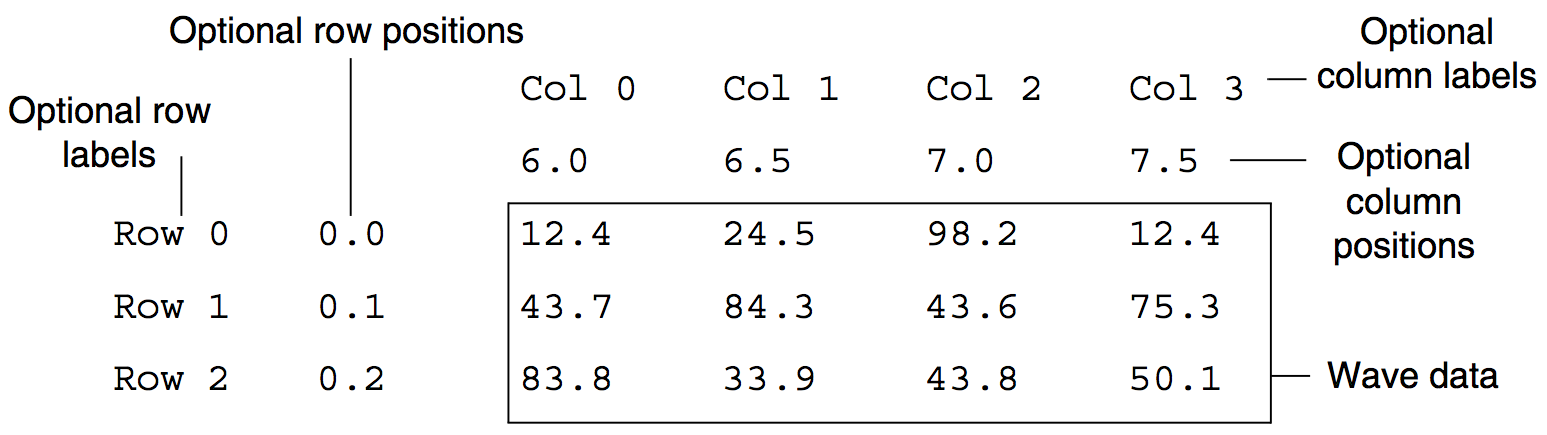
In the simplest case, your file has just the wave data -- no labels or positions. You would indicate this by deselecting all four label/position checkboxes.
2D Label and Position Details
If your file does have labels or positions, you would indicate this by selecting the appropriate checkbox. Igor expects that row labels appear in the first column of the file and that column labels appear in the first line of the file unless you instruct it differently using the Tweaks subdialog (see Delimited Text Tweaks). Igor loads row/column labels into the wave's dimension labels (described in Multidimensional Waves).
Igor can treat column positions in one of two ways. It can use them to set the dimension scaling of the wave (appropriate if the positions are uniformly-spaced) or it can create separate 1D waves for the positions. Igor expects row positions to appear in the column immediately after the row labels or in the first column of the file if the file contains no row labels. It expects column positions to appear immediately after the column labels or in the first line of the file if the file contains no column labels unless you instruct it differently using the Tweaks subdialog.
A row position wave is a 1D wave that contains the numbers in the row position column of the file. Igor names a row position wave "RP_ " followed by the name of the matrix wave being loaded. A column position wave is a 1D wave that contains the numbers in the column position line of the file. Igor names a column position wave "CP_" followed by the name of the matrix wave being loaded. Once loaded (into separate 1D waves or into the matrix wave's dimension scaling), you can use row and column position information when displaying a matrix as an image or when displaying a contour of a matrix.
If your file contains header information before the data, column labels and column positions, you need to use the Tweaks subdialog to tell Igor where to find the data of interest. The "Line containing column labels" tweak specifies the line on which Igor will find column labels. The "First line containing data" tweak specifies the first line of data to be stored in the wave itself. The first line in the file is considered to be line zero.
If you instruct LoadWave to read column positions, it determines which line contains them in one of two ways, depending on whether or not you also instructed it to read column labels. If you do ask LoadWave to read column labels, then LoadWave assumes that the column positions line immediately follows the column labels line. If you do not ask LoadWave to read column labels, then LoadWave assumes that the column positions line immediately precedes the first data line.
Loading Text Waves from Delimited Text Files
There are a few issues relating to special characters that you may need to deal with when loading data into text waves.
By default, the Load Delimited Text operation considers comma and tab characters to be delimiters which separate one column from the next. If the text that you are loading may contain commas or tabs as values rather than as delimiters, you will need to change the delimiter characters. You can do this using the Tweaks subdialog of the Load Delimited Text dialog.
The Load Delimited Text operation always considers carriage return and linefeed characters to mark the end of a line of text. It would be quite unusual to find a data file that uses these characters as values. In the extremely rare case that you need to load a carriage return or linefeed as a value, you can use an escape sequence. Replace the carriage return value with "\r" (without the quotes) and the linefeed value with "\n". Igor will convert these to carriage return and linefeed and store the appropriate character in the text wave.
In addition to "\r" and "\n", Igor will also convert "\t" into a tab value and do other escape sequence conversions (see Escape Sequences in Strings). These conversions create a possible problem which should be quite rare. You may want to load text that contains "\r", "\n" or "\t" sequences which you do not want to be treated as escape sequences. To prevent Igor from converting them into carriage return and tab, you will need to replace them with "\\r", "\\n"and "\\t".
Igor does not remove quotation marks when loading data from delimited text files into text waves. If necessary, you can do this by opening the file as a notebook and doing a mass replace before loading or by displaying the loaded waves in a table and using Edit→Replace.
Quoted Strings in Delimited Text Files
Comma-separated values (CSV) text files can be loaded in Igor as delimited text files with comma as the delimiter. Here is some text that might appear in a CSV text file:
1,London
2,Paris
3,Rome
Sometimes double-quotes are used in CSV files to enclose an item. For example:
1,"London"
2,"Paris"
3,"Rome"
In Igor 6 and Igor 7, double-quotes in a delimited text file received no special treatment. Thus, when loading the second example, Igor would create a numeric wave containing 1, 2, and 3, and a text wave containing "London", "Paris", and "Rome". The text wave would include the double-quote characters.
In Igor 8 and later, by default, the Load Delimited Text routine treats plain ASCII double-quote characters as enclosing characters that are not loaded into the wave. So, in the second example, the text wave contains London, Paris, and Rome, with no double-quote characters.
This feature is especially useful when the quoted strings contain commas, as in this example:
1,"123 First Street, London, England"
2,"59 Rue Poncelet, Paris, France"
3,"Viale Europa 22, 00144 Rome, Italy"
Prior to Igor 8, Igor would treat this text as containing four columns, because double-quotes received no special treatment and comma is a delimiter character by default. Igor 8 loads this as two columns creating a numeric wave with three numbers and a text wave with three addresses.
Because of previously-established rules regarding column names in delimited text files, if you specify that the file includes column names using the LoadWave /W flag, LoadWave interprets quoted text as column names even if the text is all numeric. For example, if you use LoadWave/W and the file contains:
"1","2","3"
"4","5","6"
LoadWave treats the first line as column names. However, if you use LoadWave/W and the file contains:
1,2,3
4,5,6
LoadWave treats the first line as data, not column names. So, if your file contains quoted strings, you must omit the /W flag if the file does not contain column names.
Delimited Text Compatibility With Igor7
As of Igor 8, LoadWave/J provides better handling of quoted strings in delimited text files, such as comma-separated values files. See Quoted Strings in Delimited Text Files for details.
As a side-effect, in rare cases, Igor 8 and later may produce different results for a given file compared to Igor 7. For example, Igor 7 would automatically identify this data as containing two numeric columns:
1;,2;
Igor 8 automatically identifies this as containing two text columns, because of the unexpected semicolons.
If this change interferes with your file loading, you can cause Igor 8 and later to work like Igor 7 by setting bit 4 of the loadFlags parameter of the LoadWave /V flag. For example:
LoadWave/J/V={",", " ", 0, 16} // 16 means bit 4 is set
This disables Igor 8's support for quoted strings which causes LoadWave to behave more like it did in Igor 7.
Another workaround is to force LoadWave to use a given data type for a given column. You can do this using the Column Format popup menu in the Loading Delimited Text dialog (see Editing Wave Names) or by using the LoadWave /B flag.
Delimited Text Tweaks
There are many variations on the basic form of a delimited text file. We have tried to provide tweaks that allow you to guide Igor when you need to load a file that uses one of the more common variations. To do this, use the Tweaks button in the Load Waves dialog.
The Tweaks dialog can specify the space character as a delimiter. Use the LoadWave operation to specify other delimiters as well.
The main reason for allowing space as a delimiter is so that we can load files that use spaces to align columns. This is a common format for files generated by FORTRAN programs. Normally, you should use the fixed field text loader to load these files, not the delimited text loader. If you do use the delimited text loader and if space is allowed as a delimiter then Igor treats any number of consecutive spaces as a single delimiter. This means that two consecutive spaces do not indicate a missing value as two consecutive tabs would.
When loading a delimited file, by default Igor expects the first line in the file to contain either column labels or the first row of data. There are several tweaks that allow you to tell Igor if you have a file that doesn't fit this expectation.
Lines and columns in the tweaks dialog are numbered starting from zero.
Using the "Line containing column labels" tweak, you can tell Igor on what line column labels are to be found if not on line zero. Using this and the "First line containing data" tweak, you can instruct Igor to skip garbage, if any, at the beginning of the file.
The "First line containing data", "Number of lines containing data", "First column containing data", and "Number of columns containing data" tweaks are designed to allow you to load any block of data from anywhere within a file. This might come in handy if you have a file with hundreds of columns but you are only interested in a few of them.
If "Number of lines containing data" is set to "auto" or 0, Igor will load all lines until it hits the end of the file. If "Number of columns containing data" is set to "auto" or 0, Igor will load all columns until it hits the last column in the file.
The proper setting for the "Ignore blanks at the end of a column" tweak depends on the kind of 1D data stored in the file. If a file contains some number of similar columns, for example four channels of data from a digital oscilloscope, you probably want all of the columns in the file to be loaded into waves of the same length. Thus, if a particular column has one or more missing values at the end, the corresponding points in the wave should contain NaNs to represent the missing value. On the other hand, if the file contains a number of dissimilar columns, then you might want to ignore any blank points at the end of a column so that the resulting waves will not necessarily be of equal length. If you enable the "Ignore blanks at the end of a column" tweak then LoadWave will not load blanks at the end of a column into the 1D wave. If this option is enabled and a particular column has nothing but blanks then the corresponding wave is not loaded at all.
Troubleshooting Delimited Text Files
You can examine the waves created by the Load Delimited Text routine using a table. If you don't get the results that you expected, you can try other LoadWave options or inspect and edit the text file until it is in a form that Igor can handle. Remember the following points:
-
Igor expects the file to consist of numeric values, text values, dates, times or date/times separated by tabs or commas unless you set tweaks to the contrary.
-
Igor expects a row of column labels, if any, to appear in the first line of the file unless you set tweaks to the contrary. It expects that the column labels are also delimited by tabs or commas unless you set tweaks to the contrary. Igor will not look for a line of column labels unless you enable the Read Wave Names option for 1D waves or the Read Column Labels options for 2D waves.
-
Igor determines the number of columns in the file by inspecting the column label row or the first row of data if there is no column label row.
If merely inspecting the file does not identify the problem then you should try the following troubleshooting technique.
-
Copy just the first few lines of the file into a test file.
-
Load the test file and inspect the resulting waves in a table.
-
Open the test file as a notebook.
-
Edit the file to eliminate any irregularities, save it and load it again. Note that you can load a file as delimited text even if it is open as a notebook. Make sure that you have saved changes to the notebook before loading it.
-
Inspect the loaded waves again.
This process usually sheds some light on what aspect of the file is irregular. Working on a small subset of your file makes it easier to quickly do some trial and error investigation.
If you are unable to get to the bottom of the problem, email a zipped copy of the file or of a representative subset of it to support@wavemetrics.com along with a description of the problem. Do not send the segment as plain text because email programs may strip out or replace unusual control characters in the file.
Loading Fixed Field Text Files
A fixed field text file consists of rows of values, organized into columns, that are a fixed number of bytes wide with a carriage return, linefeed, or carriage return/linefeed sequence at the end of the row. Space characters are used as padding to ensure that each column has the appropriate number of bytes. In some cases, a value will fill the entire column and there will be no spaces after it.
FORTRAN programs typically generate fixed field text files. A normal Fortran data file contains consists of values followed by spaces to pad to the field width. For example, the contents of a file using a field width of 10 might look like this (using dashes to represent spaces for clarity):
0.000-----1.000-----2.000-----<CRLF>
1.000-----2.000-----3.000-----<CRLF>
Non-Fortran programs sometimes write fixed-field data right-justified instead of left-justified, like this (using dashes to represent spaces for clarity):
-----0.000-----1.000-----2.000<CRLF>
-----1.000-----2.000-----3.000<CRLF>
To accommodate such files, Igor's Load Fixed Field routine strips leading and trailing spaces from the field before reading the value.
Stripping leading and trailing spaces also allows Igor's Load Fixed Field routine to load values that are left-justified or right-justified, so long as each value for a given row is in a consistent width field.
Igor's Load Fixed Field Text routine works just like the Load Delimited Text routine except that, instead of looking for a delimiter character to determine where a column ends, it counts the number of bytes in the column. All of the features described in the section Loading Delimited Text Files apply also to loading fixed field text.
The Load Waves Dialog for Fixed Field Text
To load a fixed field text file, invoke the Load Waves dialog by choosing Data→Load Waves→Load Waves. The dialog is the same as for loading delimited text except for three additional items.
In the Number of Columns item, you must enter the total number of columns in the file. In the Field Widths item, you must enter the number of bytes in each column of the file, separated by commas. The last value that you enter is used for any subsequent columns in the file. If all columns in the file have the same number of bytes, just enter one number.
If you select the All 9's Means Blank checkbox then Igor will treat any column that consists entirely of the digit 9 as a blank. If the column is being loaded into a numeric wave, Igor sets the corresponding wave value to NaN. If the column is being loaded into a text wave, Igor sets the corresponding wave value to "" (empty string).
Specifying Fixed Field Widths Programmatically
If all of the columns in the file consist of the same number of bytes, you can specify this number using the LoadWave /F flag. If different columns consist of different numbers of bytes, you have to use the LoadWave /B flag to specify the width of each column.
Loading General Text Files
We use the term "general text" to describe a text file that consists of one or more blocks of numeric data. A block is a set of rows and columns of numbers. Numbers in a row are separated by one or more tabs or spaces. One or more consecutive commas are also treated as white space. A row is terminated by a carriage return character, a linefeed character, or a carriage return/linefeed sequence.
The Load General Text routine handles numeric data only, not date, time, date/time or text. Use Load Delimited Text or Load Fixed Field Text for these formats. Load General Text can handle 2D numeric data as well as 1D.
The first block of data may be preceded by header information which the Load General Text routine automatically skips.
If there is a second block, it is usually separated from the first with one or more blank lines. There may also be header information preceding the second block which Igor also skips.
When loading 1D data, the Load General Text routine loads each column of each block into a separate wave. It treats column labels as described above for the Load Delimited Text routine, except that spaces as well as tabs and commas are accepted as delimiters. When loading 2D data, it loads all columns into a single 2D wave.
The Load General Text routine determines where a block starts and ends by counting the number of numbers in a row. When it finds two rows with the same number of numbers, it considers this the start of a block. The block continues until a row which has a different number of numbers.
Examples of General Text
Here are some examples of text that you might find in a general text file.
Simple general text
| ch0 | ch1 | ch2 | ch3 | (optional row of labels) | ||||
| 2.97055 | 1.95692 | 1.00871 | 8.10685 | |||||
| 3.09921 | 4.08008 | 1.00016 | 7.53136 | |||||
| 3.18934 | 5.91134 | 1.04205 | 6.90194 | |||||
The Load General Text routine would create four waves with three points each or, if you specify loading as a matrix, a single 3 row by 4 column wave.
General text with header
| Date: 3/2/93 | ||||||||
| Sample: P21-3A | ||||||||
| ch0 | ch1 | ch2 | ch3 | (optional row of labels) | ||||
| 2.97055 | 1.95692 | 1.00871 | 8.10685 | |||||
| 3.09921 | 4.08008 | 1.00016 | 7.53136 | |||||
| 3.18934 | 5.91134 | 1.04205 | 6.90194 | |||||
The Load General Text routine would automatically skip the header lines (Date: and Sample:) and would create four waves with three points each or, if you specify loading as a matrix, a single 3 row by 4 column wave.
General text with header and multiple blocks
| Date: 3/2/93 | ||||||||
| Sample: P21-3A | ||||||||
| ch0_1 | ch1_1 | ch2_1 | ch3_1 | (optional row of labels) | ||||
| 2.97055 | 1.95692 | 1.00871 | 8.10685 | |||||
| 3.09921 | 4.08008 | 1.00016 | 7.53136 | |||||
| 3.18934 | 5.91134 | 1.04205 | 6.90194 | |||||
| Date: 3/2/93 | ||||||||
|---|---|---|---|---|---|---|---|---|
| Sample: P98-2C | ||||||||
| ch0_2 | ch1_2 | ch2_2 | ch3_2 | (optional row of labels) | ||||
| 2.97055 | 1.95692 | 1.00871 | 8.10685 | |||||
| 3.09921 | 4.08008 | 1.00016 | 7.53136 | |||||
| 3.18934 | 5.91134 | 1.04205 | 6.90194 | |||||
The Load General Text routine would automatically skip the header lines and would create eight waves with three points each or, if you specify loading as a matrix, two 3 row by 4 column waves.
Comparison of General Text, Fixed Field and Delimited Text
You may wonder whether you should use the Load General Text routine, Load Fixed Field routine or the Load Delimited Text routine. Most commercial programs create simple tab-delimited files which these routines can handle. Files created by scientific instruments, mainframe programs, custom programs, or exported from spreadsheets are more diverse. You may need to try these routines to see which works better. To help you decide which to try first, here is a comparison.
Advantages of the Load General Text compared to Load Fixed Field and to Load Delimited Text:
-
It can automatically skip header text.
-
It can load multiple blocks from a single file.
-
It can tolerate multiple tabs or spaces between columns.
Disadvantages of the Load General Text compared to Load Fixed Field and to Load Delimited Text:
-
It cannot handle blanks (missing values).
-
It cannot tolerate columns of non-numeric text or non-numeric values in a numeric column.
-
It cannot load text values, dates, times or date/times.
-
It cannot handle comma as the decimal point (European number style).
The Load General Text routine can load missing values if they are represented in the file explicitly as "NaN" (Not-a-Number). It cannot handle files that represent missing values as blanks because this confounds the technique for determining where a block of numbers starts and ends.
The Load Waves Dialog for General Text - 1D
The basic process of loading data from a general text file is as follows:
-
Choose Data→Load Waves→Load Waves to display the Load Waves dialog.
-
Choose General Text from the File Type pop-up menu.
-
Click the File button to select the file containing the data.
-
Click Do It.
When you click Do It, Igor's LoadWave operation runs. It executes the Load General Text routine which goes through the following steps:
-
Locate the start of the block of data using the technique of counting numbers in successive lines. This step also skips the header, if any, and determines the number of columns in the block.
-
Optionally, determine if there is a row of column labels immediately before the block of numbers.
-
Optionally, present another dialog allowing you to confirm or change wave names.
-
Create waves.
-
Load data into the waves until the end of the file or a until a row that contains a different number of numbers.
-
If not at the end of the file, go back to step 1 to look for another block of data.
Igor looks for a row of column labels only if you enable the "Read wave names" option. It looks in the line immediately preceding the block of data. If it finds labels and if the number of labels matches the number of columns in the block, it uses these labels as wave names. Otherwise, Igor automatically generates wave names of the form wave0, wave1 and so on.
If you choose Data→Load Waves→Load General Text instead of choosing Data→Load Waves→Load Waves, Igor displays the Open File dialog in which you can select the general text file to load directly. This is a shortcut that skips the Load Waves dialog and uses default options for the load. This will always load 1D waves, not a matrix. The precision of numeric waves is controlled by the Default Data Precision setting in the Data Loading section of the Miscellanous Settings dialog. Before you use this shortcut, take a look at the Load Waves dialog so you can see what options are available.
Editing Wave Names for a Block
In step 3 above, the Load General Text routine presents a dialog in which you can change wave names. This works exactly as described above for the Load Delimited Text routine except that it has one extra button: "Skip this block".
Use "Skip this block" to skip one or more blocks of a multiple block general text file.
Click the Skip Column button to skip loading of the column corresponding to the selected name box. Shift-click the button to skip all columns except the selected one.
The Load Waves Dialog for General Text - 2D
Igor can load a 2D wave using the Load General Text routine. However, Load General Text does not support the loading of row/column labels and positions. If the file has such rows and columns, you must load it as a delimited text file.
The main reason to use the Load General Text routine rather than the Load Delimited Text routine for loading a matrix is that the Load General Text routine can automatically skip nonnumeric header information. Also, Load General Text treats any number of spaces and tabs, as well as one comma, as a single delimiter and thus is tolerant of less rigid formatting.
Set Scaling After Loading General Text Data
If your 1D data is uniformly spaced in the X dimension then you will be able to use the many operations and functions in Igor designed for waveform data. You will need to set the X scaling for your waves after you load them, using the Change Wave Scaling dialog.
If your data is uniformly spaced it is very important that you set the X scaling of your waves. Many Igor operations depend on the X scaling information to give you correct results.
If your 1D data is not uniformly spaced then you will use XY pairs and you do not need to change X scaling. You may want to use Change Wave Scaling to set the waves" data units.
General Text Tweaks
The Load General Text routines provides some tweaks that allow you to guide Igor as it loads the file. To do this, use the Tweaks button in the Load Waves dialog.
The items at the top of the dialog are hidden because they apply to the Load Delimited Text routine only. Load General Text always skips any tabs and spaces between numbers and will also skip a single comma. The "decimal point" character is always period and it cannot handle dates.
The items relating to column labels, data lines and data columns have two potential uses. You can use them to load just a part of a file or to guide Igor if the automatic method of finding a block of data produces incorrect results.
Lines and columns in the tweaks dialog are numbered starting from zero.
Igor interprets the "Line containing column labels" and "First line containing data" tweaks differently for general text files than it does for delimited text files. For delimited text, zero means "the first line". For general text, zero for these parameters means "auto".
Here is what "auto" means for general text. If "First line containing data" is auto, Igor starts the search for data from the beginning of the file without skipping any lines. If it is not "auto", then Igor skips to the specified line and starts its search for data there. Use this to skip a block of data at the beginning of the file. If "Line containing column labels" is auto then Igor looks for column labels in the line immediately preceding the line found by the search for data. If it is not auto then Igor looks for column labels in the specified line.
If the "Number of lines containing data" is not "auto" then Igor stops loading after the specified number of lines or when it hits the end of the first block, whichever comes first. This behavior is necessary so that it is possible to pick out a single block or subset of a block from a file containing more than one block.
If a general text file contains more than one block of data and if "Number of lines containing data" is "auto" then, for blocks after the first one, Igor maintains the relationship between the line containing column labels and first line containing data. Thus, if the column labels in the first block were one line before the first line containing data then Igor expects the same to be true of subsequent blocks.
You can use the "First column containing data" and "Number of columns containing data" tweaks to load a subset of the columns in a block. If "Number of columns containing data" is set to "auto" or 0, Igor loads all columns until it hits the last column in the block.
Troubleshooting General Text Files
You can examine the waves created by the Load General Text routine using a table. If you don't get the results that you expected, you will need to inspect and edit the text file until it is in a form that Igor can handle. Remember the following points:
-
Load General Text cannot handle dates, times, date/times, commas used as decimal points, or blocks of data with non-numeric columns. Try Load Delimited Text instead.
-
It skips any tabs or spaces between numbers and will also skip a single comma.
-
It expects a line of column labels, if any, to appear in the first line before the numeric data unless you set tweaks to the contrary. It expects that the labels are also delimited by tabs, commas or spaces. It will not look for labels unless you enable the Read Wave Names option.
-
It works by counting the number of numbers in consecutive lines. Some unusual formats (e.g., 1,234.56 instead of 1234.56) can throw this count off, causing it to start a new block prematurely.
-
It cannot handle blanks or non-numeric values in a column. Each of these cause it to start a new block of data.
-
If it detects a change in the number of columns, it starts loading a new block into a new set of waves.
If merely inspecting the file does not identify the problem then you should try the technique of loading a subset of your data. This is described under Troubleshooting Delimited Text Files and often sheds light on the problem. In the same section, you will find instructions for sending the problem file to WaveMetrics for analysis, if necessary.
LoadWave Generation of Wave Names
When loading an Igor binary file or an Igor Text file, LoadWave uses the wave name or names stored in the file being loaded.
When loading files as delimited text (/J), as fixed field text (/F), and as general text (/G), wave names are determined by the /A, /N, /W, /B, and /NAME flag. This section provides describes how these naming flags work.
If you omit all of the naming flags, LoadWave generates wave names like wave0, wave1, and wave2 but if such wave already exist, it generates unique names like wave3, wave4, and wave5. LoadWave then displays a dialog in which you can edit the names.
The /A flag behaves the same except that it turns on "auto name and go" which skips the dialog in which you can edit the names. /A=baseName is the same as /A except that allows you to specify a base name other than 'wave'.
The /N flag is the same as /A except that it always uses suffix numbers starting from zero and increments by one for each wave loaded from the file. If the resulting name conflicts with an existing wave, the existing wave is overwritten. For example, /N=wave gives wave names like wave0, wave1, and wave2.
The /W flag loads wave names from the file itself. By default, LoadWave expects the wave names to be in the first line of the file but the /L flag allows you to specify another line. If the names in the file conflict with existing waves and you specify overwrite (/O), the existing waves are overwritten; if you do not specify overwrite, LoadWave displays a dialog in which you can enter unique names.
The /B flag, used when calling LoadWave from a user-defined function, allows you to specify explicit names for each column. See Specifying Characteristics of Individual Columns for details.
The /NAME flag provides an easy way to incorporate the file name in the wave names. See the next section for details.
/NAME overrides /B which overrides /W which overrides /N which overrides /A.
Using the File Name in Wave Names
The LoadWave /NAME flag was added in Igor Pro 9.00 primarily to provide an easy way to incorporate the file name in the wave names.
The Load Waves dialog (Data→Load Waves→Load Waves) supports the /NAME flag through the Use File Name in Wave Names and Include Normal Name checkboxes. The dialog does not provide access to all features of /NAME but is sufficient for most common uses.
This section provides a general description of the /NAME flag. Subsequent sections with examples which should clarify how to use it.
The format of the flag is:
/NAME={namePrefix, nameSuffix, nameOptions}
The generated wave names consist of the following components:
<namePrefix><normal name><nameSuffix><suffix number>
namePrefix and nameSuffix can be empty (""), literal text like "Run1_", the special pattern ":filename:" or a combination of literal text and the special pattern like ":filename:_". LoadWave replaces the special pattern ":filename:" with the name of the file being loaded minus the file name extension. If both namePrefix and nameSuffix are empty, LoadWave acts as if the /NAME flag were omitted.
<normal name> refers to the wave name that would be used if /NAME were omitted.
The rest of this section discusses the nameOptions bitwise parameter (see Setting Bit Parameters) which provides flexibility in naming across various scenarios. In the abstract, nameOptions may be confusing; examples shown in subsequent sections should clarify its meaning and use.
If bit 0 of nameOptions is set, LoadWave includes <normal name>. If cleared, it omits <normal name>.
Bits 1, 2, and 3 control the use of suffix numbers. A suffix number is a number like 0, 1, 2, and so on, used to make the wave names unique. When loading a single wave, LoadWave includes <suffix number> if bit 1 of nameOptions is set unless it is suppressed by bit 3 as explained below. When loading multiple waves, LoadWave includes <suffix number> if bit 2 of nameOptions is set unless it is suppressed by bit 3 as explained below. Often you want to include suffix numbers when loading multiple waves, because the numbers are necessary to distinguish the names of the waves you are loading, but you want to exclude the suffix number when loading a single wave. For that case you would leave bit 1 cleared and set bits 2 and 3.
Bit 3 of nameOptions overrides bits 1 and 2 to prevent prevent appending suffix numbers if they are not needed to prevent name conflicts. When loading a single wave, bit 3 overrides bit 1 to prevent appending a suffix number if there is no name conflict. When loading multiple waves, bit 3 overrides bit 2 to prevent appending a suffix numbers if there are no name conflicts.
If bit 4 of nameOptions is set, LoadWave chooses the suffix number, if enabled, to avoid conflicts with existing waves and other objects. If it is cleared, the suffix number, if enabled, starts from 0 and increments for each wave being loaded.
If bit 5 of nameOptions is cleared, LoadWave cleans up the wave name to make it a standard name. Otherwise it allows liberal names. We recommend standard names because programming with liberal names is tricky. See Object Names for details.
Loading a Single Wave Using the File Name
In this section, we assume that we are loading a file named "Data.txt" and that we are loading a single wave from the file.
// nameOptions=0 means omit the normal name
/NAME={":filename:","",0}
LoadWave creates a wave named Data if it does not already exist. If it exists and you include the /O (overwrite) flag, Data is overwritten. If it exists and you omit /O, LoadWave displays a dialog in which you can enter a unique name.
// nameOptions=26 means include a unique suffix number but only if there is a name conflict
/NAME={":filename:","",26}		// 26 = 2 | 8 | 16 (bits 1, 3, and 4 set)
LoadWave creates a wave named Data if it does not already exist. If it exists LoadWave creates a wave named Data0, or Data1, or ... where the suffix number is chosen so that the resulting wave name is unique.
Loading Multiple Waves Using the File Name
In this section, we assume that we are loading a file named "Data.txt" and that we are loading three waves from the file.
// nameOptions=0 means omit the normal name
/NAME={":filename:","",0}
In this case, since we requested no suffix number, all of the generated wave names are Data and LoadWave displays a dialog in which you can enter unique names.
// nameOptions=4 means always include a sequential suffix number
/NAME={":filename:","",4}		// Bit 2 set
LoadWave generates wave names Data0, Data1, and Data2. If any of these waves exist and you include the /O (overwrite) flag, they are overwritten. If they exist and you omit /O, LoadWave displays a dialog in which you can enter unique names.
// nameOptions=20 means always include a unique suffix number
/NAME={":filename:","",20}		// 20 = 4 | 16 (bits 2 and 4 set)
LoadWave generates wave names like Data0, Data1, and Data2 where the suffix numbers are chosen to make the names unique. If you execute the same command on the same file a second time, LoadWave generates wave names Data3, Data4, and Data5.
Loading Multiple Waves Using the File Name and the Normal Name
In this section, we assume that we are loading a file named "Data.txt" and that we are loading three waves from the file. We further assume that the file contains the column names ColumnA, ColumnB, and ColumnC and that we include the /W flag to load the column names from the file.
// nameOptions=1 means include the normal name
/W /NAME={":filename:_","",1}
This generates wave names Data_ColumnA, Data_ColumnB, and Data_ColumnC. If any of these waves exist and you include the /O (overwrite) flag, they are overwritten. If they exist and you omit /O, LoadWave displays a dialog in which you can enter unique names.
// nameOptions=21 means always include the normal name and a unique suffix number
/W /NAME={":filename:_","",21}		// 21 = 1 | 4 | 16 (bits 0, 2 and 4 set)
LoadWave generates wave names Data_ColumnA0, Data_ColumnB0, and Data_ColumnC0 where the suffix numbers are chosen to make the wave names unique. If you execute the same command on the same file a second time, LoadWave generates wave names Data_ColumnA1, Data_ColumnB1, and Data_ColumnC1.
This technique could also be used with the /B flag instead of the /W flag to create wave names combining the file name and additional names explicitly specified by /B. See Setting Wave Names When Loading Data Files for a functional example.
Other LoadWave Features
This section discusses other features that apply to loading text data files.
Loading Custom Date Formats
This section applies to loading delimited text (/J), fixed field text (/F) and general text (/G) files.
Here are some examples showing custom date formats and how you would specify them using the LoadWave /R flag:
October 11, 1999  /R={English, 2, 4, 1, 1, "Month DayOfMonth, Year", 40}
Oct 11, 1999      /R={English, 2, 3, 1, 1, "Month DayOfMonth, Year", 40}
11 October 1999   /R={English, 2, 4, 1, 1, "DayOfMonth Month Year", 40}
11 Oct 1999       /R={English, 2, 3, 1, 1, "DayOfMonth Month Year", 40}
10/11/99          /R={English, 1, 2, 1, 1, "Month/DayOfMonth/Year", 40}
11-10-99          /R={English, 1, 2, 2, 1, "DayOfMonth-Month-Year", 40}
11-Jun-99         /R={English, 1, 3, 2, 1, "DayOfMonth-Month-Year", 40}
991011            /R={English,1,2,2,1,"YearMonthDayOfMonth", 40}
When loading data as delimited text, if you use a date format containing a comma, such as "October 11, 1999", you must use the /V flag to make sure that LoadWave will not treat the comma as a delimiter.
When loading a date format that consists entirely of digits, such as 991011, you must use the LoadWave/B flag to tell LoadWave that the data is a date. Otherwise, LoadWave will treat it as a regular number.
Specifying Characteristics of Individual Columns
The LoadWave /B=columnInfoStr flag provides information to LoadWave for each column in a delimited text (/J), fixed field text (/F) or general text (/G) file. The flag overrides LoadWave's normal behavior. /B is useful in user-defined functions when you need additional control.
columnInfoStr is constructed as follows:
"<column info>;<column info>; . . .;<column info>;"
where <column info> consists of one or more of the following:
| C=<number> | The number of columns controlled by this column info specification. <number> is an integer greater than or equal to one. | ||||||||||||||||
| F=<format> | A code that specifies the data type of the column or columns. <format> is an integer from -2 to 10. The meaning of the <format> is: | ||||||||||||||||
| |||||||||||||||||
| The F= flag is used for delimited text and fixed field text files only. It is ignored for general text files. | |||||||||||||||||
| N=<name> | A name to use for the column. <name> can be a standard name (e.g., wave0) or a quoted liberal name (e.g., 'Heart Rate'). If <name> is '_skip_' then LoadWave will skip the column. | ||||||||||||||||
| The N= flag works for delimited text, fixed field text and general text files. | |||||||||||||||||
| See LoadWave Generation of Wave Names for further discussion. | |||||||||||||||||
| T=<numtype> | A number that specifies what the numeric type for the column should be. This flag overrides the LoadWave/D flag. It has no effect on columns whose format is text. <numtype> must be one of the following: | ||||||||||||||||
| |||||||||||||||||
| W=<width> | The column field width for fixed field files. <width> is an integer greater than or equal to one. Fixed width files are FORTRAN-style files in which a fixed number of bytes is allocated for each column and spaces are used as padding. | ||||||||||||||||
| The /W= flag is used for fixed field text only. | |||||||||||||||||
Here is an example of the /B=columnInfoStr flag:
/B="C=1,F=-2,T=2,W=20,N=Factory; C=1,F=6,W=16,T=4,N=MfgDate; C=1,F=0,W=16,T=2,N=TotalUnits; C=1,F=0,W=16,T=2,N=DefectiveUnits;"
This example is shown on two lines but in a real command it would be on a single line. In a procedure, it could be written as:
String columnInfoStr = ""
columnInfoStr += "C=1,F=-2,T=2,W=20,N=Factory;"
columnInfoStr += "C=1,F=6,T=4,W=16,N=MfgDate;"
columnInfoStr += "C=1,F=0,T=2,W=16,N=TotalUnits;"
columnInfoStr += "C=1,F=0,T=2,W=16,N=DefectiveUnits;"
Note that each flag inside the quoted string ends with either a comma or a semicolon. The comma separates one flag from the next within a particular column info specification. The semicolon marks the end of a column info specification. The trailing semicolon is required. Spaces and tabs are permitted within the string.
This example provides information about a file containing four columns.
The first column info specification is "C=1;F=-2,T=2,W=20,N=Factory;". This indicates that the specification applies to one column, that the column format is text, that the numeric format is single-precision floating point (but this has no effect on text columns), that the column data is in a fixed field width of 20 bytes, and that the wave created for this column is to be named Factory.
The second column info specification is "C=1;F=6,T=4,W=16,N=MfgDate;". This indicates that the specification applies to one column, that the column format is date, that the numeric format is double-precision floating point (double precision should always be used for dates), that the column data is in a fixed field width of 16 bytes, and that the wave created for this column is to be named MfgDate.
The third column info specification is "C=1;F=0,T=2,W=16,N=TotalUnits;". This indicates that the specification applies to one column, that the column format is numeric, that the numeric format is single-precision floating point, that the column data is in a fixed field width of 16 bytes, and that the wave created for this column is to be named TotalUnits.
The fourth column info specification is the same as the third except that the wave name is DefectiveUnits.
All of the items in a column specification are optional. The default value for each item in the column info specification is as follows:
| C=<number> | C=1. Specifies that the column info describes one column. | |
| F=<format> | F=-1. Determines the format as dictated by the /K flag. If /K=0 is used, LoadWave will automatically determine the column format. | |
| N=<name> | N=_auto_. Generates the wave name as it would if the /B flag were omitted. | |
| T=<numtype> | Defaults to T=4 (double precision) if the LoadWave/D flag is used or to T=2 (single precision) if the /D flag is omitted. | |
| W=<width> | W=0. For a fixed width file, LoadWave will use the default field width specified by the /F flag unless you provide an explicit field width greater than 0 using W=<width>. | |
Taking advantage of the default values, we could abbreviate the example as follows:
/B="F=-2,W=20,N=Factory;  F=6,T=4,W=16,N=MfgDate;
W=16,N=TotalUnits; W=16,N=DefectiveUnits;"
If the file were not a fixed field text file, we would omit the W= flag and the example would become:
/B="F=-2,N=Factory; F=6,T=4,N=MfgDate; N=TotalUnits; N=DefectiveUnits;"
Here are some more examples and discussion that illustrate the use of the /B=columnInfoStr flag.
In this example, the /B flag is used solely to specify the name to use for the waves created from the columns in the file:
/B="N=WaveLength; N=Absorbance;"
The wave names in the previous example are standard names. If you want to use liberal names, such as names containing spaces or dots, you must use single quotes. For example:
/B="N='Wave Number'; N='Reflection Angle';"
The name that you specify via N= cannot be used if overwrite is off and there is already a wave with this name or if the name conflicts with a macro, function or operation or variable. In these cases, LoadWave generates a unique name by adding one or more digits to the name specified by the N= flag for the column in question. You can avoid the problem of a conflict with another wave name by using the overwrite (/O) flag or by loading your data into a newly-created data folder. You can minimize the likelihood of a name conflict with a function, operation or variable by avoiding vague names.
If you specify the same name in two N= flags, LoadWave will generate an error, so make sure that the names are unique.
Except if the specified name is '_skip_', the N= flag generates a name for one column only, even if the C= flag is used to specify multiple columns. Consider this example:
/B="C=10,N=Test;"
This ostensibly uses the name Test for 10 columns. However, wave names must be unique, so LoadWave will not do this. It will use the name Test for just the first column and the other columns will receive default names.
You can load a subset of the columns in the file using the /L flag. Even if you do this, the column info specifications that you provide via the /B flag start from the first column in the file, not from the first column to be loaded. For example, if you are using /L to skip columns 0 and 1, you must skip columns 0 and 1 in the column info specification, like this:
// Skip column 0 and 1 and name the successive columns
/L={0,0,0,2,0} /B="C=2;N=Column2;N=Column3;"
The "C=2;" part accepts default specifications for columns 0 and 1 and the subsequent specifications apply to subsequent columns.
You can achieve the same thing using /B without /L, like this:
/B="C=2,N='\_skip\_';N=Column2;N=Column3;"
Also, when loading data into a matrix wave, LoadWave uses only one name. If you specify more than one name, only the first is used. If you are loading data into a matrix and also skipping columns, the explanation above about skipping applies.
In this example, the /B flag solely specifies the format of each column in the file. The file in question starts with a text column, followed by a date column, followed by 3 numeric columns.
/B="F=-2; F=6; C=3,F=0"
In most cases, it is not necessary to use the F= flag because LoadWave can automatically deduce the formats. The flag is useful for those cases where it deduces the column formats incorrectly. It is also useful to force LoadWave to interpret a column as octal or hexadecimal because LoadWave cannot automatically deduce these formats.
The numeric codes (0...10) used by the F= flag are the same as the codes used by the ModifyTable operation. If you create a table using the /E flag, the F= flag controls the numeric format of table columns.
The code -1 is not a real column format code. If you use F=-1 for a particular column, LoadWave will deduce the format for that column from the column text.
In this example, the /B flag is used solely to specify the width of each column in a fixed field file. This file contains a 20 byte column followed by ten 16 byte columns followed by three 24 byte columns.
/B="C=1,W=20; C=10,W=16; C=3,W=24"
The field widths specified via W= override the default field width specified by the /F flag. If all of the columns in the file have the same field width then you can use just the /F flag.
You can load a subset of the columns in the file using the /L flag. Even if you do this, the column info specifications that you provide via the /B flag start from the first column in the file, not from the first column to be loaded.
Other LoadWave Issues
This section discusses other issues that apply to the LoadWave operation.
LoadWave Text Encoding Issues
This section discusses LoadWave text encoding issues of interest to advanced users. It assumes that you are familiar with the general topic of text encodings as explained under Text Encodings.
Since Igor stores all text internally as UTF-8, it must convert text read from a file from the source text encoding to UTF-8. In order to do this it needs to know the source text encoding.
When loading an Igor binary wave file LoadWave ignores the /ENCG=textEncoding flag. The loaded wave's text encoding is determined as described under LoadWave Text Encodings for Igor Binary Wave Files. The rest of this section applied to loading data from plain text files, not from Igor binary wave files.
When loading a text data file you can use the /ENCG=textEncoding flag to tell Igor what that text encoding is. See Text Encoding Names and Codes for a list of accepted values for textEncoding.
LoadWave uses the text encoding specified by /ENCG and the rules described under Determining the Text Encoding for a Plain Text File to determine the source text encoding for conversion of the text file's data to UTF-8. If you omit /ENCG or specify /ENCG=0, the specified text encoding is unknown and does not factor into the determination of the source text encoding. If following the rules does not identify a text encoding that works for converting the file's text to UTF-8, Igor displays the Choose Text Encoding dialog.
If the file contains nothing but ASCII characters, as is often the case, then any byte-oriented text encoding will work and there is no need to use the /ENCG flag.
When you are loading a huge file (e.g., hundreds of megabytes), finding a valid source text encoding may add a noticeable amount to the time it takes to load the file. If you know that the file is either all ASCII or is valid UTF-8, you can tell LoadWave to skip text encoding conversion altogether using an optional parameter, like this:
/ENCG={1,4}
"1" tells LoadWave that the text is valid as UTF-8, meaning that it is all ASCII or, if it contains non-ASCII characters, they are properly encoded as UTF-8.
"4" tells LoadWave to assume that the text is valid as UTF-8 and skip all validation and conversion.
In testing with a 200 MB delimited text file containing 1 million rows and 20 columns, we found that using /ENCG={1,4} saved about 10% of the time.
If you use this flag but the file is not valid UTF-8 and you are loading data into text wave, the text waves will wind up with invalid data which will result in errors when you use the waves later.
As noted above, if following the rules does not identify a text encoding that works for converting the file's text to UTF-8, Igor displays the Choose Text encoding dialog. If you are loading many files using an unattended, automated procedure, displaying this dialog will cause your procedure to grind to a halt. You can prevent this by using another optional flag, like this:
/ENCG={1,8}
If you use this flag and LoadWave cannot determine the source text encoding for a file, it will return an error. If you want your procedure to continue with other files you must check for and handle the error using GetRTError.
Loading Very Large Files
The number of waves (columns) or points (rows) that LoadWave can handle when loading a text file is limited only by available memory.
You can improve the speed and efficiency of loading very large files (i.e., more than 50,000 lines of data) using the numLines parameter of the /L flag. Normally this parameter is used to load a section of the file instead of the whole file. However, in delimited, general text and fixed field text loads, the numLines parameter also specifies how many rows the waves should initially have. Thus all of the required memory is allocated at the start of the load, rather than increasing the number of wave rows over and over as more lines of data are loaded. When loading very large files, if you know the exact number of lines of data in the file, use the numLines parameter of the /L flag. If you don't know the exact number of lines, you can provide a number that is guaranteed to be larger.
If you omit the /L flag or if the numLines parameter is zero, and if you are loading a file greater than 500,000 bytes, LoadWave automatically counts the lines of data in the file so that the entire wave can be allocated before data loading starts. This acts as if you used /L and set numLines to the exact correct value which normally speeds the loading process considerably. You can disable this feature by using the /V flag and setting bit 2 of the loadFlags parameter to 1.
Escape Sequences
An escape sequence is a two-character sequence used to represent special characters in plain text. Escape sequences are introduced by a backslash character.
By default, in a text column, LoadWave interprets the following escape sequences: \t (tab), \n (linefeed), \r (carriage-return), \\ (backslash), \" (double-quote) and \' (single-quote). This works well with Igor's Save operation which uses escape sequences to encode the first four of these characters.
If you are loading a file that does not use escape sequences but which does contain backslashes, you can disable interpretation of these escape sequences by setting bit 3 of the loadFlags parameter of the /V flag. This is mainly of use for loading a text file that contains unescaped Windows file system paths.
Loading Igor Text Files
An Igor Text file consists of keywords, data and Igor commands. The data can be numeric, text or both and can be of dimension 1 to 4. Many Igor users have found this to be an easy and powerful format for exporting data from their own custom programs into Igor.
The file name extension for an Igor Text file is ".itx". Old versions of Igor used ".awav" and this is still accepted.
Examples of Igor Text
Here are some examples of text that you might find in an Igor Text file.
Simple Igor Text
IGOR
WAVES/D unit1, unit2
BEGIN
	19.7	23.9
	19.8	23.7
	20.1	22.9
END
X SetScale x 0,1, "V", unit1; SetScale d 0,0, "A", unit1
X SetScale x 0,1, "V", unit2; SetScale d 0,0, "A", unit2
Loading this would create two double-precision waves named unit1 and unit2 and set their X scaling, X units and data units.
Igor Text with extra commands
IGOR
WAVES/D/O xdata, ydata
BEGIN
	98.822		486.528
	109.968		541.144
	119.573		588.21
	133.178		654.874
	142.906		702.539
END
X SetScale d 0,0, "V", xdata
X SetScale d 0,0, "A", ydata
X Display/N=TempGraph ydata vs xdata
X ModifyGraph mode=2,lsize=5
X CurveFit line ydata /X=xdata /D
X Textbox/A=LT/X=0/Y=0 "ydata= \\{W_coef[0]}+\\{W_coef[1]}*xdata"
X PrintGraphs TempGraph
X KillWindow TempGraph							// Kill the graph
X KillWaves xdata, ydata, fit_ydata			// Kill the waves
Loading this would create two double-precision waves and set their data units. It would then make a graph, do a curve fit, annotate the graph and print the graph. The last two lines do housekeeping.
Igor Text File Format
An Igor Text file starts with the keyword IGOR. The rest of the file may contain blocks of data to be loaded into waves or Igor commands to be executed and it must end with a blank line.
A block of data in an Igor Text file must be preceded by a declaration of the waves to be loaded. This declaration consists of the keyword WAVES followed by optional flags and the names of the waves to be loaded. Next the keyword BEGIN indicates the start of the block of data. The keyword END marks the end of the block of data.
A file can contain any number of blocks of data, each preceded by a declaration. If the waves are 1D, the block can contain any number of waves but waves in a given block must all be of the same data type. Multidimensional waves must appear one wave per block.
A line of data in a block consists of one or more numeric or text items with tabs separating the numbers and a terminator at the end of the line. The terminator can be CR, LF, or CRLF. Each line should have the same number of items.
You can't use blanks, dates, times or date/times in an Igor Text file. To represent a missing value in a numeric column, use "NaN" (not-a-number). To represent dates or times, use the standard Igor date format (number of seconds since 1904-01-01).
There is no limit to the number of waves or number of points except that all of the data must fit in available memory.
The WAVES keyword accepts the following optional flags:
| Flag | Effect |
|---|---|
| /N = (...) | Specifies size of each dimension for multidimensional waves. |
| /O | Overwrites existing waves. |
| /R | Makes waves real (default). |
| /C | Makes waves complex. |
| /S | Makes waves single precision floating point (default). |
| /D | Makes waves double precision floating point. |
| /I | Makes waves 32 bit integer. |
| /W | Makes waves 16 bit integer. |
| /B | Makes waves 8 bit integer. |
| /U | Makes integer waves unsigned. |
| /T | Specifies text data type. |
Normally you should make single or double precision floating point waves. Integer waves are normally used only to contain raw data acquired via external operations. They are also appropriate for storing image data.
The /N flag is needed only if the data is multidimensional but the flag is allowed for one-dimensional data, too. Regardless of the dimensionality, the dimension size list must always be inside parentheses. Examples:
WAVES/N=(5) wave1D
WAVES/N=(3,3) wave2D
WAVES/N=(3,3,3) wave3D
Integer waves are signed unless you use the /U flag to make them unsigned.
If you use the /C flag then a pair of numbers in a line supplies the real and imaginary value for a single point in the resulting wave.
If you specify a wave name that is already in use and you don't use the overwrite option, Igor displays a dialog so that you can resolve the conflict.
The /T flag makes text rather than numeric waves. See Loading Text Waves from Igor Text Files.
A command in an Igor Text file is introduced by the keyword X followed by a space. The command follows the X on the same line. When Igor encounters this while loading an Igor Text file it executes the command.
Anything that you can execute from Igor's command line is acceptable after the X. Introduce comments with "X //". There is no way to do conditional branching or looping. However, you can call an Igor procedure defined in a built-in or auxiliary procedure window.
Commands, introduced by X, are executed as if they were entered on the command line or executed via the Execute operation. Such command execution is not thread-safe. Therefore, you cannot load an Igor text file containing a command from an Igor thread.
Setting Scaling in an Igor Text File
When Igor writes an Igor Text file, it always includes commands to set each wave's scaling, units and dimension labels. It also sets each wave's note.
If you write a program that generates Igor Text files, you should set at least the scaling and units. If your 1D data is uniformly spaced in the X dimension, you should use the SetScale operation to set your waves X scaling, X units and data units. If your data is not uniformly spaced, you should set the data units only. For multidimensional waves, use SetScale to set Y, Z and T units if needed.
The Load Waves Dialog for Igor Text
The basic process of loading data from an Igor Text file is as follows:
-
Choose Data→Load Waves→Load Waves to display the Load Waves dialog.
-
Choose Igor Text from the File Type pop-up menu.
-
Click the File button to select the file containing the data.
-
Click Do It.
When you click Do It, Igor's LoadWave operation runs. It executes the Load Igor Text routine which loads the file.
If you choose Data→Load Waves→Load Igor Text instead of choosing Data→Load Waves→Load Waves, Igor displays the Open File dialog in which you can select the Igor Text file to load directly. This is a shortcut that skips the Load Waves dialog.
Loading MultiDimensional Waves from Igor Text Files
In an Igor Text file, a block of wave data is preceded by a WAVES declaration. For multidimensional data, you must use a separate block for each wave. Here is an example of an Igor Text file that defines a 2D wave:
IGOR
WAVES/D/N=(3,2) wave0
BEGIN
	1	2
	3	4
	5	6
END
The "/N=(3,2)" flag specifies that the wave has three rows and two columns. The first line of data (1 and 2) contains data for the first row of the wave. This layout of data is recommended for clarity but is not required. You could create the same wave with:
IGOR
WAVES/D/N=(3,2) wave0
BEGIN
	1	2		3	4		5	6
END
Igor merely reads successive values and stores them in the wave, storing a value in each column of the first row before moving to the second row. All white space (spaces, tabs, return and linefeed characters) are treated the same.
When loading a 3D wave, Igor expects the data to be in column/row/layer order. You can leave a blank line between layers for readability but this is not required.
Here is an example of a 3 rows by 2 columns by 2 layers wave:
IGOR
WAVES/D/N=(3,2,2) wave0
BEGIN
	1	2
	3	4
	5	6

	11	12
	13	14
	15	16
END
The first 6 numbers define the values of the first layer of the 3D wave. The second 6 numbers define the values of the second layer. The blank line improves readability but is not required.
When loading a 4D wave, Igor expects the data to be in column/row/layer/chunk order. You can leave a blank line between layers and two blank lines between chunks for readability but this is not required.
If loading a multidimensional wave, Igor expects that the dimension sizes specified by the /N flag are accurate. If there is more data in the file than expected, Igor ignores the extra data. If there is less data than expected, some of the values in the resulting waves will be undefined. In either of these cases, Igor prints a message in the history area to alert you to the discrepancy.
Loading Text Waves from Igor Text Files
Loading text waves from Igor Text files is similar to loading them from delimited text files except that in an Igor Text file you declare a wave's name and type. Also, text strings are quoted in Igor Text files as they are in Igor's command line. Here is an example of Igor Text that defines a text wave:
IGOR
WAVES/T textWave0, textWave1
BEGIN
	"This"		"Hello"
	"is"			"out"
	"a test"		"there"
END
All of the waves in a block of an Igor Text file must have the same number of points and data type. Thus, you cannot mix numeric and text waves in the same block. You can have any number of blocks in one Igor Text file.
As this example illustrates, you must use double quotes around each string in a block of text data. If you want to embed a quote, tab, carriage return or linefeed within a single text value, use the escape sequences \", \t, \r or \n. Use \\ to embed a backslash. For less common escape sequences, see Escape Sequences in Strings.
Loading Igor Binary Data
This section discusses loading Igor Binary data into memory.
Igor stores Igor Binary data in two ways: one wave per Igor binary wave file in unpacked experiments and multiple waves within a packed experiment file.
When you open an experiment, Igor automatically loads the Igor Binary data to recreate the experiment's waves. The main reason to explicitly load an Igor binary wave file is if you want to access the same data from multiple Igor experiments. The easiest way to load data from another experiment is to use the Data Browser (see The Data Browser).
You can get into trouble if two Igor experiments load data from the same Igor binary wave file. See Sharing Versus Copying Igor Binary Wave Files for details.
There are a number of ways to load Igor Binary data into the current experiment in memory. Here is a summary. For most users, the first and second methods -- which are simple and easy to use -- are sufficient.
Open Experiment
Loads packed and unpacked files.
Restores the experiment to the state in which it was last saved.
Data Browser
Loads packed and unpacked files.
Copies data from one experiment to another.
See The Browse Expt Button for details.
Desktop Drag and Drop
Loads unpacked files only.
Copies data from one experiment to another or shares between experiments.
Load Waves Dialog
Loads unpacked files only.
Copies data from one experiment to another or shares between experiments.
LoadWave Operation
Loads unpacked files only.
Copies data from one experiment to another or shares between experiments.
See LoadWave for details.
LoadData Operation
Loads packed and unpacked files.
Copies data from one experiment to another or shares between experiments.
See LoadData for details.
The Igor Binary Wave File
The Igor binary wave file format is Igor's native format for storing waves. This format stores one wave per file very efficiently. The file includes the numeric contents of the wave (or text contents if it is a text wave) as well as all of the auxiliary information such as the dimension scaling, dimension and data units and the wave note. In an Igor packed experiment file, any number of Igor Binary wave files can be packed into a single file.
The file name extension for an Igor binary wave file is ".ibw". Old versions of Igor used ".bwav" and this is still accepted.
The name of the wave is stored inside the Igor binary wave file. It does not come from the name of the file. For example, wave0 might be stored in a file called "wave0.ibw". You could change the name of the file to anything you want. This does not change the name of the wave stored in the file.
The Igor binary wave file format was designed to save waves that are part of an Igor experiment. In the case of an unpacked experiment, the Igor binary wave files for the waves are stored in the experiment folder and can be loaded using the LoadWave operation. In the case of a packed experiment, data in Igor Binary format is packed into the experiment file and can be loaded using the LoadData operation.
.ibw files do not support waves with more than 2 billion elements. You can use the SaveData operation or the Data Browser Save Copy button to save very large waves in a packed experiment file (.pxp) instead.
Some Igor users have written custom programs that write Igor binary wave files which they load into an experiment. Igor Technical Note #003, "Igor Binary Format", provides the details that a programmer needs to do this. See also Igor Pro Technical Note PTN003.
The Load Waves Dialog for Igor Binary
The basic process of loading data from an Igor binary wave file is as follows:
-
Choose Data→Load Waves→Load Waves to display the Load Waves dialog.
-
Choose Igor Binary from the File Type pop-up menu.
-
Click the File button to select the file containing the data.
-
Check the "Copy to home" checkbox.
-
Click Do It.
When you click Do It, Igor's LoadWave operation runs. It executes the Load Igor Binary routine which loads the file. If the wave that you are loading has the same name as an existing wave or other Igor object, Igor presents a dialog in which you can resolve the conflict.
Notice the "Copy to home" checkbox in the Load Waves dialog. It is very important.
If it is checked, Igor will disassociate the wave from its source file after loading it into the current experiment. When you next save the experiment, Igor will store a new copy of the wave with the current experiment. The experiment will not reference the original source file. We call this "copying" the wave to the current experiment.
If "Copy to home" is unchecked, Igor will keep the connection between the wave and the file from which it was loaded. When you save the experiment, it will contain a reference to the source file. We call this "sharing" the wave between experiments.
We strongly recommend that you copy waves rather than share them. See Sharing Versus Copying Igor Binary Wave Files for details.
If you choose Data→Load Waves→Load Igor Binary instead of choosing Data→Load Waves→Load Waves, Igor displays the Open File dialog in which you can select the Igor binary wave file to load directly. This is a shortcut that skips the Load Waves dialog. When you take this shortcut, you lose the opportunity to set the "Copy to home" checkbox. Thus, during the load operation, Igor presents a dialog from which you can choose to copy or share the wave.
The LoadData Operation
The LoadData operation provides a way for Igor programmers to automatically load data from packed Igor experiment files or from a file-system folder containing unpacked Igor binary wave files. It can load not only waves but also numeric and string variables and a hierarchy of data folders that contains waves and variables.
The Data Browser's Browse Expt button provides interactive access to the LoadData operation and permits you to drag a hierarchy of data from one Igor experiment into the current experiment in memory. To achieve the same functionality in an Igor procedure, you need to use the LoadData operation directly. See the LoadData operation.
LoadData, accessed from the command line or via the Data Browser, has the ability to overwrite existing waves, variables and data folders. Igor automatically updates any graphs and tables displaying the overwritten waves. This provides a very powerful and easy way to view sets of identically structured data, as would be produced by successive runs of an experiment. You start by loading the first set and create graphs and tables to display it. Then, you load successive sets of identically named waves. They overwrite the preceding set and all graphs and tables are automatically updated.
Sharing Versus Copying Igor Binary Wave Files
There are two reasons for loading a binary file that was created as part of another Igor experiment: you may want your current experiment to share data with the other experiment or, you may want to copy data to the current experiment from the other experiment.
There is a potentially serious problem that occurs if two experiments share a file. The file cannot be in two places at one time. Thus, it will be stored with the experiment that created it but separate from the other. The problem is that, if you move or rename files or folders, the second experiment will be unable to find the binary file.
Here is an example of how this problem can bite you.
Imagine that you create an experiment at work and save it as an unpacked experiment file on your hard disk. Let's call this "experiment A". The waves for experiment A are stored in individual Igor binary wave files in the experiment folder.
Now you create a new experiment. Let's call this "experiment B". You use the Load Igor Binary routine to load a wave from experiment A into experiment B. You elect to share the wave. You save experiment B on your hard disk. Experiment B now contains a reference to a file in experiment A's home folder.
Now you decide to use experiment B on another computer so you copy it to the other computer. When you try to open experiment B, Igor tells you that it can't find the file it needs to load the shared wave. This file is back on the hard disk of the original computer.
A similar problem occurs if, instead of moving experiment B to another computer, you change the name or location of experiment A's folder. Experiment B will still be looking for the shared file under its old name or in its old location and Igor will not be able to load the file when you open experiment B.
Because of this problem, we recommend that you avoid file sharing as much as possible. If it is necessary to share a binary file, you will need to be very careful to avoid the situation described above.
The Data Browser always copies when transferring data from disk into memory.
For more information on the problem of sharing files, see References to Files and Folders.
Copy or Share Wave Dialog
When you load an Igor binary wave file interactively (i.e., not via a command), by default Igor displays the Copy or Share Wave dialog which allows you to choose to copy the wave into the current experiment or to share it with other experiments. You can change the default behavior to always copy or always share using the Data Loading section of the Miscellaneous Settings dialog.
If you interactively load multiple Igor binary wave files at one time, by default, you will see the Copy or Share Wave dialog once for each file being loaded. In Igor Pro 9 and later, you can apply your choice to all of the files by checking the Apply to All Igor Binary Wave Files in the Batch Currently Being Loaded checkbox. This feature is available only when you:
-
Choose Data→Load Waves→Load Igor Binary
-
Drag multiple Igor binary wave files into the Igor command window
-
Drag multiple Igor binary wave files into the Igor frame window
-
Drag multiple Igor binary wave files into the Data Browser
The Copy or Share Wave dialog is not displayed when you load Igor binary wave files using the Data Browse Browse Expt button. In that case, the waves are always copied to the current experiment.
When loading multiple Igor binary wave files, the output variables V_Flag, S_waveNames, S_path, and S_fileName reflect only the last file loaded.
Loading Image Files
You can load JPEG, PNG, TIFF, BMP, and Sun Raster image files into Igor Pro using the Load Image dialog.
You can load numeric plain text files containing image data using the Load Waves dialog via the Data menu. Check the "Load columns into matrix" checkbox.
You can load images from HDF5 files. See HDF5 in Igor Pro for details.
You can load images from HDF4 files. See HDF Loader XOP for details.
You can also load images by grabbing frames. See the NewCamera operation.
The Load Image Dialog
To load an image file into an Igor wave, choose Data→Load Waves→Load Image to display the Load Image dialog.
When you choose a particular type of image file from the File Type pop-up menu, you are setting a file filter that is used when displaying the image file selection dialog. If you are not sure that your image file has the correct file name extension, choose "Any" from the File Type pop-up menu so that the filter does not restrict your selection.
The name of the loaded wave can be the name of the file or a name that you specify. If you enter a wave name in the dialog that conflicts with an existing wave name and you do not check the Overwrite Existing Waves checkbox, Igor appends a numeric suffix to the new wave name.
Loading PNG Files
There are two menu choices for the PNG format: Raw PNG and PNG. When Raw PNG is selected, the data is read directly from the file into the wave. When PNG is selected, the file is loaded into memory, an offscreen image is created, and the wave data is set by reading the offscreen image. In nearly all cases, you should choose Raw PNG.
When loading a PNG file, the image data is loaded into a 3D Igor RGB wave containing unsigned byte RGB elements in layers 0, 1, and 2. If the image file includes an alpha channel, the resulting 3D RGBA wave includes an alpha layer.
You can convert a 3D waves containing an RGB image into a grayscale image using the ImageTransform operation with the rgb2gray keyword.
Loading JPEG File
When loading a JPEG file, the image data is loaded into a 3D Igor RGB wave containing unsigned byte RGB elements in layers 0, 1, and 2. JPEG does not support alpha.
You can convert a 3D waves containing an RGB image into a grayscale image using the ImageTransform operation with the rgb2gray keyword.
Loading BMP Files
When loading a BMP file, the image data is loaded into a 3D Igor RGB wave containing unsigned byte RGB elements in layers 0, 1, and 2. BMP does not support alpha.
You can convert a 3D waves containing an RGB image into a grayscale image using the ImageTransform operation with the rgb2gray keyword.
Loading TIFF Files
A TIFF file can store one or more images in many formats. The most common formats are:
-
Bilevel
-
Grayscale
-
Palette color
-
Full color (RGB, RGBA, CMYK)
A bilevel image consists of one plane of data in which each pixel can represent black or white. Igor loads a bilevel image into a 2D wave.
A grayscale image consists of one plane of data in which each pixel can represent a range of intensities. Igor loads a grayscale image into a 2D wave.
A palette color image is like a grayscale but includes a color palette. Igor loads the grayscale image into a 2D wave and also creates a colormap wave named with the suffix "_CMap".
RGB, RGBA, and CMYK images are loaded into 3D waves with 3 or 4 layers. Each layer stores the pixels for one color component.
TIFF files that contain multiple images are called TIFF stacks. There are two options for loading them:
-
Load the images into a single 3D wave.
This works with grayscale images only. Each grayscale image is loaded into a layer of the 3D output wave.
-
Load each image into its own wave.
This works with any kind of image. Each grayscale image is loaded into its own 2D wave. Each RGB, RGBA, or CMYK image is loaded into its own 3D wave.
You can specify a particular image, or range of images, to be loaded from a multi-image TIFF file. In the Load Image dialog, enter the zero-based index of the first image to load and the number of images to load from the TIFF stack.
You can display TIFF images using the NewImage operation and convert image waves into other forms using the ImageTransform operation.
You can convert a 3D waves containing an RGB image into a grayscale image using the ImageTransform operation with the rgb2gray keyword.
You can convert a number of 2D image waves into a 3D stack using the ImageTransform operation with the stackImages keyword.
Loading Sun Raster Files
Sun Raster files are loaded as 2D waves.
If the Sun Raster file includes a color map, Igor creates, in addition to the image wave, a colormap wave, named with the suffix "_CMap".
Loading Row-Oriented Text Data
All of the built-in text file loaders are column-oriented -- they load the columns of data in the file into 1D waves. There is a row-oriented format that is fairly common. In this format, the file represents data for one wave but is written in multiple columns. Here is an example:
350	2.97	1.95	1.00	8.10	2.42
351	3.09	4.08	1.90	7.53	4.87
352	3.18	5.91	1.04	6.90	1.77
In this example, the first column contains X values and the remaining columns contain data values, written in row/column order.
Igor Pro does not have a file-loader extension to handle this format, but there is a WaveMetrics procedure file for it. To use it, use the Load Row Data procedure file in the "WaveMetrics Procedures:File Input Output" folder. It adds a Load Row Data item to the Macros menu. When you choose this item, Igor presents a dialog that offers several options. One of the options treats the first column as X values or as data. If you specify treating the column as X values, Igor will use it to determine the X scaling of the output wave, assuming that the values in the first column are evenly spaced. This is usually the case.
Loading Excel Files
You can load data from Excel files into Igor using the XLLoadWave operation directly or by choosing Data→Load Waves→Load Excel File which displays the Load Excel File dialog.
XLLoadWave loads numeric, text, date, time and date/time data from Excel files into Igor waves. It can load data from .xls and .xlsx files. It does not support .xlsb (binary format for large files) files. It also cannot load password-protected Excel files.
You must close the worksheet in Excel before loading it in Igor.
Some programs unfortunately save tab-delimited or other non-Excel type files using the ".xls" extension. If you try to load one of these files, XLLoadWave will tell you that it is not an Excel binary file.
What XLLoadWave Loads
A worksheet can be very simple, consisting of just a rectangular block of numbers, or it can be very complex, with blocks of numbers, strings, and formulas mixed up in arbitrary ways. XLLoadWave is designed to pick a rectangular block of cells out of a worksheet, converting the columns into Igor waves.
XLLoadWave can load both numeric and text (string) data. An Excel column can contain a mix of numeric and text cells. An Igor wave must be all numeric or all text. When you load an Excel column into an Igor wave, you need to decide whether to load the data into a numeric wave or into a text wave. XLLoadWave can also load date, time, and date/time data into numeric waves.
Column and Wave Types
XLLoadWave provides the following methods of determining the type of wave that it will create for a given column. These methods are presented in the Load Excel File dialog and are controlled by the /C and /COLT flags of the XLLoadWave command line operation.
Treat all columns as numeric
This is the default method. If you have a simple block of numbers that you want to load into waves, this is the method to use, and you can forget about the others.
XLLoadWave creates a numeric wave for each Excel column that you are loading. If the column contains numeric cells, their values are stored in the corresponding point of the wave. If the column contains text cells, XLLoadWave stores NaNs (blanks) in the corresponding point of the wave.
Treat all columns as date
This is the same as the preceding method except that XLLoadWave converts the numeric data from Excel date/time format into Igor date/time format. See Excel Date/Time Versus Igor Date/Time for details.
When XLLoadWave creates a numeric wave that is to store dates or times, it always creates a double-precision wave, because double precision is required to accurately store dates. Also, XLLoadWave sets the data units of the wave to "dat". Igor recognizes "dat" as signifying that the wave contains dates and/or times when you use the wave in a graph as the X part of an XY pair.
In this method, when XLLoadWave displays the wave in a table, it uses date/time formatting for the table column. You can change the column format to just date or just time using the ModifyTable operation.
Treat all columns as text
XLLoadWave loads all columns into text waves.
If you load a column containing numeric cells into a text wave, Igor converts the numeric cell value into text and stores the resulting text in the wave.
Deduce from row
This is a good method to use for loading a mix of columns of different types (numeric and/or date and/or text) into Igor.
You tell XLLoadWave what row to look at. XLLoadWave examines the cells in that row. For a given column, if the cell is numeric then XLLoadWave creates a numeric wave, and if the cell is text, then XLLoadWave creates a text wave.
If a numeric cell uses an Excel built-in date, time, or date/time format, XLLoadWave converts the numeric data from Excel date/time format into Igor date/time format. XLLoadWave cannot deduce date and time formatting for cells that are governed by custom cell formats. In this case, see Excel Date/Time Versus Igor Date/Time for details on manual conversion.
When XLLoadWave deduces the column type using this method, it sets the Igor table column format for date/time waves to either date, time or date/time, depending on the built-in cell format for the corresponding column in the Excel file.
Use column type string
Use this method if you have a mix of columns of different types (numeric and/or date and/or text) and the "deduce from row" method does not make the correct deduction. For example, in some files there may be no single row that is suitable for deducing the column type.
In this method, you provide a string that identifies the type of each column to be loaded. For example, the string "1T1D3N" tells XLLoadWave that the first column loaded is to be loaded into a text wave, the next column is to be loaded into a numeric date/time wave, and the next three columns are to be loaded into numeric waves. If you load more columns than are covered by the string, extra columns are loaded as numeric. Also, the string "N" means all columns are numeric, the string "D" means all columns are numeric date/time, and the string "T" means all columns are text. The string must not contain any blanks or other extraneous characters.
Here are examples of suitable strings:
| "N" | All columns are numeric. | |
| "T" | All columns are text. | |
| "1T1D3N" | One text column followed by one numeric date/time column followed by three or more numeric columns. | |
| "1T1N3T25N" | One text column followed by one numeric column followed by three text columns followed by 25 or more numeric columns. | |
When loading numeric columns, the "use column type string" method differs from the "treat all columns as numeric" method in one way. In the "Treat all columns as numeric" method, any text cells in the numeric column are treated as blanks. This behavior is compatible with previous versions of XLLoadWave. In the "use column type string" method, if XLLoadWave encounters a text cell in a numeric column, it converts the text cell into a number. If the text represents a valid number (e.g., "1.234"), this will produce a valid number in the Igor wave. If the text does not represent a valid number (e.g., "January"), this will produce a blank in the Igor wave. This is useful if you have a file that inadvertently contains a text cell in a numeric column.
XLLoadWave and Wave Names
As you can see in the Load Excel File dialog, XLLoadWave uses one of three ways to generate names for the Igor waves that it creates. First, it can take wave names from a row that you specify in the worksheet. In this case XLLoadWave expects that the row contains string values. Second, it can generate default wave names of the form ColumnA, ColumnB and so on, where the letter at the end of the name indicates the column in the worksheet from which the wave was created. Third, XLLoadWave can generate wave names of the form wave0, wave1 and so on using a base name, "wave" in this case, that you specify.
XLLoadWave supports a fourth wave naming method that is not available from the dialog: the /NAME flag. This flag allows you to specify the desired name for each column using a semicolon-separated string list.
There are several situations, described below, in which XLLoadWave changes the name of the wave that it creates from what you might expect. When this happens, XLLoadWave prints the original and new names in Igor's history area. After the load, you can use Igor's Rename operation to pick another name of your choice, if you wish.
If a name in the worksheet is too long, XLLoadWave truncates it to a legal length. If a name contains characters that are not allowed in standard Igor wave names, XLLoadWave replaces them with the underscore character.
If two names in the worksheet conflict with each other, XLLoadWave makes the second name unique by adding a prefix such as “D_” where the letter indicates the Excel column from which the wave is being loaded.
If a name in the worksheet conflicts with the name of an existing wave, XLLoadWave makes the name of the incoming wave unique by adding one or more digits unless you use the overwrite option. With the overwrite option on, the incoming data overwrites the existing wave.
If XLLoadWave needs to add one or more digits to a name to make it unique and if the length of the name is already at the limit for Igor wave names, XLLoadWave removes one or more characters from the middle of the name.
It is possible that a name taken from a cell in the worksheet might conflict with the name of an Igor operation, function or macro. For example, Date and Time are built-in Igor functions so a wave cannot have these names. If such a conflict occurs, XLLoadWave changes the name and prints a message in Igor's history area showing the original and the new names.
XLLoadWave Output Variables
XLLoadWave sets the standard Igor file-loader output variables, V_flag, S_path, S_fileName, and S_waveNames. In addition it sets S_worksheetName to the name of the loaded worksheet within the workbook file.
Excel Date/Time Versus Igor Date/Time
Excel stores date/time information in units of days since January 1, 1900 or January 1, 1904. 1900 is the default on Windows. Igor stores dates in units of seconds since January 1, 1904.
If you use the Treat all columns as date, Deduce from row, or Use column type string methods for determining the column type, XLLoadWave automatically converts from the Excel format into the Igor format. If you use the Treat all columns as numeric method, you need to manually convert from Excel to Igor format.
If the Excel file uses 1904 as the base year, the conversion is:
wave *= 24*3600 // Convert days to seconds
If the Excel file uses 1900 as the base year, the conversion is:
wave *= 24*3600	// Convert days to seconds
wave -= 24*3600*365.5*4	// Account for four year difference
The use of 365.5 here instead of 365 accounts for a leap year plus the fact that the Microsoft 1900 date system represents 1/1/1900 as day 1, not as day 0.
When displaying time data, you may see a one second discrepancy between what Excel displays and what Igor displays in a table. For example, Excel may show "9:00:30" while Igor shows "9:00:29". The reason for this is that the Excel data is just short of the nominal time. In this example, the Excel cell contains a value that corresponds to, "9:00:30" minus a millisecond. When Excel displays times, it rounds. When Igor displays times, it truncates. If this bothers you, you can round the data in the Igor wave:
wave = round(wave)
In doing this rounding, you eliminate any fractional seconds in the data. That is why XLLoadWave does not automatically do the rounding.
Loading Excel Data Into a 2D Wave
XLLoadWave creates 1D waves. Here is an Igor function that converts the 1D waves into a 2D wave.
Function LoadExcelNumericDataAsMatrix(pathName, fileName, worksheetName, startCell, endCell)
	String pathName      // Name of Igor symbolic path or "" to get dialog
	String fileName      // Name of file to load or "" to get dialog
	String worksheetName
	String startCell     // e.g., "B1"
	String endCell       // e.g., "J100"

	if ((strlen(pathName)==0) || (strlen(fileName)==0))
		// Display dialog looking for file.
		Variable refNum
		String filters = "Excel Files (*.xls,*.xlsx,*.xlsm):.xls,.xlsx,.xlsm;"
		filters += "All Files:.*;"
		Open/D/R/P=$pathName /F=filters refNum as fileName
		fileName = S_fileName         // S_fileName is set by Open/D
		if (strlen(fileName) == 0)    // User cancelled?
			return -2
		endif
	endif

	// Load row 1 into numeric waves
	XLLoadWave/S=worksheetName/R=($startCell,$endCell)/COLT="N"/O/V=0/K=0/Q fileName
	if (V_flag == 0)
		return -1                     // User cancelled
	endif

	String names = S_waveNames	// S_waveNames is created by XLLoadWave
	String nameOut = UniqueName("Matrix", 1, 0)
	Concatenate /KILL /O names, $nameOut	// Create matrix and kill 1D waves

	String format = "Created numeric matrix wave %s containing cells %s to %s in worksheet \"%s\"\r"
	Printf format, nameOut, startCell, endCell, worksheetName
End
Loading Matlab MAT Files
The MLLoadWave operation loads Matlab MAT-files into Igor Pro. You can access it directly via the MLLoadWave operation or by choosing Data→Load Waves→Load Matlab MAT File which displays the Load Matlab MAT File dialog.
MLLoadWave relies on dynamic libraries provided by the Matlab application. You must have a compatible version of Matlab installed on your machine to use MLLoadWave. If you don't have Matlab or if your Matlab version is not compatible with Igor, or if you simply prefer to work with HDF5 files, see Loading Version 7.3 MAT Files as HDF5 Files for a workaround.
The MLLoadWave operation was incorporated into Igor for Igor Pro 7.00. In earlier versions it was implemented as an XOP. The XOP was originally created by Yves Peysson and Bernard Saoutic.
Finding Matlab Dynamic Libraries
MLLoadWave dynamically links with libraries supplied by The Mathworks when you install Matlab. You will need to tell Igor where to look as follows:
-
Choose Data→Load Waves→Load Matlab MAT File.
This displays the Load Matlab MAT File dialog.
-
Click the Find 32-bit Matlab Libraries button or the Find 64-bit Matlab Libraries button.
The button title depends on whether you are running IGOR32 (Windows only) or IGOR64. Clicking it displays the Find Matlab dialog.
-
Click the Folder button to display a Choose Folder dialog.
-
Navigate to your Matlab folder and select it.
This will be something like:
 C:\Program Files\MATLAB\<version>         // 64-bit Windows
 C:\Program Files (x86)\MATLAB\<version>   // 32-bit Windows
where \<version\> is your Matlab version, for example, R2015a.
5. Click the Choose button.
Igor searches your Matlab folder to find the required dynamic libraries. If found, Igor attempts to load them. If the search and loading succeeds, the Accept button is enabled. If the search and loading fails, the Accept button is disabled. The search will fail if Igor cannot find the required Matlab dynamic libraries or if the system cannot find other dynamic libraries required by the Matlab dynamic libraries.

If you have selected a valid Matlab folder, but the Accept button remains disabled, see [Matlab Dynamic Library Issues](#matlab-dynamic-library-issues).
6. Click the Accept button.
Igor records the location of the Matlab dynamic libraries in preferences for use in future sessions.
If you call MLLoadWave before you specify the Matlab dynamic library locations, MLLoadWave displays the Find Matlab dialog. Follow the steps above to locate your Matlab installation.
Matlab Dynamic Library Issues
MLLoadWave requires compatible Matlab dynamic libraries built for the same architecture as your version of Igor Pro. IGOR32 (32-bit Igor Pro requires the 32-bit Matlab libraries, while IGOR64 (64-bit Igor Pro) requires the 64-bit Matlab libraries.
If you don't have Matlab or if your Matlab version is not compatible with Igor, or if you simply prefer to work with HDF5 files, see Loading Version 7.3 MAT Files as HDF5 Files for a workaround.
Matlab Dynamic Library Issues on Windows
Prior to Igor Pro 7.02, it was required that the path to the Matlab dynamic libraries directory be in the Windows PATH environment variable. As of 7.02, this should no longer be necessary.
However, we cannot test with all versions of Matlab and future versions may behave differently. If you follow the steps listed under Finding Matlab Dynamic Libraries above, but Igor is still unable to link with the Matlab dynamic libraries, try adding the Matlab libraries path to your Windows PATH environment variable. Remember that IGOR32 requires 32-bit Matlab libraries and IGOR64 requires 64-bit Matlab libraries. (Note that Igor 10 is 64-bit only.) Restart Igor before re-testing.
We have received reports that Matlab 2021 is not compatible with Igor Pro 9 or later. This appears to be caused by a dynamic library conflict. See Loading Version 7.3 MAT Files as HDF5 Files for a workaround.
Supported Matlab Data Types
MLLoadWave can load 1D, 2D, 3D and 4D numeric and string data. MLLoadWave cannot load data of dimension greater than 4.
When loading Matlab string data into an Igor wave, the Igor wave will be of dimension one less than the Matlab data set. This is because each element in a Matlab string data set is a single byte whereas each element in an Igor string wave is a string (any number of bytes).
MLLoadWave does not support loading of the following types of Matlab data: cell arrays, structures, sparse data sets, objects, 64 bit integers.
Numeric Data Loading Modes
The Load Matlab MAT File dialog presents a popup menu that controls how numeric data is loaded into Igor. The items in the menu are:
| Load columns into 1D wave | Each column of the Matlab matrix is loaded into a separate 1D Igor wave. | |
| Load rows into 1D wave | Each row of the Matlab matrix is loaded into a separate 1D Igor wave. | |
| Load matrix into one 1D wave | The entire Matlab matrix is loaded into a single 1D Igor wave. | |
| Load matrix into matrix | The Matlab matrix is loaded into an Igor matrix. | |
| Load matrix into transposed matrix | The Matlab matrix is loaded into an Igor matrix but the rows and columns are transposed. | |
| When loading data of dimension 3 or 4, the first three modes treat each layer ("page" in Matlab terminology) as a separate matrix. For 3D Matlab data, this gives the following behavior: | ||
| Load columns into 1D wave | Each column of each layer of the Matlab data set is loaded into a separate 1D Igor wave. | |
| Load rows into 1D wave | Each row of each layer of the Matlab data set is loaded into a separate 1D Igor wave. | |
| Load matrix into one 1D wave | The layer of the Matlab data set is loaded into a 1D Igor wave. | |
| Load matrix into matrix | The Matlab 3D data set is loaded into an Igor 3D wave. | |
| Load matrix into transposed matrix | The Matlab 3D data set is loaded into an Igor 3D wave but the rows and columns are transposed. | |
When loading 3D or 4D data sets, the term "matrix" in the last two modes is not really appropriate. MLLoadWave loads the entire 3D or 4D data set into a 3D or 4D Igor wave.
Loading Version 7.3 MAT Files as HDF5 Files
In 2006 Matlab added version 7.3 of their MAT file format. A version 7.3 MAT file is an HDF5 file with 512 bytes of Matlab-specific information at the start of the file. The HDF5 library allows applications to prepend application-specific data, so version 7.3 MAT files can be loaded as HDF5 files.
You may find it useful to load such files as HDF5 files because Igor has better HDF5 support than MAT-file support, because you don't have Matlab on your machine, or because Igor's Matlab support does not work with your Matlab installation. See HDF5 in Igor Pro for information on Igor's HDF5 support.
A version 7.3 MAT file contains an HDF5 signature at byte offset 512. The HDF5 signature is an 8-byte pattern described at
https://support.hdfgroup.org/documentation/hdf5/latest/_f_m_t11.html#subsec_fmt11_boot_super.
In order to open a 7.3 MAT file in the HDF5 Browser you will need to select All Files from the popup menu in the HDF5 Browser Open File dialog. If you try to open a MAT file that is not version 7.3 as an HDF5 file, the HDF5 library will return an error.
For an example of saving Matlab data in the version 7.3 format, see https://mathworks.com/help/matlab/ref/save.html. You can also set a preference in Matlab to make version 7.3 your default format.
Loading General Binary Files
General binary files are binary files created by other programs. If you understand the binary file format, it is possible to load the data into Igor. However, you must understand the binary file format precisely. This is usually possible only for relatively simple formats.
There are two ways to load data from general binary files into Igor:
-
Using the FBinRead operation
-
Using the GBLoadWave operation
Using FBinRead is somewhat more difficult and more flexible that using GBLoadWave. It is especially useful for loading data stored as structures into Igor. For details, see FBinRead. This section focuses on using the GBLoadWave operation.
GBLoadWave loads data from general binary files into Igor waves. "GB" stands for "general binary".
You can invoke the GBLoadWave operation directly or by choosing Data→Load Waves→Load General Binary File which displays the Load General Binary dialog.
You need to know the format of the binary file precisely in order to successfully use GBLoadWave. Therefore, it is of use mostly to load binary files that you have created from your own program. You can also use GBLoadWave to load third party files if you know the file format precisely.
Files GBLoadWave Can Handle
GBLoadWave handles the following types of binary data:
-
8 bit, 16 bit, 32 bit, and 64 bit signed and unsigned integers
-
32 and 64 bit IEEE floating point numbers
-
32 and 64 bit VAX floating point numbers
In addition, GBLoadWave handles high-byte-first (Motorola) and low-byte-first (Intel) type binary numbers.
GBLoadWave currently cannot handle IEEE or VAX extended precision values. See VAX Floating Point for more information.
GBLoadWave can create waves using any of numeric data types that Igor supports (64-bit and 32-bit IEEE floating point, 64-bit, 32-bit, 16-bit and 8-bit signed and unsigned integers). The data type of the wave does not need to be the same as the data type of the file. For example, if you have a file containing integer A/D readings, you can load that data into a single-precision or double-precision floating point wave.
In general, it is best to load waves as floating point since nearly all Igor operations work faster on floating point. One exception is when you are dealing with images, especially stacks of images. For example, if you have a 512x512x1024 byte image stack in a file, you should load it into a byte wave. This takes one quarter of the memory and disk space of a single-precision floating point wave.
GBLoadWave knows nothing about Igor multi-dimensional waves. It knows about 1D only. The term "array", used in the GBLoadWave dialog, means "1D array". However, after loading data as a 1D wave, you can redimension it as required.
GBLoadWave can load one or more 1D arrays from a file. When multiple arrays are loaded, they can be stored sequentially in the file or they can be interleaved. Sequential means that all of the points of one array appear in the file followed by all of the points of the next array. Interleaved means that point zero of each array appears in the file followed by point one of each array.
GBLoadWave And Very Big Files
Most data files are not so large as to present major issues for GBLoadWave or Igor. However, if your data file approaches hundreds of millions or billions of bytes, size and memory issues may arise.
If you want GBLoadWave to convert the type of the data, for example from 16-bit signed to 32-bit floating point, this requires an extra buffer during the load process which takes more memory.
When dealing with extremely large files, you may need to load part of your data file into Igor at a time using the GBLoadWave /S and /U flags.
The Load General Binary Dialog
When you choose Data→Load Waves→Load General Binary File, Igor displays the Load General Binary dialog. This dialog allows you to choose the file to load and to specify the data type of the file and the data type of the wave or waves to be created.
A few of the items in the dialog require some explanation.
The Number of Arrays in File textbox and the Number of Points in Array textbox are both initially set to 'auto'. Auto means that GBLoadWave automatically determines these based on the number of bytes in the file.
If you leave both on auto, GBLoadWave assumes that there is one array in the file with the number of points determined by the number of bytes in the file and the data length of each point.
If you set Number of Arrays in File to a number greater than zero and leave Number of Points in Array on auto, GBLoadWave determines the number of points in each array based on the total number of bytes in the file and the specified number of arrays in the file.
If you set Number of Points in Array to a number greater than one and leave Number of Arrays in File on auto, GBLoadWave determines the number of arrays in the file based on the total number of bytes in the file and the specified number of points in each array.
You can also specify the number of arrays in the file and the number of points in each array explicitly by entering a number in place of 'auto' for each of these settings.
GBLoadWave creates one or more 1D waves and gives the waves names which it generates by appending a number to the specified base name. For example, if the base name is "wave", it creates waves with names like wave0, wave1, etc.
If the Overwrite Existing Waves checkbox is checked, GBLoadWave uses names of existing waves, overwriting them. If it is unchecked, GBLoadWave skips names already in use.
Checking the Apply Scaling checkbox allows you to specify an offset and multiplier so that GBLoadWave can scale the data into meaningful units. If this checkbox is unchecked, GBLoadWave does no scaling.
VAX Floating Point
GBLoadWave can load VAX "F" format (32 bit, single precision) and "G" format (64 bit, double precision) numbers.
Do not use the GBLoadWave byte-swapping feature (/B flag) for VAX data. This does Intel-to-Motorola byte swapping, also called little-endian to big-endian. VAX data is byte-swapped relative to the way Igor stores data, but not in the same sense. Specifically, each 16-bit word is big-endian but each 8-bit byte is little-endian. When you specify that the input data is VAX data, using /J=2, GBLoadWave does the swapping required for VAX data.
GBLoadWave cannot currently read VAX "D" (another 64 bit format). However, VAX D format is the same as F with an additional 4 bytes of fraction. This makes it possible to load VAX D format as F format, throwing away the extra fractional bits. Here is an example:
GBLoadWave/W=2/V/P=VAXData/T={2,2}/J=2/N=temp "VAX D File"
KillWaves temp1
Rename temp0, VAXDData_WithoutExtraFractBits
The /W=2 flag tells GBLoadWave that there are two arrays in the file. The /V flag tells it that they are interleaved. The first four bytes of each data point in the file wind up in the temp0 wave. The seconds four bytes, which contain the extra fractional bits in the D format, wind up in temp1 which we discard.
Loading JCAMP Files
Igor can load JCAMP-DX files using the JCAMPLoadWave operation. The JCAMP-DX format is used primarily in infrared spectroscopy. It is a plain text format that uses only ASCII characters.
You can invoke the JCAMPLoadWave operation directly or by choosing Data→Load Waves→Load JCAMP-DX File which displays the Load JCAMP-DX dialog.
JCAMPLoadWave understands JCAMP-DX file headers well enough to read the data and set the wave scaling appropriately. Because JCAMP-DX is intended primarily for evenly-spaced data, a single wave is produced for each data set. The wave's X scaling is set based on information in the JCAMP-DX file header. The header information is optionally stored in the wave note, and optionally in a series of Igor variables. If you choose to create these variables, there will be one variable for each JCAMP-DX label in the header.
Files JCAMPLoadWave Can Handle
JCAMPLoadWave can load one or more waves from a single file. The JCAMP-DX standard calls for each new data set to start with a new header. Each header should start with the ##TITLE= label. As far as we can tell, most spectrometer systems write only one data set per file.
In addition, the JCAMP-DX standard includes simple optional compression techniques which JCAMPLoadWave supports. Files that do not use compression are human-readable.
We believe that JCAMPLoadWave should load most files stored in standard JCAMP-DX format. If you have a JCAMP-DX file that does not load correctly, please send it to support@wavemetrics.com.
Some systems produce a hybrid format in which the data itself is stored in a binary file, accompanied by an ASCII file that contains just a JCAMP-DX style header. We know that certain Bruker NMR spectrometers do this. To accomodate these systems, it is possible to select an option to load the header information only. You would then have to load the data separately, most likely using GBLoadWave.
Loading JCAMP Header Information
JCAMPLoadWave provides two mechanisms to load the header information into Igor:
-
Storing all header text in the wave note
-
Creating one Igor variable for each JCAMP label encountered in the header
In the Load JCAMP-DX File dialog, checking the Make Wave Note checkbox invokes the /W flag which stores the entire header in the wave note.
Checking Set JCAMP Variables invokes the /V flag which creates one Igor variable for each JCAMP label encountered in the header. This is explained in the next section.
Variables Set By JCAMPLoadWave
JCAMPLoadWave sets the standard Igor file-loader output variables: S_fileName, S_path, V_flag and S_waveNames. These are described in the JCAMPLoadWave reference documentation.
If you use the /V flag, which corresponds to the the Set JCAMP Variables checkbox in the dialog, it also sets "header variables". Header variables are variables that contain data which JCAMPLoadWave gleans from the JCAMP header.
When JCAMPLoadWave is called from a macro, it creates the header variables as local variables. When it is called from the command line or from a user-defined function, it creates the header variables as global variables. The section Using Header Variables From a Function explains this in more detail.
The header variable names are based on the JCAMP label with a prefix of "SJC_" for string variables or "VJC_" for numeric variables. Thus, when it encounters the ##TITLE label, JCAMPLoadWave creates a string variable named SJC_TITLE which contains the label.
Certain JCAMP labels are parsed for numeric information and a numeric variable is created. Numeric variables that might be created include:
| VJC_NPOINTS | Set to the number of points in the data set. This is set from the header information. If the actual number of data points in the file is different, this variable will not reflect this fact. | |
| VJC_FIRSTX | Set to the X value of the first data point in the data set. | |
| VJC_LASTX | Set to the X value of the last data point in the data set. | |
| VJC_DELTAX | Set to the interval between successive abscissa values. This is calculated from (VJC_LASTX -VJC_FIRSTX)/ (VJC_NPOINTS - 1), and so might be slightly different from the value given by the ##DELTAX=label. | |
| VJC_XFACTOR | Set to the multiplier that must be applied to the X data values in the file to give real-world values. | |
| VJC_YFACTOR | Set to the multiplier that must be applied to the Y data values in the file to give real-world values. | |
| VJC_MINY | Set to the minimum Y value found in the data set. | |
| VJC_MAXY | Set to the maximum Y value found in the data set. | |
If you are loading Fourier domain data, these variables may be created to reflect the fact that the data represent optical retardation and amplitude: VJC_FIRSTR, VJC_LASTR, VJC_DELTR, VJC_RFACTOR, and VJC_AFACTOR.
Any other labels found in the header result in a string variable with name SJC_<label> where <label> is replaced with the name of the JCAMP label. For instance, the ##YUNITS label results in a string variable named SJC_YUNITS.
Since successive data sets in a single file have the same standard labels, the contents of the variables are set by the last instance of a given label in the file.
Using Header Variables From a Function
If you execute JCAMPLoadWave from a user-defined function and tell it to create header variables via the /V flag, the variables are created as global variables in the current data folder. To access these variables, you must use NVAR and SVAR references. These references must appear after the call to JCAMPLoadWave. For example:
Function LoadJCAMP()
	JCAMPLoadWave/P=JCAMPFiles "JCAMP1.dx"
	if (V_Flag == 0)
		Print "No waves were loaded"
		return -1
	endif

	NVAR VJC_NPOINTS
	Printf "Number of points: %d\r", VJC_NPOINTS

	SVAR SJC_YUNITS
	Printf "Y Units: %s\r", SJC_YUNITS

	return 0
End
The code above assumes that the header contains the ##NPOINTS label from which the variables VJC_NPOINTS and SJC_YUNITS are created. If you can't guarantee that the file contains such a label, then you must use NVAR/Z and NVAR_Exists to test for the existence of the variable before using it.
If you need to determine which variables were created at runtime, use the GetIndexedObjName function and test each name for the SJC_ or VJC_ prefix.
Another problem with header variables in functions is that they leave a lot of clutter around. You can clean up like this:
KillVariables/Z VJC_NPOINTS
KillStrings/Z SJC_YUNITS
Loading Sound Files
The SoundLoadWave operation, which was added in Igor Pro 7, load data from various sound file formats.
See Sound for general information on Igor's sound-related features.
Loading Waves Using Igor Procedures
One of Igor's strong points is that you can write procedures to automatically load, process and graph data. This is useful if you have accumulated a large number of data files with identical or similar structures or if your work generates such files on a regular basis.
The input to the procedures is one or more data files. The output might be a printout of a graph or page layout or a text file of computed results.
Each person will need procedures customized to his or her situation. In this section, we present some examples that might serve as a starting point.
Variables Set by File Loaders
The LoadWave operation creates the numeric variable V_flag and the string variables S_fileName, S_path, and S_waveNames to provide information that is useful for procedures that automatically load waves. When used in a function, the LoadWave operation creates these as local variables.
Most other file loaders create the same or similar output variables.
LoadWave sets the string variable S_fileName to the name of the file being loaded. This is useful for annotating graphs or page layouts.
LoadWave sets the string variable S_path to the full path to the folder containing the file that was loaded. This is useful if you need to load a second file from the same folder as the first.
LoadWave sets the variable V_flag to the number of waves loaded. This allows a procedure to process the waves without knowing in advance how many waves are in a file.
LoadWave also sets the string variable S_waveNames to a semicolon-separated list of the names of the loaded waves. From a procedure, you can use the names in this list for subsequent processing.
Loading and Graphing Waveform Data
Here is a very simple example designed to show the basic form of an Igor function for automatically loading and graphing the contents of a data file. It loads a delimited text file containing waveform data and then makes a graph of the waves.
This example uses an Igor symbolic path. If you are not familiar with the concept, see Symbolic Paths.
In this function, we make the assumption that the files that we are loading contain three columns of waveform data. Tailoring the function for a specific type of data file allows us to keep it very simple.
Function LoadAndGraph(fileName, pathName)
	String fileName			// Name of file to load or "" to get dialog
	String pathName			// Name of path or "" to get dialog

	// Load the waves and set the local variables.
	LoadWave/J/D/O/P=$pathName fileName
	if (V_flag==0)				// No waves loaded. Perhaps user canceled.
		return -1
	endif

	// Put the names of the three waves into string variables
	String s0, s1, s2
	s0 = StringFromList(0, S_waveNames)
	s1 = StringFromList(1, S_waveNames)
	s2 = StringFromList(2, S_waveNames)

	Wave w0 = $s0						// Create wave references.
	Wave w1 = $s1
	Wave w2 = $s2

	// Set waves' X scaling, X units and data units
	SetScale/P x, 0, 1, "s", w0, w1, w2
	SetScale d 0, 0, "V", w0, w1, w2

	Display w0, w1, w2				// Create a new graph

	// Annotate graph
	Textbox/N=TBFileName/A=LT "Waves loaded from " + S_fileName

	return 0								// Signifies success.
End
s0, s1 and s2 are local string variables into which we place the names of the loaded waves. We then use the $ operator to create a reference to each wave, which we can use in subsequent commands.
Once the function is entered in the procedure window, you can execute it from the command line or call it from another function. If you execute
LoadAndGraph("", "")
the LoadWave operation displays an Open File dialog allowing you to choose a file. If you call LoadAndGraph with the appropriate parameters, LoadWave loads the file without presenting a dialog.
You can add a Load And Graph menu item by putting the following menu declaration in the procedure window:
Menu "Macros"
	"Load And Graph...", LoadAndGraph("", "")
End
Because we have not used the "Auto name & go" option for the LoadWave operation, LoadWave displays another dialog in which you can enter names for the new waves. If you want the procedure to be more automatic, use /A or /N to turn "Auto name & go" on. If you want the procedure to to specify the names of the loaded waves, use the /B flag. See the description of the LoadWave operation for details.
To keep the function simple, we have hard-coded the X scaling, X units and data units for the new waves. You would need to change the parameters to the SetScale operation to suit your data. For more flexibility, you would add additional parameters to the function.
It is possible to write LoadAndGraph so that it can handle files with any number of columns. This makes the function more complex but more general.
For more advanced programmers, here is the more general version of LoadAndGraph.
Function LoadAndGraph(fileName, pathName)
	String fileName         // Name of file to load or "" to get dialog
	String pathName         // Name of path or "" to get dialog

	// Load the waves and set the variables.
	LoadWave/J/D/O/P=$pathName fileName
	if (V_flag==0)          // No waves loaded. Perhaps user canceled.
		return -1
	endif

	Display                 // Create a new graph

	String theWave
	Variable index=0
	do                      // Now append waves to graph
		theWave = StringFromList(index, S_waveNames) // Next wave
		if (strlen(theWave) == 0)                    // No more waves?
			break                                     // Break out of loop
		endif
		Wave w = $theWave
		SetScale/P x, 0, 1, "s", w                   // Set X scaling
		SetScale d 0, 0, "V", w                      // Set data units
		AppendToGraph w
		index += 1
	while (1)                                       // Unconditionally loop back up to "do"

	// Annotate graph
	Textbox/A=LT "Waves loaded from " + S_fileName

	return 0                                        // Signifies success.
End
The do-loop picks each successive name out of the list of names in S_waveNames and adds the corresponding wave to the graph. S_waveNames will contain one name for each column loaded from the file.
There is one serious shortcoming to the LoadAndGraph function. It creates a very plain, default graph. There are four approaches to overcoming this problem:
-
Use preferences
-
Use a style macro
-
Set the graph formatting directly in the procedure
-
Overwrite data in an existing graph
Normally, Igor does not use preferences when a procedure is executing. To get preferences to take effect during the LoadAndGraph function, you would need to put the statement "Preferences 1" near the beginning of the function. This turns preferences on just for the duration of the function. This will cause the Display and AppendToGraph operations to use your graph preferences.
Using preferences in a function means that the output of the function will change if you change your preferences. It also means that if you give your function to a colleague, it will produce different results. This dependence on preferences can be seen as a feature or as a problem, depending on what you are trying to achieve. We normally prefer to keep procedures independent of preferences.
Using a style macro is a more robust technique. To do this, you would first create a prototype graph and instruct Igor to create a style macro for the graph (see Graph Style Macros). Then, you would put a call to the style macro at the end of the LoadAndGraph macro. The style macro would apply its styles to the new graph.
To make your code self-contained, you can set the graph formatting directly in the code. You should do this in a subroutine to avoid cluttering the LoadAndGraph function.
The last approach is to overwrite data in an existing graph rather than creating a new one. The simplest way to do this is to always use the same names for your waves. For example, imagine that you load a file with three waves and you name them wave0, wave1, wave2. Now you make a graph of the waves and set everything in the graph to your taste. You now load another file, use the same names and use LoadWave's overwrite option. The data from the new file will replace the data in your existing waves and Igor will automatically update the existing graph. Using this approach, the function simplifies to this:
Function LoadAndGraph(fileName, pathName)
	String fileName			// Name of file to load or "" to get dialog
	String pathName			// Name of path or "" to get dialog

	// load the waves, overwriting existing waves
	LoadWave/J/D/O/N/P=$pathName fileName
	if (V_flag==0)				// No waves loaded. Perhaps user canceled.
		return -1
	endif

	Textbox/C/N=TBFileName/A=LT "Waves loaded from " + S_fileName

	return 0							// Signifies success.
End
There is one subtle change here. We have used the /N option with the LoadWave operation. This auto-names the incoming waves using the names wave0, wave1, and wave2.
You can see that this approach is about as simple as it can get. The downside is that you wind up with uninformative names like wave0. You can use the LoadWave /B flag to provide better names.
If you are loading data from Igor binary wave files or from packed Igor experiments, you can use the LoadData operation instead of LoadWave. This is a powerful operation, especially if you have multiple sets of identically structured data, as would be produced by multiple runs of an experiment. See The LoadData Operation.
Loading and Graphing XY Data
In the preceding example, we treated all of the columns in the file the same: as waveforms. If you have XY data then things change a bit. We need to make some more assumptions about the columns in the file. For example, we might have a collection of files with four columns which represent two XY pairs. The first two columns are the first XY pair and the second two columns are the second XY pair.
Here is a modified version of our function to handle this case.
Function LoadAndGraphXY(fileName, pathName)
	String fileName			// Name of file to load or "" to get dialog
	String pathName			// Name of path or "" to get dialog

	// load the waves and set the globals
	LoadWave/J/D/O/P=$pathName fileName
	if (V_flag==0)				// No waves loaded. Perhaps user canceled.
		return -1
	endif

	// Put the names of the waves into string variables.
	String sx0, sy0, sx1, sy1
	sx0 = StringFromList(0, S_waveNames)
	sy0 = StringFromList(1, S_waveNames)
	sx1 = StringFromList(2, S_waveNames)
	sy1 = StringFromList(3, S_waveNames)

	Wave x0 = $sx0							// Create wave references.
	Wave y0 = $sy0
	Wave x1 = $sx1
	Wave y1 = $sy1

	SetScale d 0, 0, "s", x0, x1			// Set wave data units
	SetScale d 0, 0, "V", y0, y1

	Display y0 vs x0							// Create a new graph
	AppendToGraph y1 vs x1

	Textbox/A=LT "Waves loaded from " + S_fileName  // Annotate graph

	return 0						// Signifies success.
End
The main difference between this and the waveform-based LoadAndGraph function is that here we append waves to the graph as XY pairs. Also, we don't set the X scaling of the waves because we are treating them as XY pairs, not as waveforms.
It is possible to write a more general function that can handle any number of XY pairs. Once again, adding generality adds complexity. Here is the more general version of the function.
Function LoadAndGraphXY(fileName, pathName)
	String fileName         // Name of file to load or "" to get dialog
	String pathName         // Name of path or "" to get dialog

	// Load the waves and set the globals
	LoadWave/J/D/O/P=$pathName fileName
	if (V_flag==0)          // No waves loaded. Perhaps user cancelled.
		return -1
	endif

	Display                 // Create a new graph

	String sxw, syw
	Variable index=0
	do			// Now append waves to graph
		sxw=StringFromList(index, S_waveNames)    // Next name
		if (strlen(sxw) == 0)                     // No more?
			break                                  // break out of loop
		endif
		syw=StringFromList(index+1, S_waveNames)  // Next name

		Wave xw = $sxw                            // Create wave references.
		Wave yw = $syw

		SetScale d 0, 0, "s", xw                  // Set X wave's units
		SetScale d 0, 0, "V", yw                  // Set Y wave's units
		AppendToGraph yw vs xw

		index += 2
	while (1)                                    // Unconditionally loop back up to "do"

	// Annotate graph
	Textbox/A=LT "Waves loaded from " + S_fileName

	return 0                                     // Signifies success.
End
Loading All of the Files in a Folder
In the next example, we assume that we have a folder containing a number of files. Each file contains three columns of waveform data. We want to load each file in the folder, make a graph and print it. This example uses the LoadAndGraph function as a subroutine.
Function LoadAndGraphAll(pathName)
	String pathName                  // Name of symbolic path or "" to get dialog

	String fileName
	String graphName
	Variable index=0

	if (strlen(pathName)==0)         // If no path specified, create one
		NewPath/O temporaryPath       // This will put up a dialog
		if (V_flag != 0)
			return -1                  // User cancelled
		endif
		pathName = "temporaryPath"
	endif

	Variable result
	do			// Loop through each file in folder
		fileName = IndexedFile($pathName, index, ".dat")
		if (strlen(fileName) == 0)    // No more files?
			break                      // Break out of loop
		endif
		result = LoadAndGraph(fileName, pathName)
		if (result == 0)              // Did LoadAndGraph succeed?
		                              // Print the graph
			graphName = WinName(0, 1)  // Get the name of the top graph
			String cmd
			sprintf cmd, "PrintGraphs %s", graphName
			Execute cmd                // Explained below

			KillWindow $graphName      // Kill the graph
			KillWaves/A/Z              // Kill all unused waves
		endif
		index += 1
	while (1)

	if (Exists("temporaryPath"))     // Kill temp path if it exists
		KillPath temporaryPath
	endif

	return 0                         // Signifies success.
End
This function relies on the IndexedFile function to find the name of successive files of a particular type in a particular folder. The last parameter to IndexedFile says that we are looking for files with a ".dat" extension.
Once we get the file name, we pass it to the LoadAndGraph function. After printing the graph, we kill it and then kill all the waves in the current data folder so that we can start fresh with the next file. A more sophisticated version would kill only those waves in the graph.
To print the graphs, we use the PrintGraphs operation. PrintGraphs is one of a few built-in operations that cannot be directly used in a function. Therefore, we put the PrintGraphs command in a string variable and call Execute to execute it.
If you are loading data from Igor binary wave files or from packed Igor experiments, you can use the LoadData operation. See The LoadData Operation.
Setting Wave Names When Loading Data Files
In this section we show how to programmatically set the names of waves loaded from a delimited text file. For background information, see LoadWave Generation of Wave Names.
We assume that the file contains three columns of numbers with no column labels and we want to create waves named Stimulus, CellA, and CellB. We use the LoadWave /B flag to set the wave names.
Function/S GetColumnInfoStr1()
	String columnInfoStr = ""
	columnInfoStr += "N='Stimulus';"
	columnInfoStr += "N='CellA';"
	columnInfoStr += "N='CellB';"
	return columnInfoStr
End

Function LoadAndSetNames1(pathName, fileName)
	String pathName			// Name of symbolic path or "" to get dialog
	String fileName			// Name of file or "" to get dialog

	String columnInfoStr = GetColumnInfoStr1()
	LoadWave/J/O/P=$pathName/B=columnInfoStr fileName
	if (V_Flag == 0)
		return -1				// Failure
	endif

	return 0					// Success
End
Next we include the name of the file being loaded, minus the file name extension, in the wave names. Given a file named "Data.txt", this creates waves named Data_Stimulus, Data_CellA, and Data_CellB.
Function/S GetColumnInfoStr2(String baseName)
	String columnInfoStr = ""
	columnInfoStr += "N='" + baseName + "_" + "Stimulus';"
	columnInfoStr += "N='" + baseName + "_" + "CellA';"
	columnInfoStr += "N='" + baseName + "_" + "CellB';"
	return columnInfoStr
End

Function LoadAndSetNames2(pathName, fileName)
	String pathName			// Name of symbolic path
	String fileName			// Name of file

	// This version does requires that you provide the actual symbolic path
	// and file name.
	if (strlen(pathName)==0 || strlen(fileName)==0)
		return -1				// Failure
	endif

	String fileNameMinusExtension = ParseFilePath(3, fileName, ":", 0, 0)
	String baseName = CleanupName(fileNameMinusExtension, 0)

	String columnInfoStr = GetColumnInfoStr2(baseName)
	LoadWave/J/A/O/P=$pathName/B=columnInfoStr fileName
	if (V_Flag == 0)
		return -1				// Failure
	endif

	return 0					// Success
End
Finally we include the name of the file being loaded, minus the file name extension, in the wave names using the LoadWave /NAME flag which requires Igor Pro 9.00 or later. Given a file named "Data.txt", this creates waves named "Data_Stimulus", "Data_CellA", and "Data_CellB", the same as the preceding example.
Function/S GetColumnInfoStr3()
	String columnInfoStr = ""
	columnInfoStr += "N='Stimulus';"
	columnInfoStr += "N='CellA';"
	columnInfoStr += "N='CellB';"
	return columnInfoStr
End

Function LoadAndSetNames3(pathName, fileName)
	String pathName			// Name of symbolic path or "" to get dialog
	String fileName			// Name of file or "" to get dialog

	String columnInfoStr = GetColumnInfoStr3()
	LoadWave/J/A/O/P=$pathName/B=columnInfoStr/NAME={":filename:_","",1} fileName
	if (V_Flag == 0)
		return -1				// Failure
	endif

	return 0					// Success
End
See Using the File Name in Wave Names for details on the /NAME flag.
Exporting Data
Igor automatically saves the waves in the current experiment on disk when you save the experiment. Many Igor users load data from files into Igor and then make and print graphs or layouts. This is the end of the process. They have no need to explicitly save waves.
You can save waves in an Igor packed experiment file for archiving using the SaveData operation or using the Save Copy button in the Data Browser. The data in the packed experiment can then be reloaded into Igor using the LoadData operation or the Load Expt button in Data Browser. Or you can load the file as an experiment using File→Open Experiment. See the SaveData operation for details.
The main reason for saving a wave separate from its experiment is to export data from Igor to another program. To explicitly save waves to disk, you would use Igor's Save operation.
You can access all of the built-in routines via the Save Waves submenu of the Data menu.
The following table lists the available data saving routines in Igor and their salient features.
| File type | Description |
|---|---|
| Delimited text | Used for archiving results or for exporting to another program. |
| Row Format: <data><delimiter><data><terminator> | |
| Contains one block of data with any number of rows and columns. A row of column labels is optional. | |
| Columns may be equal or unequal in length. | |
| Can export 1D or 2D waves. | |
| See Saving Waves in a Delimited Text File. | |
| General text | Used for archiving results or for exporting to another program. |
| Row Format: <number><tab><number><terminator> | |
| Contains one or more blocks of numbers with any number of rows and columns. A row of column labels is optional. | |
| Columns in a block must be equal in length. | |
| Can export 1D or 2D waves. | |
| See Saving Waves in a General Text File. | |
| Igor Text | Used for archiving waves or for exporting waves from one Igor experiment to another. |
| Format: See Igor Text File Format. | |
| Contains one or more wave blocks with any number of waves and rows. A given block can contain either numeric or text data. | |
| Consists of special Igor keywords, numbers and Igor commands. | |
| Can export waves of dimension 1 through 4. | |
| See Saving Waves in an Igor Text File. | |
| Igor Binary | Used for exporting waves from one Igor experiment to another. |
| Contains data for one Igor wave. | |
| Format: See Igor Technical Note #003, "Igor Binary Format". | |
| See Saving Waves in Igor Binary Wave Files. | |
| Image | Used for exporting waves to another program. |
| Format: TIFF, PNG, raw PNG, JPEG. | |
| See Saving Waves in Image Files. | |
| HDF4 | Igor does not support exporting data in HDF4 format. |
| HDF5 | See HDF5 in Igor Pro. |
| Sound | Used for exporting waves to another program. |
| Format: AIFC, WAVE. | |
| See Saving Sound Files. | |
| TDMS | Saves data to National Instruments TDMS files. |
| Requires activating an Igor extension. | |
| See TDM XOP for details. | |
| SQL Database | Writes data to SQL databases. |
| Requires activating an Igor extension and expertise in database programming. | |
| See Accessing SQL Databases. |
Saving Waves in a Delimited Text File
To save a delimited text file, choose Data→Save Waves→Save Delimited Text to display the Save Delimited Text dialog.
The Save Delimited Text routine writes a file consisting of numbers separated by tabs, or another delimiter of your choice, with a selectable line terminator at the end of each line of text. When writing 1D waves, it can optionally include a row of column labels. When writing a matrix, it can optionally write row labels as well as column labels plus row and column position information.
Save Delimited Text can save waves of any dimensionality. Multidimensional waves are saved one wave per block. Data is written in row/column/layer/chunk order. Multidimensional waves saved as delimited text cannot be loaded back into Igor as delimited text because the Load Delimited Text routine does not support multiple blocks. They can be loaded back in as general text. However, for data that is intended to be loaded back into Igor later, the Igor Text, Igor Binary or Igor Packed Experiment formats are preferable.
The order of the columns in the file depends on the order in which the wave names appear in the Save command. This dialog generates the wave names based on the order in which you select waves in the Source Waves list.
By default, the Save operation writes numeric data using the "%.15g" format for double-precision data and "%.7g" format for data with less precision. These formats give you up to 15 or 7 digits of precision in the file.
To use different numeric formatting, create a table of the data that you want to export. Set the numeric formatting of the table columns as desired. Be sure to display enough digits in the table because the data will be written to the file as it appears in the table. In the Save Delimited Text dialog, select the "Use table formatting" checkbox. When saving a multi-column wave (1D complex wave or multi-dimensional wave), all columns of the wave are saved using the table format for the first table column from the wave.
The SaveTableCopy and wfPrintf operations can also be used to save waves to text files using a specific numeric format.
The Save operation is capable of appending to an existing file, rather than overwriting the file. This is useful for accumulating results of a analysis that you perform regularly in a single file. You can also use this to append a block of numbers to a file containing header information that you generated with the fPrintf operation. The append option is not available through the dialog. If you want to do this, see the discussion of the Save operation.
Saving Waves in a General Text File
Saving waves in a general text file is very similar to saving a delimited text file. The Save General Text dialog is identical to the Save Delimited Text dialog.
All of the columns in a single block of a general text file must have the same length. The Save General Text routine writes as many blocks as necessary to save all of the specified waves. For example, if you ask it to save two 1D waves with 100 points and two 1D waves with 50 points, it will write two blocks of data. Multidimensional waves are written one wave per block.
Saving Waves in an Igor Text File
The Igor Text format is capable of saving not only the data of a wave but its other properties as well. It saves each wave's dimension scaling, units and labels, data full scale and units and the wave's note, if any. All of this data is saved more efficiently as binary data when you save as an Igor packed experiment using the SaveData operation.
As in the general text format, all of the columns in a single block of an Igor Text file must have the same length. The Save Igor Text routine handles this requirement by writing as many blocks as necessary.
Save Igor Text can save waves of any dimensionality. Multidimensional waves are saved one wave per block. The /N flag at the start of the block identifies the dimensionality of the wave. Data is written in row/column/layer/chunk order.
Saving Waves in Igor Binary Wave Files
Igor's Save Igor Binary routine saves waves in Igor binary wave files, one wave per file. Most users will not need to do this since Igor automatically saves waves when you save an Igor experiment. You might want to save a wave in an Igor binary wave file to send it to a colleague.
The Save Igor Binary dialog is similar to the Save Delimited Text dialog. There is a difference in file naming since, in the case of Igor Binary, each wave is saved in a separate file. If you select a single wave from the dialog's list, you can enter a name for the file. However, if you select multiple waves, you cannot enter a file name. Igor will use default file names of the form "wave0.ibw".
When you save an experiment in a packed experiment file, all of the waves are saved in Igor Binary format. The waves can then be loaded into another Igor experiment using the The Data Browser or the LoadData operation.
.ibw files do not support waves with more than 2 billion elements. You can use the SaveData operation or the Data Browser Save Copy button to save very large waves in a packed experiment file (.pxp) instead.
Saving Waves in Image Files
To save a wave in in TIFF, PNG, raw PNG or JPEG format, choose Data→Save Waves→Save Image to display the Save Image dialog.
JPEG uses lossy compression. TIFF, PNG, and raw PNG use lossless compression. To avoid compression loss, don't use JPEG.
JPEG supports only 8 bits per sample.
PNG supports 24 and 32 bits per sample. Raw PNG supports 8 and 16 bits per sample.
The extended TIFF file format supports 8, 16, and 32 bits per sample and you can use image stacks to export 3D and 4D waves.
See the ImageSave operation for details.
Saving Sound Files
You can save waves as sound files using the SoundSaveWave operation.
Exporting Text Waves
Igor does not quote text when exporting text waves as a delimited or general text file. It does quote text when exporting it as an Igor Text file.
Certain special characters, such as tabs, carriage returns and linefeeds, cause problems during exchange of data between programs because most programs consider them to separate one value from the next or one line of text from the next. Igor Text waves can contain any character, including special characters. In most cases, this will not be a problem because you will have no need to store special characters in text waves or, if you do, you will have no need to export them to other programs.
When Igor writes a text file containing text waves, it replaces the following characters, when they occur within a wave, with their associated escape codes:
| Character | Name | ASCII Code | Escape Sequence |
|---|---|---|---|
| CR | carriage return | 13 | \r |
| LF | linefeed | 10 | \n |
| tab | tab | 9 | \t |
| \ | backslash | 92 | \\ |
Igor does this because these would be misinterpreted if not changed to escape sequences. When Igor loads a text file into text waves, it reverses the process, converting escape sequences into the associated ASCII code.
This use of escape codes can be suppressed using the /E flag of the Save operation. This is necessary to export text containing backslashes to a program that does not interpret escape codes.
At present, the Save operation always uses the UTF-8 text encoding when writing text files. If your waves contain non-ASCII text, and if you need to import into a program that does not support UTF-8, you will need to convert the file's text encoding after saving it. You can do this by opening it as a notebook, changing the text encoding, and saving it again, or using an external text editor.
Exporting MultiDimensional Waves
When exporting a multidimensional wave as a delimited or general text file, you have the option of writing row labels, row positions, column labels and column positions to the file. Each of these options is controlled by a checkbox in the Save Waves dialog. There is a discussion of row/column labels and positions under 2D Label and Position Details.
Igor writes multidimensional waves in column/row/layer/chunk order.
Accessing SQL Databases
Igor Pro includes an XOP, called SQL XOP, which provides access to relational databases from IGOR procedures. It uses ODBC (Open Database Connectivity) libraries and drivers to provide this access.
For details on configuring and using SQL XOP, see SQL XOP.