Experiments, Files and Folders
The following sections explain Igor "experiments" and how they relate to files and folders.
Experiments
An experiment is a collection of Igor objects, including waves, variables, graphs, tables, page layouts, notebooks, control panels and procedures. When you create or modify one of these objects you are modifying the current experiment.
You can save the current experiment by choosing File→Save Experiment. You can open an experiment by double-clicking its icon on the desktop or choosing File→Open Experiment.
Saving Experiments
There are two formats for saving an experiment on disk:
-
As a packed experiment file. A packed experiment file has the extension .pxp.
All waves, procedure windows, and notebooks are saved packed into the experiment file unless you explicitly save them separately.
-
As an experiment file and an experiment folder (unpacked format). An unpacked experiment file has the extension .uxp.
All waves, procedure windows, and notebooks are saved in separate files.
The packed format is recommended for most purposes. The unpacked format is useful for experiments that include very large numbers of waves (thousands or more).
Saving as a Packed Experiment File
In the packed experiment file, all of the data for the experiment is stored in one file. This saves space on disk and makes it easier to copy experiments from one disk to another. For most work, we recommend that you use the packed experiment file format.
The folder containing the packed experiment file is called the home folder.
To save a new experiment in the packed format, choose Save Experiment from the File menu.
Saving as an HDF5 Packed Experiment File
In Igor Pro 9 and later, you can save an Igor experiment in an HDF5 file. The main advantage is that the data is immediately accessible to a wide array of programs that support HDF5. The main disadvantage is that you will need Igor Pro 9 or later to open the file in Igor. Also HDF5 is considerably slower than PXP for experiments with very large numbers of waves.
To save an experiment in HDF5 packed experiment format, choose File→Save Experiment As. In the resulting Save File dialog, choose "HDF5 Packed Experiment Files (*.h5xp)" from the pop-up menu under the list of files. Then click Save.
If you want to make HDF5 packed experiment format your default format for saving new experiments, choose Misc→Miscellaneous Settings. In the resulting dialog, click the Experiment category on the left. Then choose "HDF5 Packed (.h5xp)" from the Default Experiment Format pop-up menu.
For normal use you don't need to know the details of how Igor stores data in HDF5 packed experiment files, but, if you are curious, you can get a sense by opening such a file using the HDF5 Browser (Data→Load Waves→New HDF5 Browser).
Programmers who want to read or write HDF5 packed experiment files from other programs can find technical details under HDF5 Packed Experiment Files.
HDF5 Compression for Saving Experiment Files
If you are just starting with Igor, we recommend that you skip this section until you have more familiarity with it.
In Igor Pro 9 and later, you can save HDF5 packed experiment files in compressed form. This section provides a brief introduction to HDF5 compression as it relates to saving experiment files. For details on compression, see HDF5 Compression.
Compression can reduce file size but also takes more time. Whether compression is worthwhile for you depends on the nature of your data and how you trade off file size versus time. If your experiments contain lots of relatively small waves with lots of noise, compression will save little disk space. If your experiments contain large waves with large sections containing one value (for example, an image that is mostly black), compression can save considerable disk space. The only way to tell if compression is worthwhile for you is to experiment with it.
To save an HDF5 packed experiment with compression via the File menu you need to enable HDF5 default compression and then provide three parameters via the Experiment section of the Miscellaneous Settings dialog. The parameters are:
-
The minimum size a wave must be before compression is used
-
A compression level from 0 (no compression) to 9 (max)
-
Whether you want to enable shuffle (an optional process before compression)
Here are instructions for testing HDF5 compression with your experiment files. These instructions use the SaveExperiment operation via the TestHDF5ExperimentCompression function, not File→Save Experiment, and consequently are independent of the default compression settings in the Miscellaneous dialog.
-
Activate the "Test HDF5 Experiment Compression.ipf" procedure file as a global procedure file and restart Igor. The file is in WaveMetrics Procedures/File Input Output in your Igor Pro folder.
If you don't know how to do this, see Activating WaveMetrics Procedure Files.
-
Open a typical experiment file.
-
Execute this:
TestHDF5ExperimentCompression(10000, 2, 0)10000 is the minimum number of elements in a wave to be compressed. Smaller waves are saved uncompressed.
2 is the zip compression level.
0 means shuffle is off which is usually what you want.
The TestHDF5ExperimentCompression command saves copies of the current experiment in uncompressed form and in compressed form using the specified parameters and prints a message in the command window history area showing the effect of compression on the time to save the experiment and on the file size. The command deletes the copies so there is no junk left over.
Try different parameters for the minimum wave size and zip compression level to see how they affect save time and compression ratio. In most cases, higher zip compression levels provide small increases in compression and are not worth the time required.
Unless you find significant compression ratios, we recommend that you eschew compression. Disk space is abundant and time is precious.
By default, compression is disabled when you use the File menu to save an HDF5 packed experiment file. If you decide that you want to use compression, see HDF5 Default Compression to learn how to enable compression via the Miscellaneous Settings dialog.
Saving as an Unpacked Experiment File
In the unpacked format, an experiment is saved as an experiment file and an experiment folder. The file contains instructions that Igor uses to recreate the experiment while the folder contains files from which Igor loads data. The experiment folder is also called the home folder.
The main utility of this format is that it is faster for experiments that contain very large numbers of waves (thousands or more). However the unpacked format is more fragile and thus is not recommended for routine use.
To save a new experiment in the unpacked format, choose Save Experiment As from the File menu. At the bottom of the resulting Save File dialog, choose Unpacked Experiment Files from the popup menu. When you click Save, Igor writes the unpacked experiment file which has a ".uxp" extension.
Igor then automatically generates the experiment folder name by appending " Folder" or the Japanese equivalent, to the experiment file name. It then creates the unpacked experiment folder without further interaction. For example, if you enter "Test.uxp" as the unpacked experiment file name, Igor automatically uses "Test Folder", or the Japanese equivalent, as the unpacked experiment folder name.
If a folder named "Test Folder" already exists then Igor displays an alert asking if you want to reuse the folder for the unpacked experiment.
If the automatic generation of the unpacked experiment folder name causes a problem for you then you can save an experiment with the names of your choice using the SaveExperiment /F operation.
This illustration shows the icons used with an unpacked experiment and explains where things are stored.
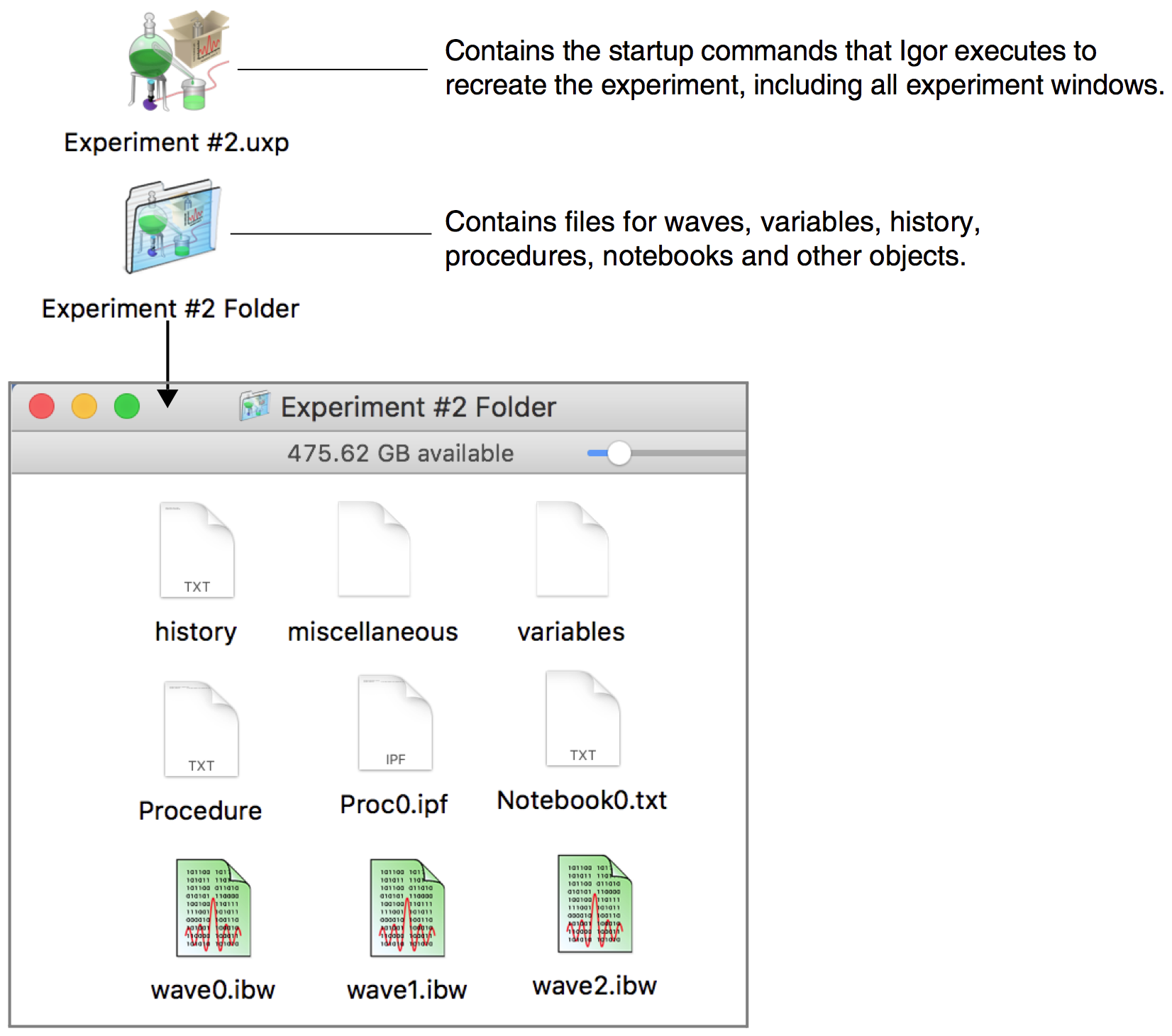
You normally have no need to deal with the files inside the experiment folder. Igor automatically writes them when you save an experiment and reads them when you open an experiment.
If the experiment includes data folders (see Data Folders) other than the root data folder, then Igor will create one subfolder in the experiment folder for each data folder in the experiment. The experiment shown in the illustration above contains no data folders other than root.
Note that there is one file for each wave. These are Igor Binary data files and store the wave data in a compact format. For the benefit of programmers, the Igor Binary Wave file format is documented in Igor Technical Note #003.
The "procedure" file holds the text in the experiment's built-in procedure window. In this example, the experiment has an additional procedure window called Proc0 and a notebook.
The "variables" file stores the experiment's numeric and string variables in a binary format.
The "miscellaneous" file stores pictures, page setup records, XOP settings, and other data.
The advantages of the unpacked experiment format are:
-
Igor can save the experiment faster because it does not need to update files for waves, procedures or notebooks that have not changed.
-
You can share files stored in one experiment with another experiment. However, sharing files can cause problems when you move an experiment to another disk. See References to Files and Folders for an explanation.
The disadvantages of the unpacked experiment format are:
-
It takes more disk space, especially for experiments that have a lot of small waves.
-
You need to keep the experiment file and folder together when you move the experiment to another disk.
Opening Experiments
You can open an experiment stored on disk by choosing Open Experiment from the File menu. You can first save your current experiment if it has been modified. Then Igor presents the Open File dialog.
When you select an experiment file and click the Open button, Igor loads the experiment, including all waves, variables, graphs, tables, page layouts, notebooks, procedures, and other objects that constitute the experiment.
See How Experiments Are Loaded for details on how experiments are loaded.
Getting Information About the Current Experiment
You can see summary information about the current experiment by choosing File→Experiment Information. This displays the Experiment Information dialog.
The dialog shows when the current was last saved, whether it was modified since the last save, and other general information.
The dialog also shows whether the experiment uses long wave, variable, data folder, target window or symbolic path names. Experiments that use long names require Igor Pro 8.00 or later. See Long Object Names for details.
Merging Experiments
Normally Igor closes the currently opened experiment before opening a new one. But it is possible to merge the contents of an experiment file into the current experiment. This is useful, for example, if you want to create a page layout that contains graphs from two or more experiments. To do this, press Alt and choose Merge Experiment from the File menu.
Merging experiments is an advanced feature that has some inherent problems and should be used judiciously. If you are just learning to use Igor Pro, you should avoid merging experiments until you have become proficient. You may want to skim the rest of this section or skip it entirely. It assumes a high level of familiarity with Igor.
The first problem is that the merge operation creates a copy of data and other objects (e.g., graphs, procedure files, notebooks) stored in a packed experiment file. Whenever you create a copy there is a possibility that copies will diverge, creating confusion about which is the "real" data or object. One way to avoid this problem is to discard the merged experiment after it has served its purpose.
The second problem has to do with Igor's use of names to reference all kinds of data, procedures and other objects. When you merge experiment B into experiment A, there is a possibility of name conflicts.
Igor prevents name conflicts for data (waves, numeric variables, string variables) by creating a new data folder to contain the data from experiment B. The new data folder is created inside the current data folder of the current experiment (experiment A in this case).
For other globally named objects, including graphs, tables, page layouts, control panels, notebooks, Gizmo plots, symbolic paths, page setups and pictures, Igor renames objects from experiment B if necessary to avoid a name conflict.
During the merge experiment operation, Igor looks for conflicts between target windows, between window recreation macros and between a target window and a recreation macro. If any such conflict is found, the window or window macro from experiment B is renamed.
Because page layouts reference graphs, tables, Gizmo plots, and pictures by name, renaming any of these objects may affect a page layout. The merge experiment operation handles this problem for page layouts that are open in experiment B. It does not handle the problem for page layout recreation macros in experiment B that have no corresponding open window.
If there are name conflicts in procedures other than window recreation macros, Igor will flag an error when it compiles procedures after finishing the merge experiment operation. You will have to manually resolve the name conflict by removing or renaming conflicting procedures.
Procedure windows have titles but do not have standard Igor names. The merge experiment operation makes no attempt to retitle procedure windows that have the same title.
The contents of the main procedure window from experiment B are appended to the contents of the main procedure window for experiment A.
During a normal experiment open operation, Igor executes experiment initialization commands. This is not done during an experiment merge.
Each experiment contains a default font setting that affects graphs and page layouts. When you do an experiment merge, the default font setting from experiment B is ignored, leaving the default font setting for experiment A intact. This may affect the appearance of graphs and layouts in experiment B.
The history from experiment B is not merged into experiment A. Instead, a message about the experiment merge process is added to the history area.
The system variables (K0...K19) from experiment B are ignored and not merged into experiment A.
Although the merge experiment operation handles the most common name conflict problems, there are a number problems that it cannot handle. For example, a procedure, dependency formula or a control from experiment B that references data using a full path may not work as expected because the data from experiment B is loaded into a new data folder during the merge. Another example is a procedure that references a window, symbolic path or picture that is renamed by the merge operation because of a name conflict. There are undoubtedly many other situations where name conflicts could cause unexpected behavior.
Reverting an Experiment
If you choose Revert Experiment from the File menu, Igor asks if you're sure that you want to discard changes to the current experiment. If you answer Yes, Igor reloads the current experiment from disk, restoring it to the state it was in when you last saved it.
New Experiments
If you choose New from the File menu, Igor first asks if you want to save the current experiment if it was modified since you last saved it. Then Igor creates a new, empty experiment. The new experiment has no experiment file until you save it.
By default, when you create a new experiment, Igor automatically creates a new, empty table. This is convenient if you generally start working by entering data manually. However, in Igor data can exist in memory without being displayed in a table. If you wish, you can turn automatic table creation off using the Experiment Settings category of the Miscellaneous Settings dialog (Misc menu).
Saving an Experiment as a Template
A template experiment provides a way to customize the initial contents of a new experiment. When you open a template experiment, Igor opens it normally but leaves it untitled and disassociates it from the template experiment file. This leaves you with a new experiment based on your prototype. When you save the untitled experiment, Igor creates a new experiment file.
Packed template experiments have ".pxt" as the file name extension instead of ".pxp". Unpacked template experiments have ".uxt" instead of ".uxp".
To make a template experiment, start by creating a prototype experiment with whatever waves, variables, procedures and other objects you would like in a new experiment. Then choose File→Save Experiment As, choose Packed Experiment Template or Unpacked Experiment Template from the file type pop-up menu, and save the template experiment.
You can convert an existing experiment file into a template file by changing the extension (".pxp" to ".pxt" or ".uxp" to ".uxt").
Browsing Experiments
You can see what data exists in the current experiment as well as experiments saved on disk using the Data Browser. To open the browser, choose Data→Data Browser. Then click the Browse Expt button. See The Data Browser for details.
File Names and Paths
Igor supports file names up to 255 bytes long.
File paths can be up to 2000 byte long. Igor's 2000 byte limit applies even if the operating system supports longer paths.
On Windows, prior to Windows 10 build 1607, released in August of 2016, the operating system limited paths to 260 bytes. Build 1607 raised this limit to 32767 characters. As of this writing, this feature is available only on systems that have "opted in" by setting the LongPathsEnabled registry setting. Using paths longer than 260 bytes may cause errors on some systems and with some software.
As described under Path Separators, Igor accepts paths with either colons or backslashes on either platform.
The use of backslashes is complicated by the fact that Igor uses the backslash character as an escape character in literal strings. This is also described in detail under Path Separators. The simplest solution to this problem is to use colon to separate path elements, even when you are running on Windows.
If you are writing procedures that need to extract sections of file paths or otherwise manipulate file paths, the ParseFilePath function may come in handy.
Symbolic Paths
A symbolic path is an Igor object that associates a short name with a folder on a disk drive. You can use this short name instead of a full path to specify a folder when you load, open or save a file. We recommend using symbolic paths instead of full paths when possible because they are more easily changed if your disk organization changes or if you want to access another location on disk.
Igor creates symbolic paths for the "Igor Pro Folder", the "Igor Pro User Files" folder and for the current experiment's home folder automatically. These symbolic paths exist in all experiments.
You can also create custom symbolic paths pointing to any folder on disk. These symbolic paths are part of the current experiment and cease to exist when you create a new experiment.
The New Symbolic Path Dialog
To access the New Symbolic Path dialog, choose New Path from the Misc menu. Use of this dialog is illustrated in the next section.
Symbolic Path Example
This example illustrates why you should use symbolic paths and how to use them. We assume that you have a folder full of text files containing data that you want to graph in Igor and that the organization of your hard disk is as follows:
C:
	Users
		Jack
			Documents
				Data
					2016
						May
						June
						July
Assume that we want to access files in the June folder.
To create a symbolic path for the folder:
-
Choose New Path from the Misc menu. This displays the New Symbolic Path dialog.
-
Enter Data in the Name field.
-
Click the Path button and locate the June folder.
-
Check the overwrite checkbox.
-
Click Do It to create the symbolic path.
The NewPath command created by the dialog makes a symbolic path named Data which references:
C:\Users\Jack\Documents\Data\2024\June
The command generated by the dialog uses Macintosh-style path with colons to separating components:
NewPath/O Data, "C:Users:Jack:Documents:Data:2024:June"
The NewPath operation can also accept Windows-style paths with backslash characters, but this can cause problems and is not recommended. For details, see Path Separators.
Once you've created it, you can select the Data path in dialogs where you need to choose a file. For example, in the Load Waves dialog, you can select Data from the Path list. You then click the File button and choose the file to be loaded. Igor generates a commands like:
LoadWave /J /P=Data "Data1.txt"
LoadWave /J /P=Data "Data1.txt"
LoadWave /J /P=Data "Data3.txt"
These commands load data files from the June folder.
By using a symbolic path instead of the full path to the file to be loaded, you have isolated the location of the data files in one object - the symbolic path itself. This makes it easy to redirect commands or procedures that use the symbolic path. For example, you can re-execute the NewPath command replacing June with July:
NewPath/O Data, "C:User:Jack:Documents:Data:2024:July"
Now, if you re-execute the LoadWave commands, they will load data from July instead of June.
Isolating a specific location on disk in a symbolic path also simplifies life when you move from one user to another or from one machine to another. Instead of needing to change the full path in many commands, you can simply change the symbolic path.
Automatically Created Paths
Igor automatically creates a symbolic path named Igor which refers to the "Igor Pro 9 Folder". The Igor symbolic path is useful only in rare cases when you want to access a file in the Igor Pro folder.
Igor also automatically creates a symbolic path named IgorUserFiles which refers to the Igor Pro User Files folder - see Special Folders for details. The IgorUserFiles symbolic path was added in Igor Pro 7.00.
Igor also automatically creates the home symbolic path. This path refers to the home folder for the current experiment. For unpacked experiments, this is the experiment folder. For packed experiments, this is the folder containing the experiment file. For new experiments that have never been saved, home is undefined.
Finally, Igor automatically creates a symbolic path if you do something that causes the current experiment to reference a file not stored as part of the experiment. This happens when you:
-
Load an Igor binary wave file from another experiment into the current experiment
-
Open a notebook file not stored with the current experiment
-
Open a procedure file not stored with the current experiment
Creating these paths makes it easier for Igor to find the referenced files if they are renamed or moved. See References to Files and Folders for more information.
The Symbolic Path Status Dialog
The Symbolic Path Status dialog shows you what paths exist in the current experiment. To invoke it, choose Path Status from the Misc menu.
The dialog also shows waves, notebook files, and procedure files referenced by the current experiment via a given symbolic path.
The Kill Paths Dialog
The Kill Symbolic Paths dialog removes from the current experiment symbolic paths that you no longer need. To invoke the dialog, choose Kill Paths from the Misc menu.
Killing a path does nothing to the folder referenced by the symbolic path. It just deletes the symbolic path name from Igor's list of symbolic paths.
A symbolic path is in use -- and Igor won't let you kill it -- if the experiment contains a wave, notebook window or procedure window linked to a file in the folder the symbolic path points to.
References to Files and Folders
An experiment can reference files that are not stored with the experiment. This happens when you load an Igor binary data file which is stored with a different experiment or is not stored with any experiment. It also happens when you open a notebook or procedure file that is not stored with the current experiment. We say the current experiment is sharing the wave, notebook or procedure file.
For example, imagine that you open an existing text file as a notebook and then save the experiment. The data for this notebook is in the text file somewhere on your hard disk. It is not stored in the experiment. What is stored in the experiment is a reference to that file. Specifically, the experiment file contains a command that will reopen the notebook file when you next reopen the experiment.
When an experiment refers to a file that is not stored as part of the experiment, there is a potential problem. If you copy the experiment to an external drive to take it to another computer, for example, the experiment file on the external drive will contain a reference to a file on your hard disk. If you open the experiment on the other computer, Igor will ask you to find the referenced file. If you have forgotten to also copy the referenced file to the other computer, Igor will not be able to completely recreate the experiment.
For this reason, we recommend that you use references only when necessary and that you be aware of this potential problem.
If you transfer files between platforms file references can be particularly troublesome. See Experiments and Paths.
Avoiding Shared Igor Binary Wave Files
When you load a wave from an Igor binary wave file stored in another experiment, you need to decide if you want to share the wave with the other experiment or copy it to the new experiment. Sharing creates a reference from the current experiment to the wave's file and this reference can cause the problem noted above. Therefore, you should avoid sharing unless you want to access the same data from multiple experiments and you are willing to risk the problem noted above.
If you load the wave via the Load Igor Binary dialog, Igor will ask you if you want to share or copy. You can use the Miscellaneous Settings dialog to tell Igor to always share or always copy instead of asking you.
If you load the wave via the LoadWave operation, from the command line or from an Igor procedure, Igor will not ask what you want to do. You should normally use LoadWave's /H flag, which tells Igor to "copy the wave to home" and avoids sharing.
If you use the Data Browser to transfer waves from one experiment to another, Igor always copies the waves.
For further discussion, see Home Versus Shared Waves and Home Versus Shared Text Files.
Adopting Files
Adoption is a way for you to copy a shared wave, notebook, or procedure file into the current experiment and break the connection to its original file. Adoption makes an experiment less fragile by being more self-contained. If you transfer it to another computer or send it to a colleague, all of the files needed to recreate the experiment will be stored in the experiment itself.
Adopting Waves
To adopt a wave file, select the wave in the Data Browser, right-click, and choose Adopt Wave. The Adopt Wave item is enabled only if the wave is shared. You can select multiple waves and adopt them in one step.
You can also adopt waves using File→Adopt All. See Adopt All below.
When you adopt a wave, Igor disconnects it from its original standalone file. The original file remains intact, but it is no longer referenced by the current experiment. The adoption is not final until you save the experiment.
If the current experiment is stored in packed form then, when you adopt a wave, it is saved in the packed experiment file. For an unpacked experiment, it is saved in the disk folder corresponding the waves data folder in the experiment folder.
Adopting Notebook and Procedure Files
To adopt a notebook or procedure file, choose Adopt Notebook or Adopt Procedure from the File menu. This item will be available only if the active window is a notebook or procedure file that is stored separate from the current experiment and the current experiment has been saved to disk.
If the current experiment is stored in packed form then, when you adopt a file, Igor does a save-as to a temporary file. When you subsequently save the experiment, the contents of the temporary file are stored in the packed experiment file. Thus, the adoption is not finalized until you save the experiment.
If the current experiment is stored in unpacked form then, when you adopt a file, Igor does a save-as to the experiment's home folder. When you subsequently save the experiment, Igor updates the experiment's recreation procedures to open the new file in the home folder instead of the original file. Note that if you adopt a file in an unpacked experiment and then you do not save the experiment, the new file will still exist in the home folder but the experiment's recreation procedures will still refer to the original file. Thus, you should save the experiment after adopting a file.
To "unadopt" a procedure or notebook file, choose Save Procedure File As or Save Notebook As from the File menu.
Adopt All
You can adopt all referenced notebooks, procedure files and waves by pressing the Shift key and choosing File→Adopt All. This is useful when you want to create a self-contained packed experiment to send to someone else.
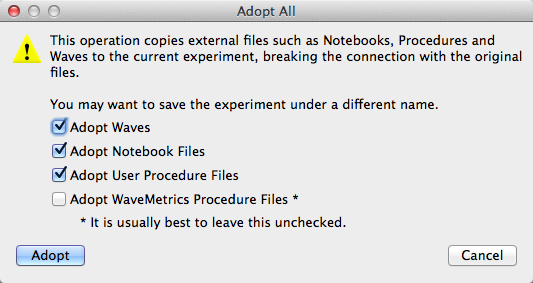
After clicking Adopt, choose File→Save Experiment As to save the packed experiment.
Saving All Standalone Files
Programmers may sometimes edit multiple procedure files while working on a given task. You can save all modified standalone procedure files in one step by choosing File→Save All Standalone Procedure Files. This saves standalone procedure files only, not packed procedure files including the built-in procedure window or new procedure windows that have not yet been saved to a file. The Save All Standalone Procedure Files menu item is available only when the active window is a procedure window.
Likewise you can save all modified notebook windows in one step by choosing File→Save All Standalone Notebook Files. This saves standalone notebook files only, not packed notebook files or new notebook windows that have not yet been saved to a file. The Save All Notebook Procedure Files menu item is available only when the active window is a notebook window.
How Experiments Are Loaded
It is not essential to know how Igor stores your experiment or how Igor recreates it. However, understanding this may help you avoid some pitfalls and increase your overall understanding of Igor.
Experiment Recreation Procedures
When you save an experiment, Igor creates procedures and commands, called "experiment recreation procedures" that Igor will execute the next time you open the experiment. These procedures are normally not visible to you. They are stored in the experiment file.
The experiment file of an unpacked experiment contains plain text, but its extension is not ".txt", so you can't open it with most word processors or editors.
As an example, let's look at the experiment recreation procedures for a very simple unpacked experiment:
// Platform=Macintosh, IGORVersion=8.000, ...

// Creates the home symbolic path
NewPath home ":Unpacked Experiment Folder:"

// Reads the experiment variables from the "variables" file
ReadVariables

// Loads the experiment's waves
LoadWave/C /P=home "wave0.ibw"
LoadWave/C /P=home "wave1.ibw"
LoadWave/C /P=home "wave2.ibw"

DefaultFont "Helvetica"

MoveWindow/P 5,62,505,335		// Positions the procedure window
MoveWindow/C 2,791,1278,1018	// Positions the command window

Graph0()		// Recreates the Graph0 window

// Graph recreation macro for Graph0
Window Graph0() : Graph
	PauseUpdate; Silent 1		// building window...
	Display /W=(35,44,430,252) wave0,wave1,wave2
EndMacro
When you open the experiment, Igor reads the experiment recreation procedures from the experiment file into the procedure window and executes them. The procedures recreate all of the objects and windows that constitute the experiment. Then the experiment recreation procedures are removed from the procedure window and your own procedures are loaded from the experiment's procedure file into the procedure window.
For a packed experiment, the process is the same except that all of the data, including the experiment recreation procedures, is packed into the experiment file.
Experiment Initialization Commands
After executing the experiment recreation procedures and loading your procedures into the procedure window, Igor checks the contents of the procedure window. Any commands that precede the first macro, function or menu declaration are considered initialization commands. If you put any initialization commands in your procedure window then Igor executes them. Use this mechanism to initialize an experiment when it is first loaded.
Savvy Igor programmers can also define a function that is executed whenever Igor opens any experiment. See User-Defined Hook Functions.
Errors During Experiment Load
It is possible for the experiment loading process to fail to run to a normal completion. This occurs most often when you move or rename a file or folder. It also happens if you move an experiment to a different computer and forget to also move referenced files or folders. See References to Files and Folders for details.
When a file is missing, Igor presents a dialog giving you several options:
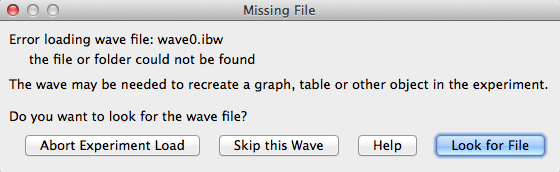
If you elect to abort the experiment load, Igor will alert you that the experiment is in an inconsistent state. It displays some diagnostic information that might help you understand the problem and changes the experiment to Untitled. You should choose New Experiment or Open Experiment from the File menu to clear out the partially loaded experiment.
If you elect to skip loading a wave file, you may get another error later, when Igor tries to display the wave in a graph or table. In that case, you will see a dialog like this:
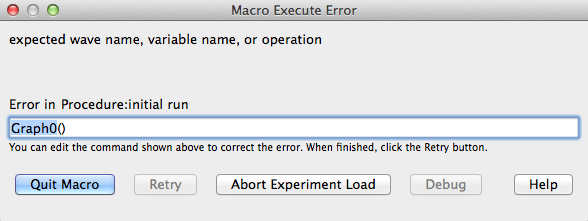
In this example, Igor is executing the Graph0 macro from the experiment recreation procedures in an attempt to recreate a graph. Since you elected to skip loading wave0, Igor can't display it.
You have three options at this point, as explained in the following table.
| Option | Effect |
|---|---|
| Quit Macro | Stops executing the current macro but continues the experiment load. In this example, Graph0 would not be recreated. After the experiment load Igor displays diagnostic information. |
| Abort Experiment Load | Aborts the experiment load immediately and displays some diagnostic information. |
| Retry | In this example, you could fix the macro by deleting "wave0,". You would then click the Retry button. Igor would create Graph0 without wave0 and would continue the experiment load. |
With the first two options, Igor leaves the experiment untitled so that you don't inadvertently wipe out the original experiment file by doing a save.
How Igor Handles Missing Folders
When Igor saves an experiment, it stores commands in the experiment file that will recreate the experiment's symbolic paths when you reopen the experiment. The commands look something like this:
NewPath home ":Test Exp Folder:"
NewPath/Z Data1 "::Data Folder #1:"
NewPath Data2 "::Data Folder #2:"
NewPath/Z Data3 "C:Test Runs:Data Folder #3:"
The location of the home folder is specified relative to the folder containing the experiment file. The locations of all other folders are specified relative to the experiment folder or, if they are on a different volume, using absolute paths. Using relative paths, where possible, ensures that no problems will arise if you move the experiment file and experiment folder together to another disk drive or another location on the same disk drive.
The /Z flags indicate that the experiment does not need to load any files from the Data1 and Data3 folders. In other words, the experiment has symbolic paths for these folders but no files need to be loaded from them to recreate the experiment.
When you reopen the experiment, Igor executes these NewPath commands. If you have moved or renamed folders, or if you have moved the experiment file, the NewPath operation will be unable to find the folder.
If the folder associated with the symbolic path is not needed to recreate the experiment, the NewPath command includes the /Z flag. In this case, Igor skips the creation of the symbolic path, generates no error, and just continues the load. The experiment will wind up without the missing symbolic path.
If the missing folder is needed to load waves, notebooks or procedure files then Igor asks if you want to look for the folder by displaying the Missing Folder dialog.
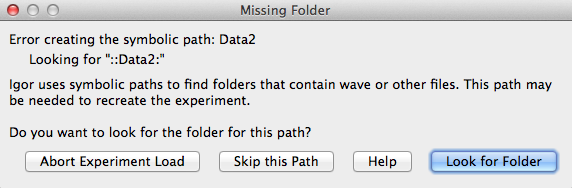
If you click Look for Folder, Igor presents a Choose Folder dialog in which you can locate the missing folder.
If you click Skip This Path, Igor does not create the symbolic path. Igor then asks if you want to skip waves loaded using the symbolic path that is being skipped:
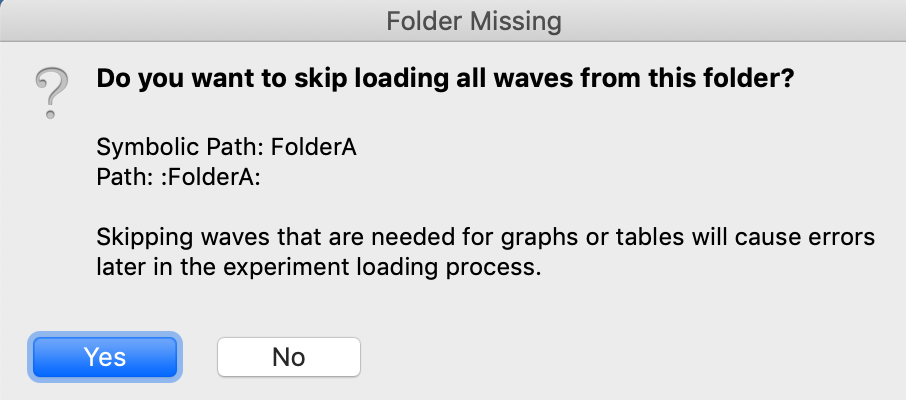
If you click Yes, Igor skips all LoadWave commands using the symbolic path associated with the missing folder. This will cause errors later in the experiment loading process if the waves are needed for graphs, tables or other windows.
If you click No and the folder contains wave files referenced by the experiment, you will get Missing File dialogs later in the process giving you a chance to locate the wave files.
For example, if the experiment loads two waves using the Data2 path then the experiment's recreation commands would contain two lines like this:
LoadWave/C/P=Data2 "wave0.ibw"
LoadWave/C/P=Data2 "wave1.ibw"
If you elected to skip creating the Data2 path and clicked Yes when asked if you want to skip waves from that path, then Igor skips these LoadWave commands altogether.
If you elected to skip creating the Data2 path and clicked No when asked if you want to skip waves from that path, then each of these LoadWave commands presents the Missing File dialog.
If you are unable to find the wave file and if the wave is used in a graph or table, you will get more errors later in the experiment recreation process, when Igor tries to use the missing wave to recreate the graph or table.
How Experiments Are Saved
When you save an experiment for the first time, Igor just does a straight-forward save in which it creates a new file, writes to it, and closes it. However, when you resave a pre-existing experiment, which overwrites the previous version of the experiment file, Igor uses a "safe save" technique. This technique is designed to preserve your original file in the event of an error while writing the new version.
For purposes of illustration, we will assume that we are resaving an experiment file named "Experiment.pxp". The safe save proceeds as follows:
-
Rename the original file as "Experiment.pxp.T0.noindex". If an error occurs during this step, the save operation is stopped and Igor displays an error message.
-
Write the new version of the file as "Experiment.pxp".
-
If step 2 succeeds, delete the original file ("Experiment.pxp.T0.noindex").
If step 2 fails, delete the new version of the file and rename the original version with the original name.
The next three subsections are for use in troubleshooting file saving problems only. If you are not having a problem, you can skip them.
Experiment Save Errors
There are many reasons why an error may occur during the save of an experiment. For example, you may run out of disk space, the server volume you are saving to might be disconnected, or you may have a hardware failure, but these are uncommon.
The most common reason for a save error is that you cannot get write access to the file because:
-
The file is marked read-only.
-
You don't have permission to write to the folder containing the file.
-
You don't have permission to write to this specific file.
-
The file has been opened by another application. This could be a virus scanner or an anti-spyware program.
Here are some troubleshooting techniques.
Windows File Troubleshooting
Open the file's Properties window and uncheck the read-only checkbox if it is checked. Do the same for the folder containing the file.
Next try doing a Save As to a folder for which you know you have write access, for example, to your Documents folder. If this works, the problem may be that you did not have sufficient permissions to write to the original folder or to the original file. This would happen, for example, if the folder was inside the Program Files folder and you are not running as an administrator.
If you think you should be able to write to the original file location, you will need to investigate permissions. You may want to enlist the help of a local expert as this can get complicated and works differently in different versions of Windows.
If you are able to save a file to a new location but get an error when you try to resave the file, which overwrites the original file, then this may be an issue of another program opening the file at an inopportune time. This typically happens in step 3 of the safe-save technique described above. Try disabling your antivirus software.
Special Folders
This section describes special folders that Igor automatically searches when looking for help files, Igor extensions (plug-ins that are also called XOPs) and procedure files.
Igor Pro Folder
The Igor Pro Folder is the folder containing the IgorBinaries folder containing the Igor application. By default, this folder has the Igor Pro major version number in its name, for example, "Igor Pro 10 Folder", but it is generically called the "Igor Pro Folder" folder.
Igor looks inside the Igor Pro Folder for these special subfolders:
Igor Help Files
Igor Extensions
Igor Extensions (64-bit)
Igor Procedures
User Procedures
WaveMetrics Procedures
The Igor installer puts files in the special folders. Igor searches them when looking for help files, extensions and procedure files. With very rare exceptions, you should not make any changes to the Igor Pro Folder.
Igor Pro User Files
At launch time, Igor creates a special folder called the Igor Pro User Files folder. By default, this folder has the Igor Pro major version number in its name, for example, "Igor Pro 9 User Files", but it is generically called the "Igor Pro User Files" folder.
Igor Pro User Files is created by default in:
C:\Users\<user>Documents\WaveMetrics
You can change the location of your Igor Pro User Files folder using Misc→Miscellaneous Settings but this should rarely be necessary.
The Igor Pro User Files folder looks like this:
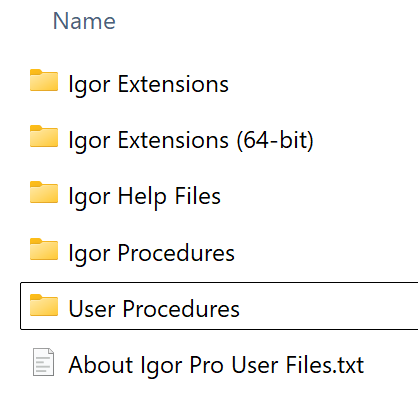
You can activate additional help files, extensions, and procedure files that are part of the Igor Pro installation, that you create, or that you receive from third parties. To do this, add files, or shortcuts pointing to files, to the special subfolders within the Igor Pro User Files folder. See Activating WaveMetrics Procedure Files and Activating WaveMetrics XOPs for details on activating additional WaveMetrics files.
You can display the Igor Pro User Files folder on the desktop by choosing Help→Show Igor Pro User Files. To display both the Igor Pro Folder and the Igor Pro User Files folder, which you typically want to do to activate a WaveMetrics XOP or procedure file, press the shift key and choose Help→Show Igor Pro Folder and User Files.
Igor Help Files Folder
When Igor starts up, it opens any Igor help files in "Igor Pro Folder/Igor Help Files" and in "Igor Pro User Files/Igor Help Files". It treats any shortcuts and subfolders in "Igor Help Files" in the same way.
Standard WaveMetrics help files are pre-installed in "Igor Pro Folder/Igor Help Files".
If there is an additional help file that you want Igor to automatically open at launch time, put it or a shortcut for it in "Igor Pro User Files/Igor Help Files".
Igor Extensions Folder
An Igor extension, also called an XOP ("external operation"), is a plug-in that adds functionality to Igor. WaveMetrics provides some extensions with Igor. Igor users and third parties can also create extensions. See Igor Extensions for details.
Igor extensions use to come in 32-bit and 64-bit versions. The 32-bit extensions run only with the 32-bit version of Igor and 64-bit extensions can run only with the 64-bit version of Igor. As of Igor Pro 10.0, there is no longer a 32-bit version of Igor Pro and all extensions are required to be 64-bit.
When Igor Pro starts up, it searches "Igor Pro Folder/Igor Extensions (64-bit)" and "Igor Pro User Files/Igor Extensions (64-bit)" for 64-bit Igor extension files. Once loaded, the extensions are available for use. Igor treats any shortcuts and subfolders in "Igor Extensions (64-bit)" in the same way.
Standard WaveMetrics extensions are pre-installed in "Igor Pro Folder/Igor Extensions (64-bit)".
Additional WaveMetrics extensions are described in the "XOP Index" help file, which you can access through the Help→Help Windows menu, and can be found in "Igor Pro Folder/More Extensions (64-bit)". Note that some help files for the extensions found in the "Igor Pro Folder/More Extensions (64-bit)" are found in the "Igor Pro Folder/More Extensions" branch.
If there is an additional extension that you want to use, put it or a shortcut pointing to it in "Igor Pro User Files/Igor Extensions (64-bit)".
Igor Procedures Folder
When Igor starts up, it automatically opens any procedure files in "Igor Pro Folder/Igor Procedures" and in "Igor Pro User Files/Igor Procedures". It treats any shortcuts and subfolders in "Igor Procedures" in the same way. Such procedure files are called "global" procedure files and are available for use from all experiments. See Global Procedure Files for details.
Standard WaveMetrics global procedure files are pre-installed in "Igor Pro Folder/Igor Procedures".
Additional WaveMetrics procedure files are described in the "WM Procedures Index" help file and can be found in "Igor Pro Folder/WaveMetrics Procedures". You may also create your own global procedure files or obtain them from third parties.
If there is an additional procedure file that you want Igor to automatically open at launch time, put it or a shortcut pointing to it in "Igor Pro User Files/Igor Procedures".
User Procedures Folder
You can load a procedure file from another procedure file using a #include statement. This technique is used when one procedure file requires another. See Including a Procedure File for details.
When Igor encounters a #include statement, it searches for the included procedure file in "Igor Pro Folder/User Procedures" and in "Igor Pro User Files/User Procedures". Any shortcuts and subfolders in "User Procedures" are treated the same way.
If there is an additional procedure file that you want to include from your procedure files, put it or a shortcut pointing to it in "Igor Pro User Files/User Procedures".
WaveMetrics Procedures Folder
The "Igor Pro Folder/WaveMetrics Procedures" folder contains an assortment of procedure files created by WaveMetrics that may be of use to you. These files are described in the WM Procedures Index help file which you can access through the Help→Help Windows menu.
You can load a WaveMetrics procedure file from another procedure file using a #include statement. See Including a Procedure File for details.
There is no WaveMetrics Procedures folder in the Igor Pro User Files folder.
Activating Additional WaveMetrics Files
The following sections explain how to activate additional Igor Pro features.
Activating WaveMetrics Procedure Files
To activate a WaveMetrics-supplied procedure file that you want to be available in all experiments:
-
Press the shift key and choose Help→Show Igor Pro Folder and User Files. This displays the Igor Pro Folder and the Igor Pro User Files folder on the desktop.
-
Open the WaveMetrics Procedures folder in the Igor Pro Folder and identify the WaveMetrics procedure file that you want to activate.
-
Make a shortcut for the file and put it in "Igor Pro User Files/Igor Procedures" folder. This causes Igor to automatically load the procedure file the next time Igor is launched.
-
Restart Igor.
The activated procedure file appears in the Windows→Procedure Windows submenu.
Activating WaveMetrics XOPs
To activate a WaveMetrics-supplied XOP (a plug-in also called an "extension") :
-
Press the shift key and choose Help→Show Igor Pro Folder and User Files. This displays the Igor Pro Folder and the Igor Pro User Files folder on the desktop.
-
Open the "More Extensions (64-bit)" folder in the Igor Pro Folder and identify the XOP that you want to activate. (If you are running IGOR32, open the "More Extensions" folder.)
-
Make a shortcut for the XOP file and put it in "Igor Pro User Files/Igor Extensions" folder. This causes Igor to automatically load the XOP the next time Igor is launched.
-
Restart Igor.
The activated XOP adds its operations and/or functions to the Igor Help browser and they are available for programmatic use. Some XOPs also add menu items.
Activating Other Files
You may create an Igor package or receive a package from a third party. You should store each package in its own folder in the Igor Pro User Files folder or elsewhere, at your discretion. You should not store such files in the Igor Pro Folder because it complicates backup and updating.
To activate files from the package, create shortcuts for the package files and put them in the appropriate subfolder of the Igor Pro User Files folder.
If you have a single procedure file or a single Igor extension that you want to activate, you may prefer to put it directly in the appropriate subfolder of the Igor Pro User Files folder.
Activating Files in a Multi-User Scenario
Our recommendation is that you activate files using the special subfolders in the Igor Pro User Files folder, not in the Igor Pro Folder. An exception to this is the multi-user scenario where multiple users are running the same copy of Igor from a server. In this case, if you want to activate a file for all users, put the file or a shortcut for it in the appropriate subfolder of the Igor Pro Folder. Users will have to restart Igor for the change to take effect.
Igor File-Handling
Igor has many ways to open and load files. The following sections discuss some of the ways Igor deals with the various files it is asked to open.
The Open or Load File Dialog
When you open a file using a menu item, such as File→Open File→Notebook, there is no question of how Igor should treat the file. This is not always the case when you drop a file onto the Igor icon or double-click a file on the desktop.
Often, Igor can determine how to open or load a file, and it will simply do that without asking you about it. Sometimes Igor recognizes that a file (such as a plain text file or a formatted Igor notebook) can be appropriately opened several ways, and will ask you what to do by displaying the Open or Load File Dialog. The dialog presents a list of ways to open the file (usually into a window) or to load it as data.
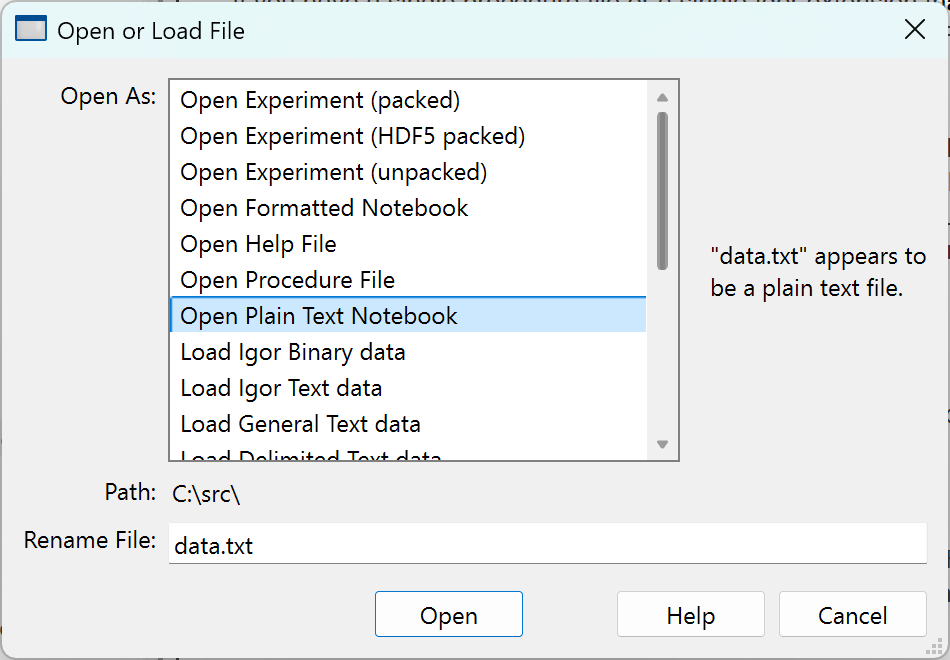
You can force this dialog to appear by pressing Shift while opening a file through the Recent Files or Recent Experiments menus, or when dropping a file onto the Igor icon.
This is especially useful for opening Igor help files as a notebook file for editing, or to open a notebook as a help file, causing Igor to compile it.
The list presents three kinds of methods for handling the file:
-
Open the file as a document window or an experiment.
-
Load the file as data without opening another dialog.
-
Load the file as data using another dialog.
If you choose one of the list items marked with an asterisk, Igor displays the selected dialog as if you had chosen the corresponding item from the Load Waves submenu of the Data menu.
Information about the file, or about how it was most recently opened, is displayed to the right of the list. The complete path to the file is shown below the list.
If you change the text in the Rename File edit box, Igor changes the file name before opening or loading the file.
Recent Files and Experiments
When you use a dialog to open or save an experiment or a file, Igor adds it to the Recent Experiments or Recent Files submenu in the File menu. When you choose an item from these submenus, Igor opens the experiment or file the same way in which you last opened or saved it.
For example, if you last opened a text file as an unformatted notebook, selecting the file from Recent Files will again open the file as an unformatted notebook. If you loaded it as a general text data file, Igor will load it as data again.
Igor does not remember all the details of how you originally load a data file, however. If you load a text data file with all sorts of fiddly tweaks about the format, Igor won't load it using the those same tweaks. To guarantee that Igor does load the data correctly, use the appropriate Load Data dialog.
Selecting an experiment or file while pressing Shift, displays the Open or Load File dialog in which you can choose how Igor will open or load that file.
Desktop Drag and Drop
You must drag and drop files into an Igor window. One use for this feature is to load multiple data files at once.
If a dropped file was opened or loaded recently, it is listed in the Recent Files or Recent Experiments menu. In this case, Igor reopens or reloads it the same way.
If you press Shift while dropping a file on Igor, Igor displays the Open or Load File dialog in which you can choose how the file is to be handled.
Advanced programmers can customize Igor to handle specific types of files in different ways, such as automatically loading files with an XOP. See User-Defined Hook Functions.
IGOR64 Experiment Files
The 64 bit version of Igor can store waves larger than the 32-bit limit in packed experiment files but not in unpacked experiments. Huge wave storage uses a 64-bit capable wave record and is supported only for numeric waves.
The 32-bit versions of Igor, starting with version 6.20, supports 64-bit capable wave records. By default, IGOR32 attempts to read new these records and generates a lack of memory warning if they cannot be loaded.
The rest of this section describes features for advanced users.
You can control some aspects of how Igor deals with 64-bit capable wave records using SetIgorOption. Remember that SetIgorOption settings last only until you quit Igor.
SetIgorOption UseNewDiskHeaderBytes = bytes
When bytes is non-zero, if the size of the wave data exceeds this value, the 64-bit capable wave record type is used. In IGOR32, the default value for bytes is 0 (off). In IGOR64, the default value for bytes is 100E6. If you want the 64-bit capable wave record type to be used only when absolutely necessary, use 2E9.
SetIgorOption UseNewDiskHeaderCompress = bytes
When bytes is non-zero, if the size of the wave data exceeds this value and if the 64-bit capable wave record type is used, the data is written compressed. The default value is 0 (off) because, although you can get substantial file size reduction for some kinds of data, there is also a substantial speed penalty when saving the experiment. In many cases, the compression actually results in a larger size than the original. If this occurs, Igor writes the original data instead of the compressed data.
SetIgorOption MaxBytesReadingWave = bytes
SetIgorOption BigWaveLoadMode = mode
These two options control how IGOR32 acts when loading experiments with the 64-bit capable wave record types.
mode can be 0 (default) for no special action. Igor attempts to read all the records.
If mode is 1, then any waves with data size exceeding bytes are silently skipped.
If mode is 2, then any waves with data size exceeding bytes are downgraded to a smaller size and only that portion of the data is loaded. Such partial waves are marked as locked and bit 1 of the lock flag is also set. In addition, the wave note contains the text "PARTIAL LOAD" and a warning dialog is presented after the experiment loads.
The default value for bytes is 500E6 in IGOR32.
Autosave
Igor can autosave files while you work. This is of use in the event that Igor crashes or some other catastrophe occurs before you save.
If your habit is to save anytime you have made non-trivial changes that you want to keep then you don't need autosave. If your habit is to do a significant amount of work without saving, which is inherently risky, then autosave may prevent loss of work in the event of a crash.
Autosave is not foolproof and can cause confusing and unpredictable behavior if multiple users modify the same file or if you modify a file in multiple instance of Igor. For these and other reasons, you should consider autosave a last resort and always save when you have made progress and back up any work that would be painful to lose.
Autosave is turned off by default. You can turn it on and fine-tune how it works by choosing Misc→Miscellaneous Settings and clicking the Autosave icon in the lefthand list to display the Autosave pane of the Miscellaneous Settings dialog. The heart of it looks like this:
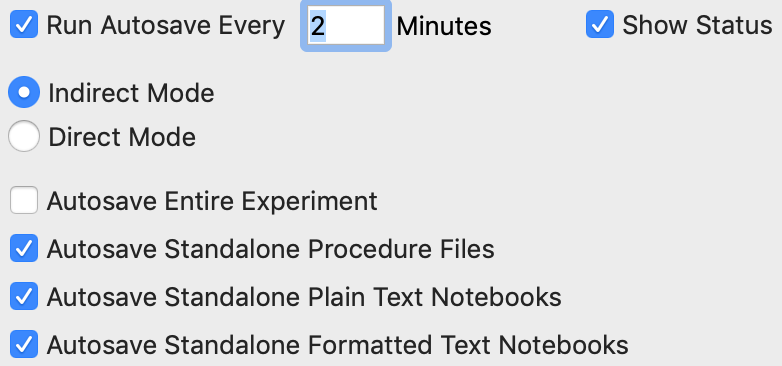
You turn autosave on by checking the Run Autosave checkbox. If turned on, autosave runs at the interval in minutes that you specify. Autosave runs when Igor is idling and not while procedures are running or if a modal dialog is displayed.
Alternatives to automatically autosaving include:
-
Manually saving by choosing File→Save Experiment when you know the experiment is in good shape
-
Running autosave manually when you know the experiment is in good shape by choosing File→Run Autosave Now
-
Manually saving modified procedure files only using File→Save All Standalone Procedure Files
Igor can display information in its status bar showing the status of autosave. You can turn the autosave information on or off using the Show Status checkbox in the autosave pane of the Miscellaneous Settings dialog or by right-clicking the status bar. If autosave is enabled, the status bar information shows the time of the next autosave run. "Run" means "check if there are any files to be autosaved and autosave them if so".
Modifying the same file in different instances of Igor while autosave is on will cause confusing and unpredictable behavior.
Igor programmers can query autosave settings using IgorInfo(13).
What Autosave Saves
Depending on the settings you choose, autosave can save the following types of files:
-
Entire experiment files
-
Standalone procedure files
-
Standalone notebook files
In the sections below, we refer to the types of files you have chosen to autosave as "autosaveable files".
Autosave does not work on the following:
-
Files that you have not yet saved to disk
This includes experiment files, procedure files and notebook files that you have created but not yet saved to disk
-
Unpacked experiment files (.uxp) in indirect mode
-
Copies of procedure files #included into independent modules
Such files should not be modified. See Independent Modules and #include for details.
Autosave saves the following items only for packed experiments (.pxp and .h5xp) and only if the Autosave Entire Experiment checkbox is checked:
-
The built-in procedure window
-
Packed procedure files
-
Packed notebook files
-
Graphs, tables, page layouts, Gizmo plots, control panels and other windows
-
Data folders and waves
Autosave Is Not A Substitute for Manual Saving or for Backing Up
The purpose of autosave is to increase the chance that you can recover work if Igor or your machine crashes or there is a power failure. Relying on autosave as a substitute for frequent saving and backing up is courting disaster.
Depending on the autosave settings you choose, autosave may save at the wrong time (for example, just after you made a mistake) or may not save all of your work (see What Autosave Saves).
A crash or other disaster may occur after you have made important changes but before autosave automatically runs.
You may realize that the work you saved today is wrong and you need to go back to yesterday's version of a file.
- Your computer may fail catastrophically.
- Your computer may be attacked by malware.
- Your computer may be stolen.
- Your computer may be damaged by fire, natural disaster, or some other mishap.
For these and other reasons, you should always save when you have made progress and back up any work that would be painful to lose. You should back up locally and also remotely for the case where your computer is destroyed or stolen.
Autosave Modes
You control the mode of operation of autosave using the Autosave pane of the Miscellaneous Settings dialog.
Autosave supports three modes. Each has its strengths and weaknesses.
-
Off
Autosave is off when the Run Autosave checkbox is unchecked.
In this mode, Igor's autosave routine does not automatically run.
Strengths
Easy to understand.
Takes no time.
You are in complete control of when files are saved.
Weaknesses
You are in complete control of when files are saved.
You are responsible for saving when you have made important changes.
-
Indirect Mode
Saves the current experiment (if it is packed, not if it is unpacked) and/or standalone procedure and standalone notebook files to .autosave files alongside the original files. For example, "Experiment.pxp" is autosaved to "Experiment.pxp.autosave" and "Proc0.ipf" is autosaved to "Proc0.ipf.autosave".
Saving the current experiment is the same as choosing File→Save Experiment Copy.
Saving a standalone procedure file is the same as choosing File→Save Procedure Copy.
Saving a standalone notebook is the same as choosing File→Save Notebook Copy.
You can choose whether to autosave the current experiment, standalone procedure files, and standalone notebooks.
Indirect autosave of unpacked experiments is not supported.
Strengths
Does not risk overwriting your original files at the wrong time, for example just after you made a mistake.
Weaknesses
Saving the entire experiment can take a while for very large experiments.
If you do not elect to save the entire experiment, many things are not autosaved, including the built-in procedure window, packed procedure files and notebooks, graphs, layouts and other windows, data folders and waves - see What Autosave Saves for details.
Can interfere with sharing of files by multiple users or by multiple instances of Igor launched by a single user.
Does not work with unpacked experiments.
The .autosave files represent more clutter relative to direct mode.
Recovering after a crash is more complicated compared to direct mode. Igor will ask if you want to use the .autosave file or the original file.
-
Direct Mode
Saves the current experiment and/or standalone procedure and standalone notebook files directly.
Saving the current experiment is the same as choosing File→Save Experiment.
Saving a standalone procedure file is the same as choosing File→Save Procedure.
Saving a standalone notebook is the same as choosing File→Save Notebook.
You can choose whether to autosave the current experiment, standalone procedure files, and standalone notebooks.
Strengths
Simplicity.
Weaknesses
Saving the entire experiment can take a while for very large experiments.
Autosave may save a file at the wrong time, for example just after you made a mistake.
If you do not elect to save the entire experiment, many things are not autosaved, including the built-in procedure window, packed procedure files and notebooks, graphs, layouts and other windows, data folders and waves - see What Autosave Saves for details.
Can interfere with sharing of files by multiple users or by multiple instances of Igor launched by a single user.
Changes That Tee Up Autosaving the Entire Experiment
If you check the Autosave Entire Experiment and make a substantive change then Igor autosaves the entire experiment on the next autosave run.
Changes that are considered substantive include creating, killing or modifying waves and data folders, changing the content of a graph, table, layout, panel or Gizmo plot, and editing a procedure file or notebook.
Autosaving the entire experiment can be time-consuming. To prevent autosaving the experiment too often, some relatively minor changes do not tee up an experiment autosave. Among these are moving and resizing windows, changes to the history area that don't cause other objects to substantively change, and changes to global variables.
If the File→Run Autosave Now menu item is disabled, this indicates that no changes considered substantive were made since the last experiment save or the last autosave.
Forcing Autosave to Run
You can force Igor to run its autosave routine when it is turned off or before it normally would run by choosing File→Run Autosave Now.
If the File→Run Autosave Now menu item is disabled, this means that there are no autosaveable files at present. This typically occurs because no autosaveable files were modified since the last time the autosave routine ran.
The Run Autosave Now menu command runs Igor's autosave procedure regardless of the state of the Run Autosave checkbox in the Autosave pane of the Miscellaneous Settings dialog. It does respect the other settings in that pane.
Saving Standalone Files Without Autosave
You can save all modified procedure files or all modified standalone notebook files at once whether autosave is on or off. See Saving All Standalone Files for details.
Indirect Autosave Mode
The indirect autosave mode is more complicated than the direct mode. We will illustrate how indirect autosave works assuming the following settings in the Autosave pane of the Miscellaneous Settings dialog:
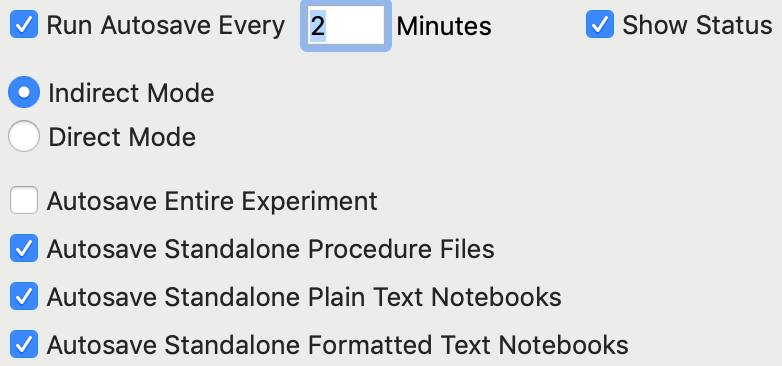
Now assume that you are editing a standalone procedure window that you previously saved to a file named "Proc0.ipf".
Every two minutes, Igor checks to see if there are autosaveable files that have been modified since the previous autosave. This check is performed when Igor is idling and not while procedures are running or if a modal dialog is displayed. If you have modified "Proc0.ipf" since the last autosave, Igor autosaves the file by writing its current contents to a file named "Proc0.ipf.autosave".
When you save "Proc0.ipf", close it without saving, or revert it, Igor deletes the corresponding "Proc0.ipf.autosave" file if it exists.
Recovering a File from a .autosave File
If Igor crashes or some other catastrophe occurs and Igor's indirect autosave routine executed before Igor was terminated, you will be left with the original file, "Proc0.ipf", and the .autosave file, "Proc0.ipf.autosave". If you attempt to open the original file, either manually or programmatically, Igor displays a dialog that looks like this:
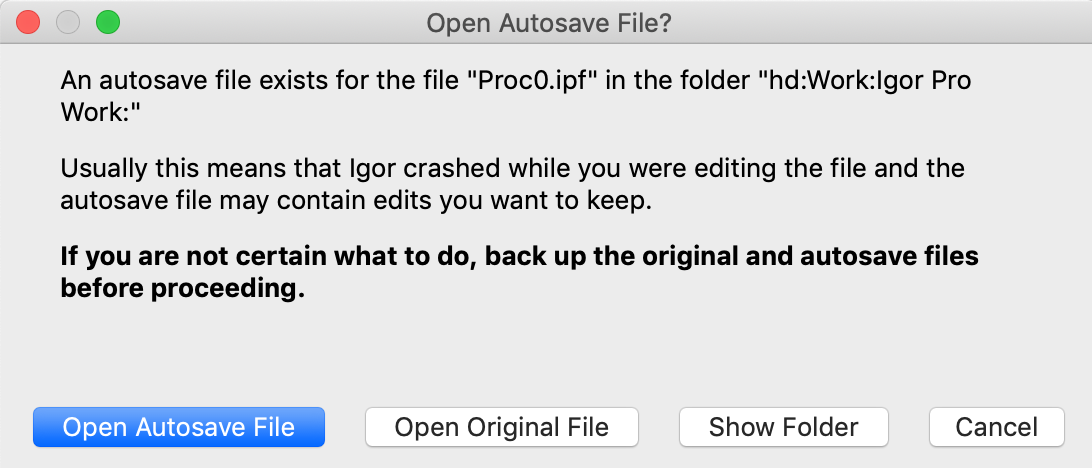
We recommend that you back up the original and autosave files before proceeding.
If you click Cancel
The open operation is canceled and the original and autosave files are left unchanged.
If you click Open Original File
Igor opens the original file (e.g., "Proc0.ipf").
Igor then moves the autosave file (e.g., "Proc0.ipf.autosave") to the recycle bin. However, if the autosave file is open in Igor, it is not moved to the trash but may be overwritten by a subsequent autosave.
If you click Open AutoSave File
Igor renames the original file by appending a ".original" extension (e.g., "Proc0.ipf" is renamed as "Proc0.ipf.original").
Igor then renames the autosave file using the original file name (e.g., "Proc0.ipf.autosave" is renamed as "Proc0.ipf").
Igor then opens the autosave file which now has the original file name (e.g., "Proc0.ipf").
Igor then moves the original file, which now has the ".original" extension (e.g., "Proc0.ipf.original") to the recycle bin.
Indirect Autosave Mode Issues
Indirect mode can create confusing situations when files are shared by multiple users or by multiple instances of Igor launched by a single user.
For example, if a user is editing a shared procedure file with indirect autosave mode on, Igor creates a corresponding .autosave file. If another user directly or indirectly (e.g., via a #include statement) opens the original file, the existence of the .autosave file causes Igor to display the Open Autosave File dialog discussed in the preceding section. This will confuse the second user and potentially interfere with the first user's editing. A similar situation can occur with shared notebook and experiment files.
This kind of issue is mitigated by using a source code control system or by otherwise avoiding working directly on shared files or by turning autosave off.
Opening .autosave Files Explicitly
Normally you have no need to open an Igor .autosave file but you might want to do so to inspect it.
Igor opens procedure and notebook .autosave files for reading only. If you close a procedure or notebook file whose .autosave file you have also opened in Igor, Igor automatically closes the .autosave file before deleting it.
Igor does not allow you to open .autosave experiment files. If you want to open such a file, rename it without the .autosave extension before opening it in Igor.
Indirect Autosave and Unpacked Experiments
Indirect autosave of unpacked experiments is not supported.
If an unpacked experiment is open, autosaving of standalone procedure files and notebooks is still performed if enabled by the corresponding checkboxes in the Autosave pane of the Miscellaneous Settings dialog.
For background information on unpacked experiments, see Saving as an Unpacked Experiment File.
Experimenting With Indirect Autosave Recovery
If you want to familiarize yourself with how indirect autosave works, you can use this function for experimentation. It writes files "Test Indirect Autosave.txt" and "Test Indirect Autosave.txt.autosave" to your Igor Pro User Files folder and then opens "Test Indirect Autosave.txt" as a notebook. Igor displays the "Open Autosave File?" dialog in which you can choose which file you want to open. The file not chosen is moved to the recycle bin.
Function TestOpenWithIndirectAutoSaveFilePresent()
	KillWindow/Z TestAutosaveNotebook

	String pathName = "IgorUserFiles"

	// Create original file
	String fileName = "Test Indirect Autosave.txt"
	Variable refNum
	Open/P=$pathName refNum as fileName
	fprintf refNum, "This is a test\r\n"
	Close refNum

	// Create the autosave file
	CopyFile /O /P=$pathName fileName as fileName + ".autosave"

	// Displays "Open Autosave File?" dialog
	OpenNotebook/P=$pathName/N=TestAutosaveNotebook fileName
	int err = GetRTError(1)					// Returns non-zero if user cancels
	Print err
End