MMI - Overview
MMI (Micro-Manager Interface) is a 64-bit extension (XOP) for Igor Pro® v.10 that links Igor to Micro-Manager™, v.2.0. Micro-Manager https://micro-manager.org/ is an open-source software package for automating light microscopy, originally developed to work with the imaging application ImageJ (https://imagej.net/ij/).
Micro-Manager can control a wide range of devices such as scientific cameras, light-sources, shutters, filter-wheels, XY- and Z-axis stages, motorized microscopes, etc. By using Igor Pro, MMI, and Micro-Manager together, your Igor procedures can control these devices to acquire, store, and analyze data.
With the exception of some simple examples, MMI is not designed to provide a graphical user interface to Micro-Manager. MMI is instead intended for users writing their own procedures in Igor. The upside of this approach is that users can run either without a graphical interface, or can build the graphical interface that best meets their needs.
Quick Start
-
Close Igor 10 if it's running.
-
Browse to the Igor 10 sub-directory
.\More Extensions (64-bit)\Data Acquisition\MMI. -
Locate the file in that folder called MMI64.xop.
-
Create a Windows shortcut to that file on the Windows desktop.
-
Move the shortcut from the desktop to the directory
C:\Users\<user name>\Documents\WaveMetrics\Igor Pro 10 User Files\Igor Extensions (64-bit). -
Start Igor 10.
-
Assuming your computer has internet access, run this operation from Igor's command line:
(If your computer does not have internet access, either use the /SRC flag in the MMI_DownloadMM operation, or refer to Manually Installing Micro-Manager, below.)
-
When step 5 finishes, run the operation MMI_InstallMM.
-
When step 6 finishes, work through the examples below, under Getting Started with MMI.
-
Launch the MMI example experiment, MMI_Demo.pxp, available via
File→Example Experiments→Imaging→MMI Demo
-
Review the code in the Procedure window of MMI_Demo.pxp to see how its user-interface interacts with MMI and Micro-Manager.
Organization
The diagram below summarizes the organization of the Micro-Manager software and the MMI interface between Igor Pro and Micro-Manager. The modules to the left of the dotted red line show Micro-Manager’s normal structure. The modules to the right of the dotted red line show the MMI interface and Igor Pro. (Diagram adapted from https://micro-manager.org/media/Block_diagram.gif)
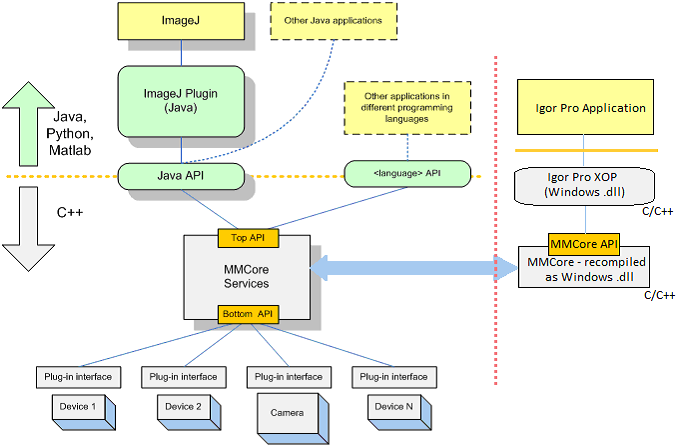
MMI is designed to work with a very specific build of Micro-Manager, currently v.2.0.3, as built on 9 September, 2023. Note that multiple, different versions of Micro-Manager can co-exist on a single computer without interfering with one another. Therefore even if another version of Micro-Manager is already installed on your computer, it's probably best to let MMI install its required version, and set up its environment variables as needed (See Installing Micro-Manager, below.). Such a 'side by side' installation of multiple versions of Micro-Manger should not cause problems.
Most of the operations and functions in MMI follow the organization of the functions in the API exposed by Micro-Manager's MMCore class, as described at https://micro-manager.org/apidoc/MMCore/latest/class_c_m_m_core.html. MMI generally uses Igor Pro operations to call those Micro-Manager functions that do not return a value (i.e. those that use a c-language 'void' return type). MMI uses Igor Pro functions to call those Micro-Manager functions that do explicitly return values. When a Micro-Manager function returns a numeric, Boolean, or string result, MMI returns the result to Igor as numeric or string values. When a Micro-Manager function returns an array or vector of results, MMI generally returns the result as a wave.
Please note that MMI and Micro-Manager are both ongoing projects. As such, the functions exposed by Micro-Manager may change over time. Further, MMI does not yet provide access to every public function exposed by Micro-Manager's CMMCore class. If a public function of the CMMCore API does not appear in the list of methods in this MMI documentation, you can assume it is not yet supported.
Please send feedback and suggestions, either by submitting them to the IgorExchange Forum https://www.igorexchange.com/forum, or by sending email to support@wavemetrics.com.
Setup
The file implementing MMI is called, not surprisingly, MMI64.xop. This file, together with the other files it depends on, are installed with Igor 10 in the sub-directory ".\More Extensions (64-bit)\Data Acquisition\MMI".
To activate MMI, we recommend you create a Windows shortcut to the file MMI64.xop in Igor's ".\Igor Extensions (64-bit)" sub-directory. One of the simpler ways to do this is to open the Windows Explorer and browse to the directory ".\More Extensions (64-bit)\Data Acquisition\MMI". Move the cursor over the file MMI64.xop, then press and hold the right mouse-button and drag the file's icon to the Windows Desktop. When you release the right mouse-button, Windows will display a pop-up menu. Click on the menu-item called "Create shortcuts here". Windows will create the shortcut, and you will see an icon for the shortcut on the desktop. Then use the Windows Explorer to browse to the directory ".\Igor Extensions (64-bit)". Click on and then drag and drop the desktop shortcut you just created into the "Igor Extensions (64-bit)" directory. Once those steps are done, start (or restart) Igor Pro, and type the following command:
print MMI_GetXOPversion()
You should see a response something like:
MMI64.xop v.1.1.0.19
At this point, the MMI XOP is activated (i.e. Igor has loaded the XOP), but is not yet linked to its required version of Micro-Manager. MMI will attempt to launch its interface to Micro-Manager as soon as you ask it to do anything more than MMI_GetXOPversion( ). If MMI finds its selected version of Micro-Manager, it verifies that its interface file is in place, copying the interface file there if necessary. Once the interface file is in place, MMI launches the interface and completes its internal startup.
If during this startup, MMI does not find Micro-Manager or finds a problem with the installed copy of Micro-Manager, it will prompt you to download and / or install Micro-Manager. (See below and MMI_DownloadMM and MMI_InstallMM).