Igor Pro MCP Server
The Igor Pro MCP Server connects AI chat apps to Igor Pro on your computer. Apps you can use include Claude Code and Desktop, Cursor, and GitHub Copilot in Visual Studio Code. The AI can run Igor commands, call your functions, and compile procedure files. It can also look at graphs and look up Igor documentation.
MCP stands for Model Context Protocol, an open standard that AI apps use to connect to tools. Your AI app starts the server and talks to it. The server, in turn, talks to Igor.
The Igor Pro MCP Server runs on Windows only.
What the AI Can Do in Igor
Through the server, an AI agent can:
- Execute Igor commands and operations, and call built-in and user-defined functions
- Compile procedures and report compile errors, and open and close procedure files
- List Igor's windows and capture an image of a graph, table, layout, panel, or Gizmo window
- Report the current experiment and system information, and whether Igor is busy or waiting for a dialog
- Stop a command or function call that it started and that is taking too long
- Look up the documentation for built-in operations and functions
- Start Igor and quit Igor
When it runs commands or calls functions, the AI agent receives the results and any error messages directly. These error messages are often more detailed than the ones Igor shows you, and they usually do not appear in the history area.
Before You Begin
Keep these points in mind:
- AI agents act with your permissions. Igor commands can create, change, and delete data, write and delete files, and run any code your procedures contain. An AI agent that can execute commands in Igor can do all of these things. Review what the AI agent proposes, especially in experiments that contain work you have not saved, and use your AI app's settings for approving tool calls.
- Your AI app sends information to its AI service. Commands, results, procedure code, and window images that pass through the server become part of your conversation with the AI agent. Your AI app sends the conversation to its AI provider according to that provider's terms. The server itself sends nothing to WaveMetrics. Its only connection to the internet is to look up documentation on docs.wavemetrics.com.
- You decide when AI apps can connect. Igor accepts connections only when you allow them, as described in Connecting to Igor, or when the AI agent started that instance of Igor.
- Only you can connect to your Igor. Igor accepts connections only from programs running as the same Windows user. Igor does not accept connections when it runs with elevated administrator rights, for example when you start it with
Run as administrator. Signing in to Windows with an administrator account does not prevent connections.
Requirements
- Windows 10 or higher
- Igor Pro 10.05 or later. Earlier versions do not accept connections from the server. Igor Pro releases that support the MCP Server will have the
Help->AI Toolsmenu. This expandable menu allows you to install/repair the server and control connections. - An AI app that supports MCP servers, such as Claude Code and Desktop, Cursor, or GitHub Copilot in Visual Studio Code
Installing the Server
The server is installed for the current Windows user. Installing it does not require administrator rights.
To install it from Igor Pro 10.05 or later, choose Help->AI Tools->Install/Repair Igor Pro MCP Server.
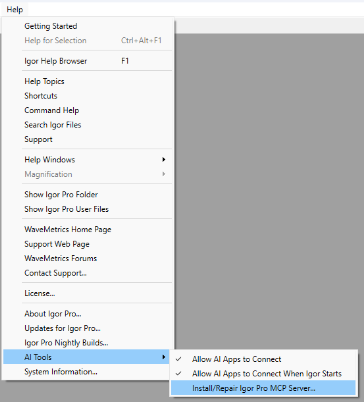
The same menu appears when you click the AI connections button ( ) in the status bar at the bottom of Igor's main window. Igor also offers to install the server when you allow AI apps to connect and the server is not installed. If you install the server for the first time from this menu, Igor asks whether to allow AI apps to connect when you return to Igor. It does not ask if it already allows them.
The installer for Igor Pro 10.05 or later can also install the server. On the last page of the Igor Pro installer, check "Install the Igor Pro MCP Server for me".
You can also download the server installer, setupIgorProMCPServer.exe, and run it yourself.
The server installer installs the server in this folder by default:
%LOCALAPPDATA%\Programs\WaveMetrics\Igor Pro MCP Server
You can choose a different folder in the installer. If you do, use your folder in place of the default one when you configure your AI app.
After installing the server, configure your AI app as described in the next section. If your AI app is already running, restart it.
Configuring Your AI App
Each AI app has its own configuration file in which you tell it how to start an MCP server. The examples below name the server igor. We recommend that name because one installed server works with every version of Igor Pro 10 and later.
The examples refer to the server's default location through the LOCALAPPDATA environment variable, so the same configuration works for every Windows user. If you installed the server in a different folder, replace the path with the full path to igor-mcp-server.exe in your folder. For example, if you installed the server in D:\Tools\Igor Pro MCP Server, the Claude Code command is:
claude mcp add --scope user igor -- "D:\Tools\Igor Pro MCP Server\igor-mcp-server.exe"
In a JSON configuration file, write each backslash twice:
"command": "D:\\Tools\\Igor Pro MCP Server\\igor-mcp-server.exe"
If a JSON configuration file already lists other servers, add the igor entry next to them and separate the entries with a comma. Do not put a comma after the last entry. For example:
{
  "mcpServers": {
    "other-server": {
      "command": "C:\\Tools\\other-server.exe"
    },
    "igor": {
      "command": "D:\\Tools\\Igor Pro MCP Server\\igor-mcp-server.exe"
    }
  }
}
After changing the configuration, save your work in Igor, then restart your AI app. In Visual Studio Code, you can restart only the server instead; see Visual Studio Code.
AI apps change their settings often. If the steps below do not match what you see, follow the link at the end of your app's section to its own instructions for adding an MCP server.
Claude Code
Run this command in PowerShell:
claude mcp add --scope user igor -- "$env:LOCALAPPDATA\Programs\WaveMetrics\Igor Pro MCP Server\igor-mcp-server.exe"
PowerShell replaces $env:LOCALAPPDATA with your own folder before Claude Code saves the path. --scope user makes the server available in all of your projects.
To check the server, run claude mcp list. It should show igor as connected.
For more information, see Connect Claude Code to tools via MCP in the Claude Code documentation.
Claude Desktop
Claude Desktop needs the full path, so replace USER_NAME below with your Windows user name. In Claude Desktop, choose File, then Settings. Under Desktop app, choose Extensions and click Manage, then click Edit config under Local MCP servers. Claude Desktop shows its claude_desktop_config.json file in File Explorer. Open that file in a text editor and add this:
{
  "mcpServers": {
    "igor": {
      "command": "C:\\Users\\USER_NAME\\AppData\\Local\\Programs\\WaveMetrics\\Igor Pro MCP Server\\igor-mcp-server.exe"
    }
  }
}
If the file already contains other settings, such as preferences, put mcpServers at the top level of the file next to them, and separate the entries with commas. If the file already has mcpServers, add the igor entry to it and separate it from the other entries with a comma.
Quit Claude Desktop completely, including its icon in the notification area, and start it again.
For more information, see Getting Started with Local MCP Servers on Claude Desktop in the Claude Help Center.
Cursor
Add this to %USERPROFILE%\.cursor\mcp.json:
{
  "mcpServers": {
    "igor": {
      "command": "${env:LOCALAPPDATA}\\Programs\\WaveMetrics\\Igor Pro MCP Server\\igor-mcp-server.exe",
      "args": ["--"]
    }
  }
}
Keep the "args": ["--"] line. When a server has no arguments, Cursor splits the command at each space, which breaks the path at Igor Pro MCP Server. The -- argument has no effect on the server.
If the file already lists other servers, add the igor entry to its mcpServers object and separate it from the other entries with a comma. To check the server, choose Customize, then MCPs.
For more information, see Model Context Protocol (MCP) in the Cursor documentation.
Visual Studio Code
GitHub Copilot in Visual Studio Code reads MCP servers from %USERPROFILE%\.copilot\mcp-config.json. Add this to that file:
{
  "mcpServers": {
    "igor": {
      "command": "${LOCALAPPDATA}\\Programs\\WaveMetrics\\Igor Pro MCP Server\\igor-mcp-server.exe"
    }
  }
}
If the file already lists other servers, add the igor entry to its mcpServers object and separate it from the other entries with a comma. You can also run MCP: Add Server from the Command Palette (Ctrl+Shift+P) and choose Global, then Copilot Global.
The Local agent in Visual Studio Code chat reads the older mcp.json file in your user profile instead. That file uses a different format and a different variable syntax:
{
  "servers": {
    "igor": {
      "type": "stdio",
      "command": "${env:LOCALAPPDATA}\\Programs\\WaveMetrics\\Igor Pro MCP Server\\igor-mcp-server.exe"
    }
  }
}
If mcp.json already lists other servers, add the igor entry to its servers object and separate it from the other entries with a comma.
To restart the server without restarting Visual Studio Code, run MCP: List Servers from the Command Palette (Ctrl+Shift+P), select igor, and choose Stop Server, then Start Server.
Save your work before the server stops. When GitHub Copilot in Visual Studio Code stops the Igor MCP server, it also closes any Igor that the AI started, without asking you to save. This happens when you stop or restart the server, when you quit Visual Studio Code, and also after the MCP server configuration changes, for example when an mcp.json file is edited. After such a change, Visual Studio Code restarts all of the chat's MCP servers when the AI finishes its response or when you send your next message, even if you did not stop any server yourself. Igor stays open if you started it yourself. While we haven't observed this behavior in other AI environments, it is recommended practice to always save your work in Igor before stopping the MCP server.
For more information, see Add and use MCP servers in VS Code in the Visual Studio Code documentation.
Other AI Apps
Other AI apps that support local (stdio) MCP servers can use the server too. Give the app the full path to igor-mcp-server.exe as the command. The server needs no arguments. If the app's log shows that it tried to run ...\WaveMetrics\Igor, the app is splitting the path at spaces; add -- as an argument, as for Cursor.
Connecting to Igor
The server connects to an Igor that is already running, or the AI can start Igor for you.
If the AI starts Igor, Igor is ready for the server to connect. The AI starts the most recently installed version of Igor unless you ask it to start a different one.
To use an Igor that you start yourself, allow AI apps to connect to it. Igor does not accept connections unless you do. Choose one of these items from Help->AI Tools, or from the menu that appears when you click the AI connections button in the status bar:
Allow AI Apps to Connectallows connections to this Igor until it quits. Choose it again to stop allowing them; Igor disconnects any AI app that is connected.Allow AI Apps to Connect When Igor Startsallows connections now and each time you start Igor. Choose it again to stop allowing connections in Igor sessions that you start later. The Igor that is running continues to allow them until you chooseAllow AI Apps to Connectagain or quit Igor.
The AI connections button shows whether AI apps can connect to this Igor. Its sparkles are gray when AI apps cannot connect and gold  when they can. A green dot
 appears when an AI app is connected. Hold the mouse over the button for details. To hide or show the button, right-click the status bar and choose
Hide AI Apps Connection or Show AI Apps Connection.
If more than one Igor allows connections, the server connects to the one that was started most recently. After that, the server stays with that Igor for as long as it is running and allows connections, even if you start another Igor. To have the AI use a particular Igor, allow connections only in that one.
If the Igor that the AI was using quits, or stops allowing connections, while another Igor allows them, the server does not quietly switch to the other one. It tells the AI that it sent nothing, and that the other Igor has its own experiment. The AI's next request goes to the other Igor, unless you allow connections in the first one again before then.
Updating the Server
Igor keeps the server up to date for you if you installed it as described in Installing the Server. If your IT department manages the server, it handles updates instead; see For IT Administrators. When Igor checks for updates to Igor Pro, either automatically or when you choose Help->Updates for Igor Pro, it also checks for a newer Igor Pro MCP Server. If a newer server is available, Igor offers to install it. To see what is new, click Show release notes in that dialog, or see the Igor Pro MCP Server page on the WaveMetrics website.
Each new version of Igor Pro also includes the server installer. If both the update server and your Igor have a newer server, Igor offers the newer of the two. Igor offers the server that came with it even when it cannot reach the update server. If you turned off automatic update checking in the Miscellaneous Settings dialog, Igor still offers a newer server that came with it, once for each version, when it starts.
When the AI starts Igor, Igor does not check for server updates automatically, because you might not be there to answer. To check, choose Help->Updates for Igor Pro.
After the server is updated, Igor says, "The Igor Pro MCP Server was updated. Save your work in Igor, then restart your AI chat app so that it uses the new version. Restarting the AI app can close an Igor that the AI started." Until you restart your AI app, it keeps using the old version.
Uninstalling the Server
To uninstall the server, open Windows Settings, go to Apps, find Igor Pro MCP Server, and choose Uninstall. Then remove the igor entry from your AI app's configuration.
Uninstalling Igor Pro does not uninstall the server.
Troubleshooting
The AI app says the server failed to start. Check that the path in your AI app's configuration points to igor-mcp-server.exe in the folder where you installed it. If you installed the server in a different folder, the default path in the examples does not apply. If the path is correct, your organization may block programs in your user folder. See For IT Administrators.
The AI says Igor is not running, or cannot connect to Igor. Check these causes:
- Igor is too old. Igor must be version 10.05 or later.
- Igor does not allow connections. Choose
Help->AI Tools->Allow AI Apps to Connectin Igor. See Connecting to Igor. The server cannot see an Igor that does not allow connections. If it finds no Igor, it tells the AI to ask you to allow connections instead of starting a second Igor. - Igor is running as administrator. Igor does not accept connections when it runs with elevated administrator rights, for example when started with
Run as administrator. Using an administrator Windows account is fine. An elevated Igor tells you it cannot accept connections when you try to allow connections, or in the history area when it starts. - Your organization has turned off AI tools. If
Help->AI Toolsshows onlyYour IT department has disabled Igor AI Tools, your organization does not allow AI apps to connect to Igor. See For IT Administrators.
The AI says the Igor it was using can no longer be reached and that a different Igor is running. The Igor that the AI was using quit or stopped allowing connections, and another Igor allows them. Nothing was sent to either Igor. The other Igor has its own experiment, so the AI's data, windows, and procedures are not there. To continue in the first Igor, allow connections in it again. Otherwise the AI's next request goes to the other Igor. See Connecting to Igor.
The AI's request is taking a long time. Igor runs the AI's commands one at a time. Some commands wait for you to respond in Igor: they might display a modal dialog, open the debugger, or call PauseForUser. Respond in Igor, or ask the AI to stop the request. You can also press Ctrl+Break in Igor to stop a running command.
The AI does not see a change you made to the server. Save your work in Igor, then restart your AI app after the server is installed or updated.
WaveMetrics support asks for a log. The server does not write a log file. To get diagnostic messages, add --verbose to the server's arguments in your AI app's configuration (see Server Command Line Options), save your work in Igor, restart your AI app or the server, and repeat what went wrong. The server writes the messages to standard error, and your AI app records them. In Visual Studio Code, run MCP: List Servers from the Command Palette (Ctrl+Shift+P), select the server, and view its output. Claude Desktop writes them to %LOCALAPPDATA%\Claude\logs\mcp-server-igor.log. The messages include the commands and function calls that the AI sent to Igor and the paths of files it opened, so review them before you send them. Remove --verbose when you are done.
For IT Administrators
Installation and Signing
The server installer, setupIgorProMCPServer.exe, installs per user. It needs no administrator rights and registers the installation under HKEY_CURRENT_USER. The default installation folder is:
%LOCALAPPDATA%\Programs\WaveMetrics\Igor Pro MCP Server
The server executable is igor-mcp-server.exe. The server and its installer are signed by WaveMetrics (CN=WaveMetrics, O=WaveMetrics, L=Portland, S=Oregon, C=US), the same publisher that signs Igor Pro 10.
To deploy the server to users, run the installer in each user's context, for example with Microsoft Intune or Configuration Manager set to install as the user. The installer supports these command line options:
| Option | Effect |
|---|---|
/q | Install quietly, with no user interface. |
/install:folder | Install in folder instead of the default folder. If folder contains spaces, quote the whole option, as in "/install:D:\AI Tools\Igor Pro MCP Server". |
/log:file | Save the installer's log in file, a full path that includes the file name. |
For example, from a command prompt:
start /wait setupIgorProMCPServer.exe /q
echo %ERRORLEVEL%
The exit code is 0 if this installer is successful. Exit code 6 means the installer failed and no changes were made. It could be because:
- a newer version of the server is already installed for the user, or
- the
ServerPathpolicy is set. See Policy Settings below.
The installer is built with InstallMate, and the other exit codes are InstallMate's. See Exit codes in the InstallMate documentation.
To uninstall the server quietly, run the command in the QuietUninstallString value under:
HKEY_CURRENT_USER\Software\Microsoft\Windows\CurrentVersion\Uninstall\{75C12DF8-4C8C-4E9B-90FD-594D3531B07D}
The command is:
"%LOCALAPPDATA%\Installer\{75C12DF8-4C8C-4E9B-90FD-594D3531B07D}\Setup.exe" /remove /q
Allowing the Server to Run
If your organization uses AppLocker or App Control for Business to block programs in user folders, allow the server as described below.
AppLocker. Allow the server with one of these rules:
- A publisher rule for WaveMetrics. This rule allows the server to run from any folder. Create the rule at the publisher level, with
*for product name, file name, and version. If you create the rule fromIgor64.exe, move the slider to Publisher. At the product name level, the rule uses the product name ofIgor64.exe,IGOR PRO, which does not match the server's product name,IGOR PRO MCP SERVER. - A path rule for the default folder. AppLocker path rules do not accept
%LOCALAPPDATA%, so use this path:
%OSDRIVE%\Users\*\AppData\Local\Programs\WaveMetrics\Igor Pro MCP Server\*
For example, this AppLocker publisher rule allows both the server and Igor Pro 10 for all users:
<FilePublisherRule Id="5f0ad0b4-0b8b-4a1e-9a4a-1c9f8d2e6b31" Name="WaveMetrics" Description="" UserOrGroupSid="S-1-1-0" Action="Allow">
  <Conditions>
    <FilePublisherCondition PublisherName="O=WAVEMETRICS, L=PORTLAND, S=OREGON, C=US" ProductName="*" BinaryName="*">
      <BinaryVersionRange LowSection="*" HighSection="*" />
    </FilePublisherCondition>
  </Conditions>
</FilePublisherRule>
Igor Pro 9 and earlier were signed with a different publisher name, so this rule does not allow them.
The server's uninstaller is not signed, so a publisher rule does not allow it. To let users uninstall the server from Windows Settings, also allow it with this AppLocker path rule:
%OSDRIVE%\Users\*\AppData\Local\Installer\{75C12DF8-4C8C-4E9B-90FD-594D3531B07D}\Setup.exe
The uninstaller also copies an InstallMate cleanup helper, TinDel.exe, to %TEMP% and runs it. Tarma Software Research Ltd signs the helper, so the WaveMetrics publisher rule does not allow it. If the helper is blocked, the server is still uninstalled, but the uninstaller remains in %LOCALAPPDATA%\Installer\{75C12DF8-4C8C-4E9B-90FD-594D3531B07D}. To allow the helper, add this AppLocker publisher rule:
<FilePublisherRule Id="3d9f2a61-7c1e-4b8a-9f40-2e6d5b8c1a07" Name="InstallMate cleanup helper" Description="" UserOrGroupSid="S-1-1-0" Action="Allow">
  <Conditions>
    <FilePublisherCondition PublisherName="O=TARMA SOFTWARE RESEARCH LTD, S=HERTFORDSHIRE, C=GB" ProductName="INSTALLMATE" BinaryName="TINDEL.EXE">
      <BinaryVersionRange LowSection="*" HighSection="*" />
    </FilePublisherCondition>
  </Conditions>
</FilePublisherRule>
App Control for Business. Create a rule at the Publisher level. You can create it from Igor64.exe of Igor Pro 10. The rule also allows the server, because both files have the same publisher and the same Microsoft certificate authority.
The server's uninstaller is not signed, so a Publisher rule does not allow it. App Control also ignores path rules for folders that users can write to, so a path rule for the uninstaller does not work unless your policy has the Disabled:Runtime FilePath Rule Protection option. To let users uninstall the server, deploy the server installer through a managed installer, such as the Intune Management Extension, and set the Enabled:Managed Installer option in your policy. App Control then allows the files that the installer writes, including the uninstaller. You can also allow the uninstaller with a Hash rule, but its hash changes with each version of the server.
The uninstaller's cleanup helper, TinDel.exe, needs its own rule, because the uninstaller writes it to %TEMP% when it runs. Create a Publisher rule from TinDel.exe. The helper remains in %TEMP% after you uninstall the server, so you can create the rule from that copy.
Policy Settings
Igor and the server installer read these registry values under:
HKEY_LOCAL_MACHINE\SOFTWARE\Policies\WaveMetrics\Igor Pro MCP Server
| Value | Type | Effect |
|---|---|---|
ServerPath | REG_SZ or REG_EXPAND_SZ | IT manages the server, at this path. The per-user installer refuses to install. Igor hides Help->AI Tools->Install/Repair Igor Pro MCP Server and does not check for server updates. |
DisableUserUpdates | REG_DWORD set to 1 | IT installs and updates the per-user server. Igor does not check for server updates. Help->AI Tools->Install/Repair Igor Pro MCP Server remains available. |
If both values are set, ServerPath takes precedence. The same values under HKEY_CURRENT_USER are ignored. Neither value uninstalls a server that is already installed.
To prevent Igor from accepting connections from the server and from other programs at all, set this value:
HKEY_LOCAL_MACHINE\SOFTWARE\Policies\WaveMetrics\Igor Pro
| Value | Type | Effect |
|---|---|---|
JsonRpcAllowed | REG_DWORD set to 0 | Igor does not accept connections from the server. The Help->AI Tools submenu shows only the disabled item Your IT department has disabled Igor AI Tools, and Igor hides the AI connections button in the status bar. The status bar's right-click menu has no Show AI Apps Connection item. If Igor is set to allow connections when it starts, it says in the history area that connections are blocked. |
Server Command Line Options
Your AI app starts the server, so you normally do not give it any options. These options are available for special cases:
| Option | Effect |
|---|---|
--igor-version V | Prefer a running Igor whose version starts with V, such as 10 or 10.05. |
--verbose | Write diagnostic messages to standard error. Your AI app decides where they appear; Claude Desktop, for example, writes them to %LOCALAPPDATA%\Claude\logs\mcp-server-igor.log. |
--server-version | Print the server's version and exit. |
To use an option, add it to the args list of the server in your AI app's configuration. Separate the items in the list with commas. If the server's entry has no args line, add one after the command line, and put a comma at the end of the command line. For example:
"igor": {
  "command": "C:\\Users\\USER_NAME\\AppData\\Local\\Programs\\WaveMetrics\\Igor Pro MCP Server\\igor-mcp-server.exe",
  "args": ["--igor-version", "10"]
}
In Cursor, put the options before --, as in "args": ["--igor-version", "10", "--"]. The server ignores options that come after --.